

To send an invoice, create one with your business details, client information, an itemized list of charges, and a payment due date. Save it as a PDF or generate a shareable invoice link, then send it by email, invoicing software, client portal, or another delivery method. Finally, confirm the client received it and track the payment.
An invoice template can make this process faster than creating an invoice from scratch. If you invoice clients regularly, a CRM with built-in invoicing can make the process even easier by letting you create, send, and track invoices and payments from the same dashboard instead of switching between tools.
Table of Contents
What Is an Invoice?
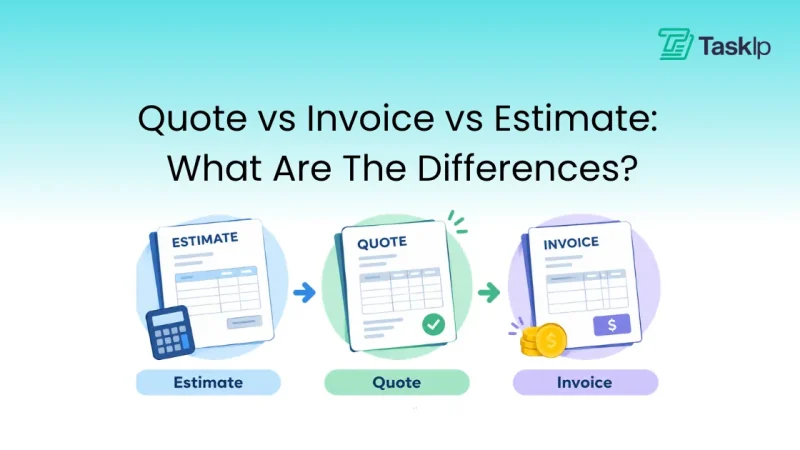
An invoice is a document a business sends to a client requesting payment for goods or services already delivered. It differs from a quote, which is an estimate sent before work begins, and from a receipt, which confirms payment has already been made. Investopedia’s definition of an invoice also notes that it serves as a legal record of the transaction for both parties’ bookkeeping.

What to Include on an Invoice
Every invoice needs a few core details to be complete and to get paid without back and forth.
a. Business and Client Details
Your business name, address, and contact information, plus your client’s name and billing details.
b. Invoice Number and Dates
A unique invoice number, the date you issued it, and the date payment is due. Use a consistent format, such as INV-0001, and increase it in order. Skipping or repeating numbers makes bookkeeping harder and can raise questions during tax season or an audit.
c. Itemized Charges and Total Due
List each product or service separately with its rate, then show the subtotal, any tax, and the final total.
d. Payment Terms and Accepted Methods
State when payment is due, any late fee policy, and how the client can pay: bank transfer, card, PayPal, and so on.
e. Tax Requirements by Region
Tax rules for invoices vary by country, and getting this wrong can slow down payment or cause problems at tax time.
| Region | What’s Often Required | Notes |
|---|---|---|
| United States | Your EIN or SSN, an itemized total | State sales tax rules vary by state. A client may request a W-9, and a 1099 form is typically issued for payments over $600 in a year |
| European Union | A valid VAT number if VAT registered, the VAT rate and amount, a sequential invoice number | Cross-border B2B sales may fall under reverse charge rules |
| United Kingdom | A VAT registration number if VAT registered, the VAT rate and amount charged | GOV.UK’s invoicing guidance recommends keeping invoice records for several years |
| Canada | Your GST or HST number if registered | The CRA sets different minimum information requirements depending on the sale amount |
| Australia | Your ABN (Australian Business Number), and the words Tax Invoice if GST registered | GST must be itemized separately once you are registered |
This is general information, not legal or tax advice. Check with a local accountant or tax authority for rules that apply to your business. In the United States, the IRS recordkeeping guidelines cover how long to keep invoices and other business records.

When to Send an Invoice
- Right after the work is delivered, not weeks later.
- On the same day each month for retainer or subscription clients.
- Before starting a large project, if you require a deposit.
- On a recurring schedule for ongoing services, so it becomes routine for the client.
6 Ways to Send an Invoice: Delivery Methods
Once your invoice is ready, you can send it through several channels depending on your client’s preferences, your business process, and how you want to manage payments.

1. Email (PDF or Link)
Email is one of the most common ways to send an invoice. You can attach the invoice as a PDF or include a secure link to an online invoice. Include the payment due date and instructions so the client knows when and how to pay.
2. Invoicing and Accounting Software
Invoicing and accounting software can streamline the entire process. You can create an invoice, send it to the client, provide payment options, and track its status from the same platform. This is particularly useful for businesses that send invoices regularly. Taskip’s invoicing platform is one example that lets businesses create, send, and track invoices while accepting online payments from the same dashboard. Industry-specific platforms take this further, for example, auto repair invoice software converts completed repair orders into invoices with parts, labor, and fees already populated, so nothing is re-entered manually.
3. Client Portals
A client portal gives customers a dedicated place to receive and access their invoices. Clients can log in to view current and past invoices, check payment details, and make payments without searching through email. This method works well for agencies, consultants, and businesses with ongoing client relationships.
4. Cloud Storage Links
You can upload an invoice to a cloud storage service such as Google Drive or Dropbox and share the file with your client. This can work for occasional invoices, but check the file’s sharing permissions before sending. Cloud storage typically does not provide the invoice tracking, payment processing, or automated reminders available in dedicated invoicing software.
5. Messaging Apps (SMS, WhatsApp, and Similar)
For clients who prefer quick communication, you can send an invoice link through SMS, WhatsApp, or another messaging app. This can be convenient for smaller jobs or businesses that already communicate with clients through messaging. When possible, use a secure invoice link rather than sending sensitive billing information directly in the message.
6. Traditional Mail (Post)
Printed invoices can still be sent by post when a client or organization requires physical documentation. However, postal delivery takes longer and provides less visibility into when the invoice was received. If you use this method, allow enough time for delivery before the payment due date.
How to Send an Invoice in 5 Simple Steps
Sending an invoice involves more than simply creating and emailing a document. Follow these five steps to prepare, send, and track your invoice.

Step 1: Add the Required Invoice Details
Start by adding your business and client information, invoice number, issue date, payment due date, itemized charges, applicable taxes, discounts, total amount due, and accepted payment methods.
Step 2: Choose an Invoice Template
Use a professional invoice template to save time and keep your invoices consistent. A template provides a ready-made structure, so you can focus on the billing information instead of formatting the document from scratch.

If you need a quick, simple invoice, you can also use a free online invoice generator.
Step 3: Choose a Delivery Method and Send the Invoice
Select the delivery method that best suits your client and business process. You can send the invoice by email, invoicing software, client portal, cloud storage link, messaging app, or traditional mail.
Before sending, check the recipient’s details and make sure the payment instructions and due date are clearly visible.
Step 4: Confirm Receipt and Record the Invoice
After sending the invoice, confirm that the client has received it. If you’re using invoicing software, you may also be able to monitor the invoice status and payment.
Record the invoice in your accounting records so you can accurately track outstanding and completed payments.
Step 5: Set a Payment Reminder
Set a reminder before the due date to follow up with the client if payment has not been made. A timely reminder can help prevent invoices from becoming overdue.
For regular clients, automated reminders can make the process more consistent and reduce manual follow-ups.
Taskip brings these invoice tasks together in one platform. You can use invoice templates, pull client information from existing records, apply taxes and discounts, calculate totals, create and send invoices, offer payment options, and keep track of invoices and payments from the same dashboard.
You don’t have to handle each of these five steps manually. Taskip brings the invoice workflow together in one platform. You can use invoice templates, pull client information from existing records, apply taxes and discounts, calculate totals, create and send invoices, offer payment options, and track invoices and payments from the same dashboard.
Free Invoice Email Templates
Use these ready-to-send email templates to introduce an invoice, remind a client about an upcoming payment, or follow up on an overdue invoice. Replace the bracketed details with your information before sending.
Template 1: First Invoice
Subject: Invoice [number] for [project name]
Hi [client name],
Thank you for working with me. Please find attached invoice [number] for [project or service], totaling [amount]. Payment is due by [date] and can be made via [payment method].
Please let me know if you have any questions or need any additional information.
Best,
[Your Name]
Template 2: Payment Reminder Before the Due Date
Subject: Reminder: Invoice [number] due [date]
Hi [client name],
Just a quick reminder that invoice [number] for [amount] is due on [date].
Please let me know if you need any information from me to process the payment.
Thanks,
[Your Name]
Template 3: Overdue Invoice Follow-Up
Subject: Follow-Up: Invoice [number] is overdue
Hi [client name],
I’m following up on invoice [number] for [amount], which was due on [date]. Could you please let me know the status of the payment or when I can expect it?
If you need me to resend the invoice or provide any additional information, please let me know.
Thanks,
[Your Name]
For occasional invoices, sending these emails manually is usually sufficient. If you manage a larger client list, invoicing software can automate payment reminders and update invoice status when payments are received, reducing the need for manual follow-ups.
How Taskip Invoice Can Help You: Send Invoice From Your CRM
Sending an invoice involves several steps beyond creating the document. You need to collect the right client information, add products or services, calculate taxes and discounts, choose a payment method, send the invoice, and keep track of whether it has been paid. Taskip brings these activities together with your client and sales records, allowing you to manage the invoicing process without switching between separate tools. Moreover, Taskip free invoice generator includes built-in terms like Net 15, Net 30, or Net 60.
Professional Invoice Templates
Creating an invoice from a blank document can take unnecessary time, especially when you send invoices regularly. Taskip provides ready-made invoice templates that give you a structured format for presenting your business and billing information. You can select a suitable template, add the required invoice details, and create a professional-looking invoice without building the layout from scratch.
Brand Customization
Invoices are also part of your business communication, so keeping them consistent with your brand can make them look more professional. Taskip lets you customize invoice details to reflect your business identity, including your logo, colors, and other branding elements. This allows you to send invoices that look consistent with the rest of your client-facing materials.
Use Existing Client and Quote Data
Entering the same client and billing information repeatedly can lead to unnecessary work and data-entry errors. Taskip can use information already stored in your client records when you create an invoice. If you have already prepared a quotation, you can convert it into an invoice so relevant client and line-item information does not have to be entered again manually.
Recurring Billing
Businesses that charge clients on a recurring basis often need to issue similar invoices every week, month, or billing cycle. Taskip supports recurring invoices for ongoing services, retainers, and other repeat billing arrangements. Once the recurring billing setup is configured, you can avoid rebuilding the same invoice each time a payment becomes due.
Payment Processing and Multiple Currencies
The invoicing process does not end when an invoice is sent. Clients also need a convenient way to make payments, particularly when you work with customers in different locations. Taskip supports online payment options and multiple currencies, allowing businesses to create invoices based on their billing requirements and give clients a way to pay directly from the invoice.
Invoice and Payment Tracking
Keeping track of unpaid invoices becomes more difficult as the number of clients and transactions increases. Taskip keeps invoice and payment information connected to the relevant client records, allowing you to monitor the status of your invoices from the dashboard. You can use this information to identify outstanding invoices, check payment activity, and follow up when necessary.
Client Portal Access
A client portal gives customers a dedicated place to access information related to their work with your business. With Taskip, clients can access their invoices through the portal instead of relying entirely on email attachments or separate documents. This gives both the business and the client a more organized way to manage invoice information and payment details.
Manage the Complete Invoice Workflow in Taskip
Taskip connects the main stages of the invoicing process in one platform. You can use existing client information, create an invoice from a template or quotation, customize the invoice, send it to the client, provide payment options, and monitor its status. This reduces repetitive data entry and makes it easier to keep invoicing connected with the client and sales information you already manage in Taskip.
Best Practices for Sending an Invoice
- Best Practices for Sending an Invoice
- Send invoices promptly: Invoice immediately after completing the work or reaching a billing milestone.
- Set clear payment terms: Specify the exact due date and terms, such as Net 15 or Net 30.
- Include clear payment instructions: Make payment methods and details easy to find.
- Check before sending: Verify client details, charges, taxes, totals, and due dates.
- Use unique invoice numbers: Follow a consistent numbering system for easy tracking.
- Send timely reminders: Follow up before the due date and after an invoice becomes overdue.
- Keep invoice records: Track sent, outstanding, and paid invoices.
- Use a consistent format: Keep your invoice design, branding, and structure consistent.
Common Mistakes to Avoid When Sending an Invoice
- Vague or missing payment terms. If the client does not know when payment is due, it will not be a priority.
- Inconsistent invoice numbering. Makes it harder to track what is paid and complicates tax season.
- Sending too late. Every week of delay after the work is done tends to add a week to how long it takes to get paid.
- No clear payment method. If the client has to ask how to pay, you have already lost time.
- Forgetting tax details. Missing a VAT number, GST number, or tax ID can delay payment from business clients who need it for their own records.
Conclusion
Sending an invoice comes down to a few basics: complete details, the right delivery method for the client, a short and specific email, and a follow-up plan if payment runs late. Get those right and most invoices get paid without a single reminder needed. A free template gets you started for a one-off invoice, and a system that handles templates, delivery, and tracking in one place takes over once billing becomes a regular part of the job.
Ready to stop juggling separate tools for billing and client management? Generate, send, and get paid from one Taskip dashboard, free to start.
FAQs
How do I send an invoice to a client?
Create the invoice with your business and client details, an itemized list of charges, and a due date. Save it as a PDF and send it by email, invoicing software, or another method from the list above, then confirm the client received it.
How do I send an invoice professionally?
Use a clean template, a consistent invoice number, clear payment terms, and a short, specific email. Avoid vague subject lines and last-minute sending.
Can you send an invoice through email?
Yes. Attach the invoice as a PDF so it cannot be edited, and keep the email short: what it is for, the amount, the due date, and how to pay.
How do I ask for payment without being rude?
State the outstanding amount and due date plainly, and keep the tone neutral. A line like “just checking on the status of invoice 1042” works better than an apology or a demand.
What is the difference between an invoice and a receipt?
An invoice requests payment for work already delivered. A receipt confirms payment has already been made. They mark different points in the same transaction.
What is the best free invoicing software for small businesses?
It depends on how often you invoice. For occasional use, a free browser-based generator works with no signup. For regular billing, look for software with payment tracking and reminders built in.
Is invoicing software secure?
Reputable invoicing tools use encryption for stored data and secure payment gateways for processing. Some free generators, including Taskip’s, run entirely in the browser and do not store your data at all.
Can an invoice just be an email?
Yes, as long as it includes the required details: your business info, the client’s info, an itemized charge list, and a due date. Many freelancers send invoices as a PDF attached directly to an email with no separate software involved.