
+

Taskip + Zoom
Zoom
Connect Zoom in just a few clicks and let Taskip automatically create unique Zoom meeting links for every client call, task, or booking — no manual scheduling required.
About this Integration
How to Connect Zoom
- In Taskip, go to Settings → Meetings → Integrations
- Find the Zoom card and click Connect
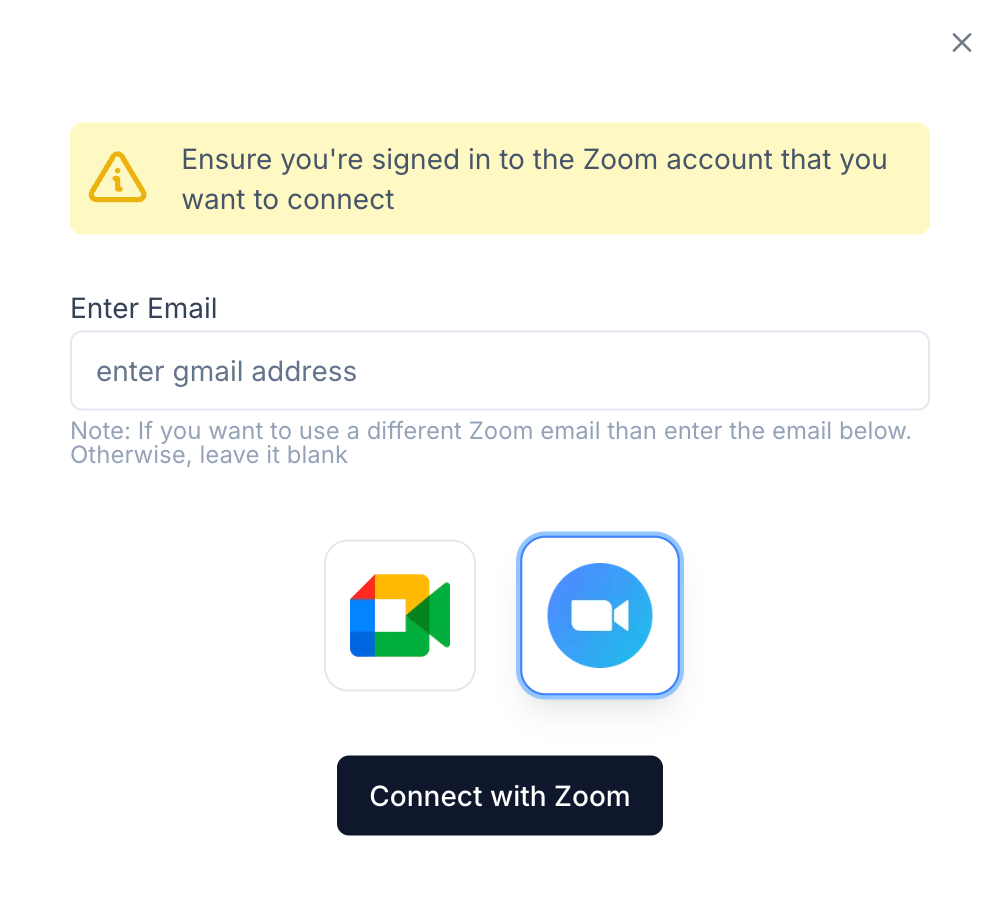
A Zoom connection window will appear:
- Make sure you are already signed in to the Zoom account you want to use (in the same browser).
- If you want to connect a different Zoom account, type its email in the “Enter Email” field. Otherwise, leave the field blank to use your currently logged-in account.
- Click the large Connect with Zoom button.
You’ll be taken to Zoom’s official authorization screen:
- Review the requested permissions (Taskip only asks for what’s needed to create and manage meetings)
- Click Allow
You’ll be redirected back to Taskip instantly. The Zoom card will now show Connected with a green checkmark.
Where Zoom Meetings Are Automatically Created
Once connected, Taskip will generate Zoom links automatically in these places:
- Booking/scheduling forms (select Zoom as location)
- Client portal “Start Call” button
- One-off quick calls from the client profile
Every generated link is stored permanently on the meeting booking record.
Key Features
- Automated Meeting Creation: Generate Zoom links directly from tasks with one click, pre-populating agendas and participants.
- Status Syncing: Automatically update task status based on meeting outcomes (e.g., completed, rescheduled).
- Reminder Automation: Trigger email/SMS reminders 15 minutes before calls to reduce no-shows.
- Participant Management: Add/remove attendees from Taskip client lists and track attendance.
- Custom Agendas: Pull task descriptions and notes into Zoom meeting topics.
- Secure Access: OAuth-based connection with no need to share credentials.
- Mobile Compatibility: Access meetings on-the-go with Zoom's app, linked from Taskip mobile.
Related Integrations

Video Conferencing
Google Meet
About This Integration: Google Meet How to Connect Google Meet A Google login window will…