
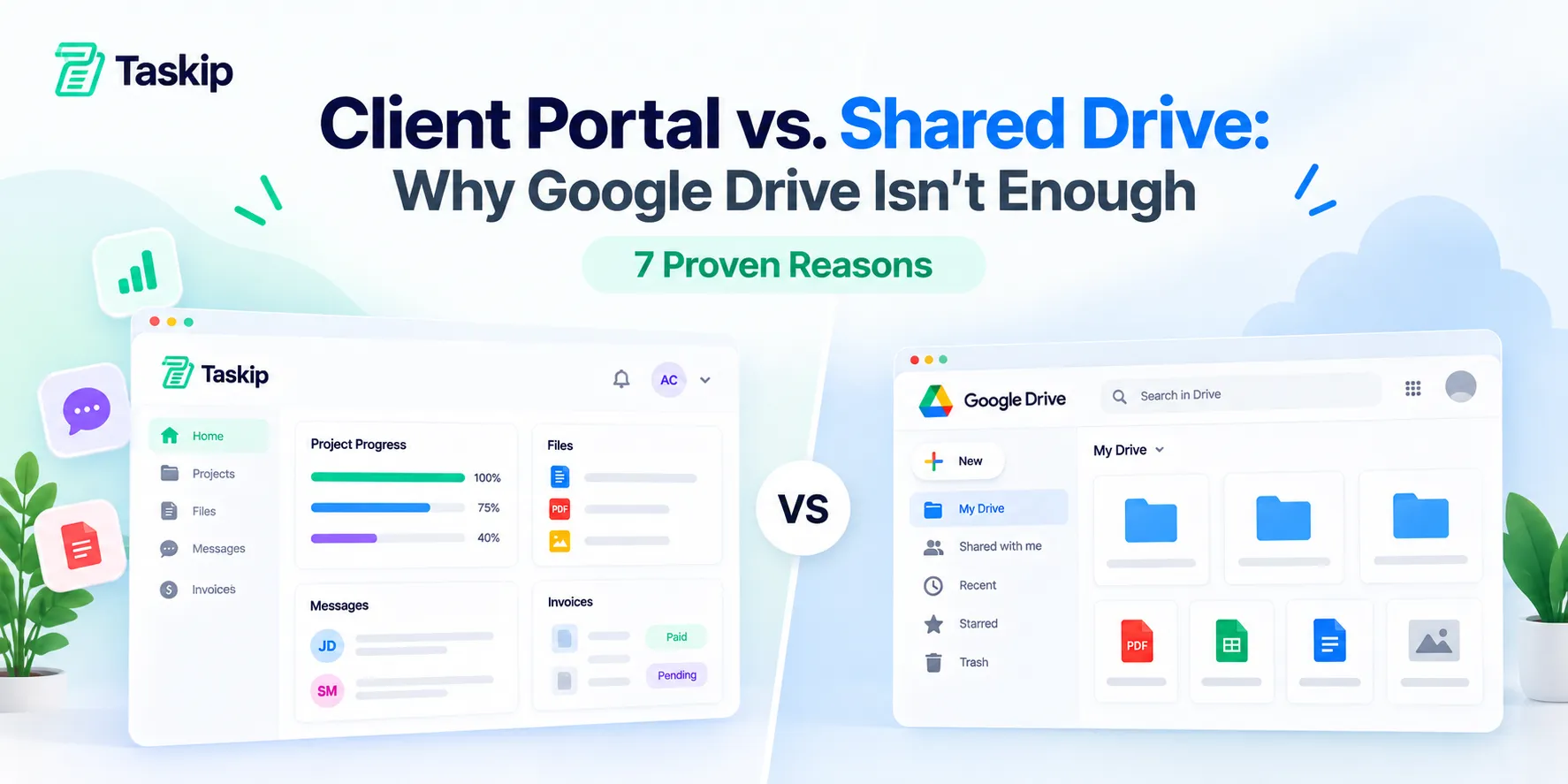
Google Drive is excellent for storing and sharing files, but a client portal gives each client one branded place for files, project progress, approvals, messages and invoices. In the client portal vs Google Drive choice, use Drive for storage and a client portal to manage the client relationship.
Most agencies start with shared folders. It is free, everyone knows how to use it and it works well for the first few clients. Then the folders multiply, feedback scatters across email and WhatsApp, and clients keep asking “where are we on this?”. This guide compares client portal vs shared drive setups, 7 reasons agencies upgrade, 7 reasons agencies upgrade, when Drive is still enough and how to use both together.
The difference between a client portal and Google Drive is scope. Google Drive stores and shares files. A client portal is a secure, branded workspace where each client sees project status, files, approvals, messages and invoices in one place. Use Google Drive for storage and a client portal to manage clients.
| Criteria | Google Drive | Client portal |
|---|---|---|
| Main purpose | Store and share files | Manage the client relationship |
| Project status | No | Yes |
| Approvals | Comments only | Formal sign-offs |
| Messages and invoices | No | Yes |
| Branding | Your logo and domain | |
| Best for | Solo freelancers, file handovers | Agencies with several active clients |
Google Drive isn’t enough once you manage several active clients. Keep Drive for documents and connect it to a client portal like Taskip so files, progress and billing live together.
Table of Contents
Client Portal vs Shared Drive: What’s the Difference?
A shared drive is a cloud storage space for files, while a client portal is a secure, branded workspace where clients see everything about their project in one place.
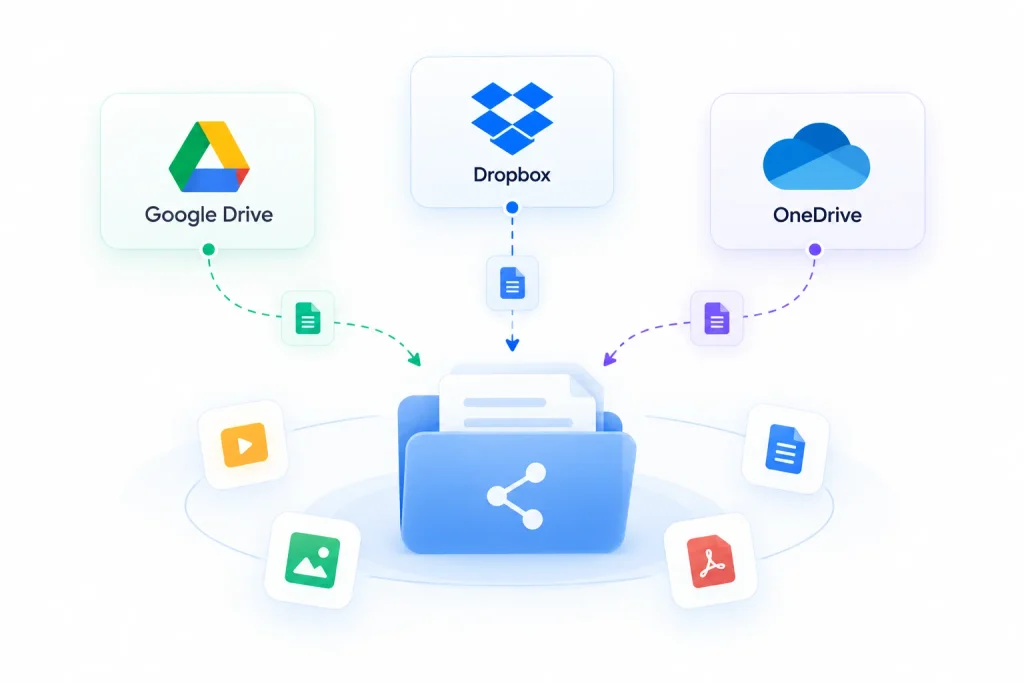
Shared Drive (Google Drive, Dropbox, OneDrive)
A shared drive stores files in folders and lets you share them with specific people or by link.
Google Drive lets you give people viewer, commenter or editor access, and it is brilliant for collaborating on Docs, Sheets and Slides. It is built around files, though, not around clients or projects.
Client Portal
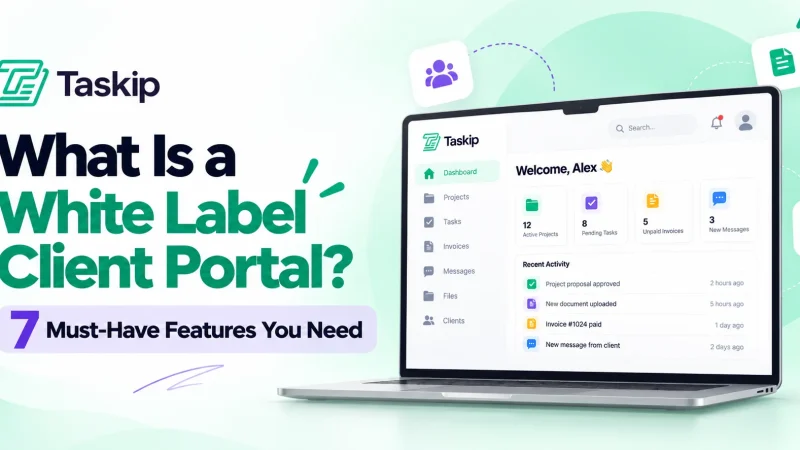
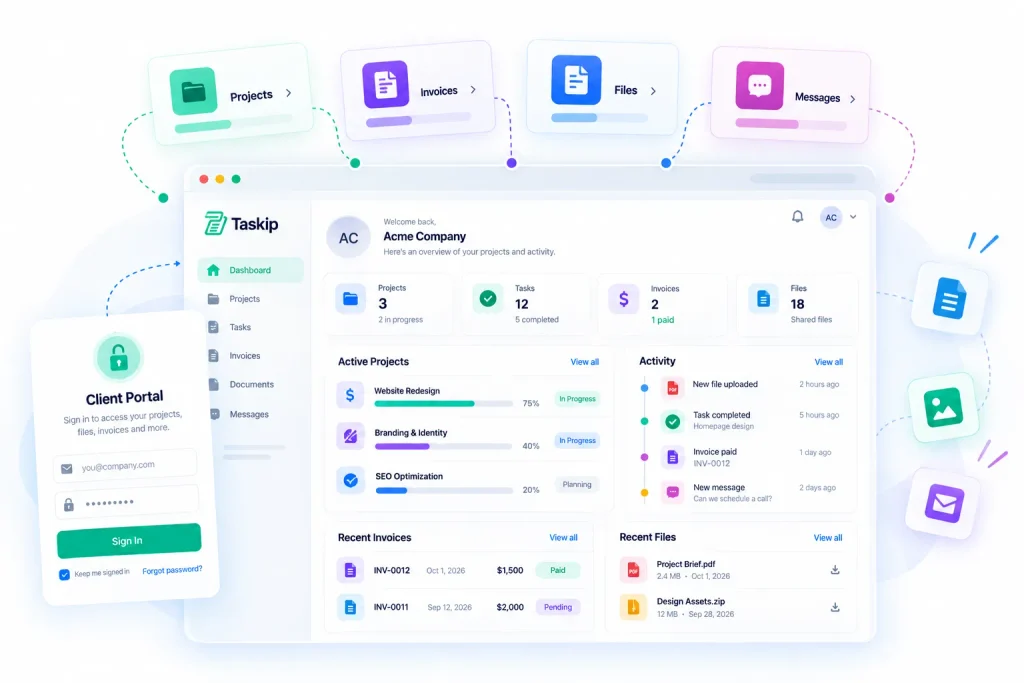
A client portal is a private, branded login where each client tracks progress, finds files, approves work, messages your team and pays invoices.
Instead of a folder link, clients get one place for the whole relationship. Taskip’s client portal is a good example, and our roundup of the best client portal for agencies compares the main options.
Client Portal vs Google Drive: Side-by-Side Comparison
Google Drive wins on file storage and document collaboration; a client portal wins on everything else clients need from you.
| Feature | Google Drive | Client portal |
|---|---|---|
| File storage and sharing | Excellent | Yes, organized by project |
| Real-time document editing | Excellent | Usually via integrations |
| Project status and milestones | No | Yes |
| Approvals and sign-offs | Comments only | Yes, with e-signatures |
| Client messaging | No (separate email or chat) | Yes, next to the work |
| Quotes, invoices and payments | No | Yes |
| Secure file sharing with clients | Per file or folder | Per client, by role |
| Branding | Google branding | Your logo, colors and domain |
| Client experience | A folder of files | One login for everything |
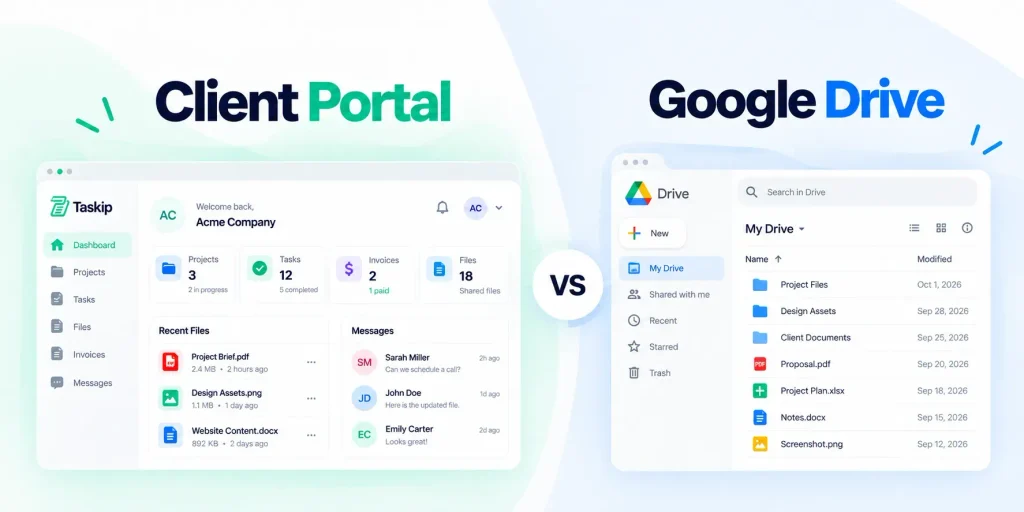
The two tools solve different problems. Comparing client portal vs Google Drive is really comparing a filing cabinet with a front office.
7 Proven Reasons Google Drive Isn’t Enough for Client Work
Google Drive handles files well, but client work also needs context, approvals, communication, billing, permissions, branding and visibility, which shared folders were not built for.
1. Files Without Context
A folder shows files, not where the project stands. Clients can open the latest design but cannot see which tasks are done, what is next or what is waiting on them. A portal connects files to project management, so every file sits next to its milestone.
2. No Clear Approval Trail
Comments are not sign-offs. When approval happens in a Drive comment or an email reply, it is easy to lose. A portal records approvals with timestamps, and e-signatures make formal sign-off simple.
3. Conversations Live Somewhere Else
Drive stores files, but feedback arrives by email, chat and WhatsApp. Teams end up searching three apps for one decision. A portal keeps messages next to the work, and tools like team chat and a connected WhatsApp inbox bring outside conversations into the same client record.
4. Invoices and Payments Are Disconnected
A shared folder cannot send an invoice or take a payment. In a portal, clients see what they owe and pay online through connected invoicing software.
5. Permission Sprawl Across Shared Folders
Every new client means new folders, new links and new access settings to manage. Secure file sharing with clients needs access controls that are easy to manage per client, not per folder. Over time, old links stay active and former contacts keep access. Good security follows the principle of least privilege: give each person only the access they need. A portal applies that per client and per role by default.
6. No Branded Client Experience
A Drive folder looks like Google, not like your agency. A branded client portal for agencies makes even a small team look established. A portal can be a white-label product on your own domain, with your logo and colors. Our list of white label tools for agencies shows how agencies brand the whole client experience.
7. Constant Status-Update Requests
When clients can’t see progress, they ask, and every “any update?” email costs time. A McKinsey Global Institute report estimated that interaction workers spend about 28% of the workweek managing email. A portal answers status questions before they are asked.
When Google Drive Is Enough
Google Drive is enough when you only need to store and hand over files, not manage an ongoing client relationship.
- Solo freelancers with one or two clients who mainly share deliverables
- One-off handovers, such as sending final brand assets
- Internal team files that clients never need to see
- Live document collaboration, where Drive’s real-time editing and version history shine
If you are building your toolkit from scratch, our guide to the freelancer tech stack shows where Drive fits alongside other tools.
The Best of Both: Use Google Drive Inside Your Client Portal
You don’t have to choose: keep Google Drive for storage and connect it to your client portal, so clients see Drive files in the right project and get secure file sharing with clients.
This is the simplest way to build a Google Drive client portal without giving up the tools your team already uses.
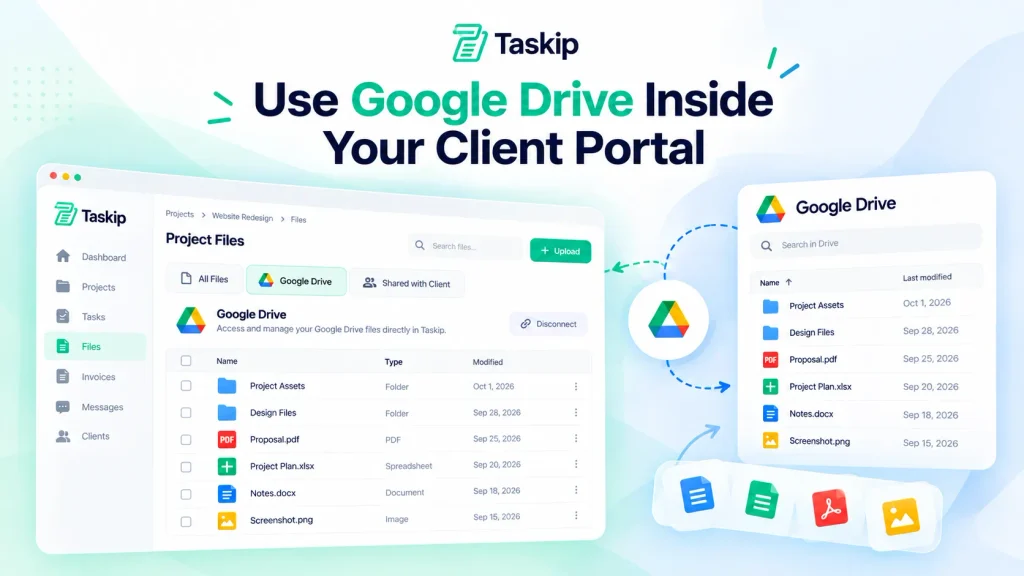
With Taskip’s Google Drive integration, you can attach Drive files to tasks, messages and invoices without downloading and re-uploading them. Links point to the live file, so clients always see your latest edits. The file picker only accesses files you select, and you can link Drive folders to Taskip projects to keep storage and project work in sync.
The result: Docs, Sheets and Slides stay in Drive, while status, approvals, messages and billing live in the portal.
How to Move Clients From Shared Folders to a Client Portal
Move clients in 5 steps: audit your folders, set up the portal, link your Drive files, invite clients with a short welcome note and retire old share links.
Step 1: Audit Your Shared Folders
List every client folder, who has access and which links are still active. Remove anyone who no longer needs access.
Step 2: Set Up Your Portal
Add your branding, create a project per client and set roles. Document the setup in your agency SOPs so every new client gets the same experience.
Step 3: Link Your Drive Files
Connect existing Drive folders to each project instead of re-uploading everything. Clients see the same files, now with context.
Step 4: Invite Clients With a Welcome Note
Send a short message explaining what the portal is for and how it saves them time. Add it to your client onboarding checklist so new clients start there from day one.
Step 5: Retire Old Share Links
Once clients are active in the portal, switch old folder links to restricted access. This closes permission gaps and makes the portal the single source of truth.
How Taskip’s Client Portal Works?
Taskip is a client portal for agencies that gives every client a white-label portal on your own domain where they track projects, access files, approve work, message your team and pay invoices.
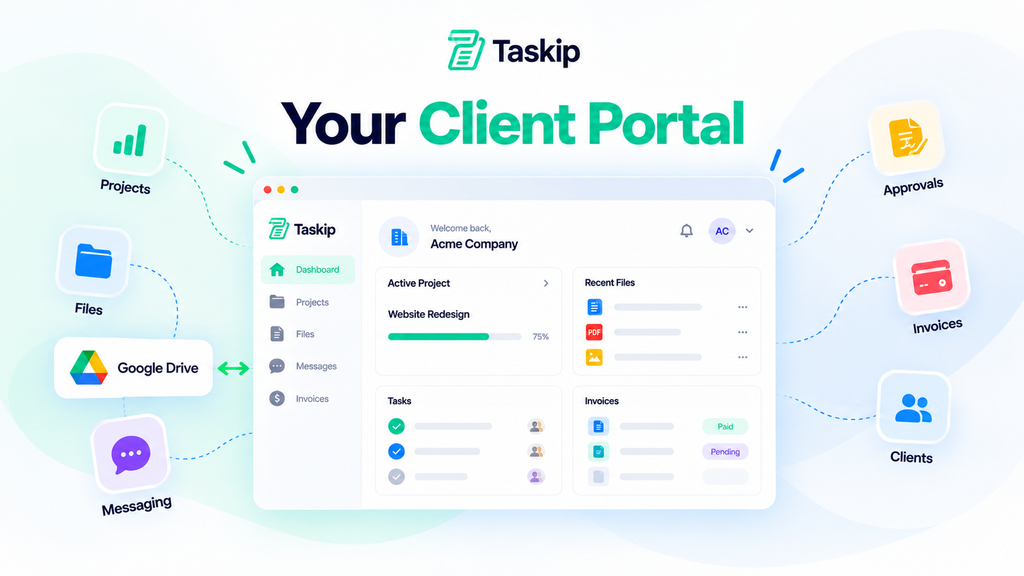
- Full white-labeling: your logo, colors, favicon and custom domain, with no Taskip branding
- Project tracking: real-time status, milestones and completed tasks
- Files: documents organized by project, plus linked Google Drive files
- Approvals: sign-off on deliverables with e-signatures
- Invoices and payments: payment history, outstanding balances and online payment
- Messaging: chat with your team next to the work
- Role-based permissions: control exactly what each client contact sees
- Unlimited clients: no per-client fees as you grow
Comparing tools for a growing freelance business? See the best client management systems for freelancers, or compare Taskip plans to get started.
Conclusion
Google Drive is a great place to store files; a client portal is a better place to run client relationships.
The client portal vs Google Drive question is not about replacing one tool with the other. Drive keeps doing what it does best, storing and editing documents, while a client portal adds the context, approvals, messaging, billing and branding that clients actually experience.
Start with your next new client. Set up their portal, link their Drive folder and send a short welcome note. Within a few weeks you will spend less time answering “where are we?” and more time doing the work clients hired you for.
Frequently Asked Questions
Can I Use Google Drive as a Client Portal?
You can use Google Drive to share files with clients, but it is not a full client portal. It lacks project status, approvals, messaging, invoicing and per-client branding. If you want a Google Drive client portal, the best option is to connect Drive to a dedicated portal so files appear inside each client’s project.
What Is the Difference Between a Client Portal and a Shared Drive?
A shared drive stores and shares files. A client portal is a secure, branded workspace where clients see project progress, files, approvals, messages and invoices in one place.
Is a Client Portal More Secure Than Google Drive?
For secure file sharing with clients, both client portal and Google shared drive works. A client portal makes it easier to apply consistent, role-based access per client, while shared folders often collect old links and unused access over time.
Does a Client Portal Replace Google Drive?
A client portal does not necessarily replace Google Drive. Many agencies keep Google Drive for storage and connect it to their client portal, so files appear inside the right project.
What Should a Client Portal Include?
A client portal should include- project status, file sharing, approvals, client messaging, invoices with online payment, role-based permissions and your own branding.
Do Small Agencies Need a Client Portal?
Once you manage more than a few active clients, yes, then small agencies need a client portal. A portal cuts status-update emails, speeds up approvals and makes a small team look established.