
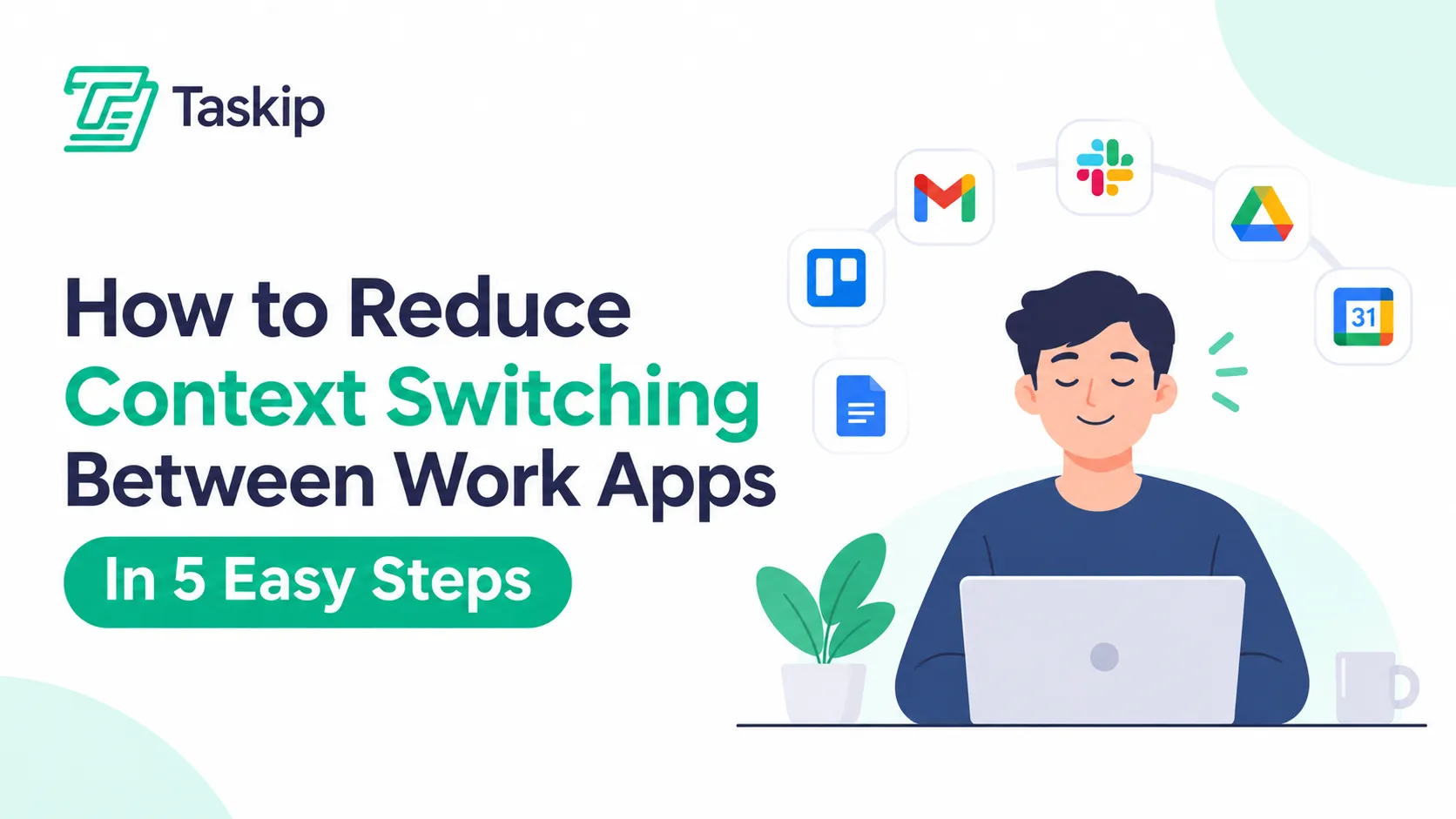
How to reduce context switching starts with fewer hops between work apps, not only quieter notifications. When an agency or freelancer jumps from Slack to email to a project board, then to invoicing and a shared drive, each switch leaves leftover attention. Batch similar work, check messages on a schedule, and keep client work in one place.
Table of Contents
Is Context Switching?
Context switching is the act of leaving one task or tool and picking up another before the first is finished. At work, that often means leaving a design file to answer Slack, then jumping to email, a project board, or an invoice. Each hop forces your brain to reload the new context and set the old one aside.
Put simply, context switching at work is the mental cost of changing gears. The American Psychological Association’s overview of multitasking and switching costs describes experiments where people lost time with every switch, and lost more when the tasks were complex or unfamiliar.
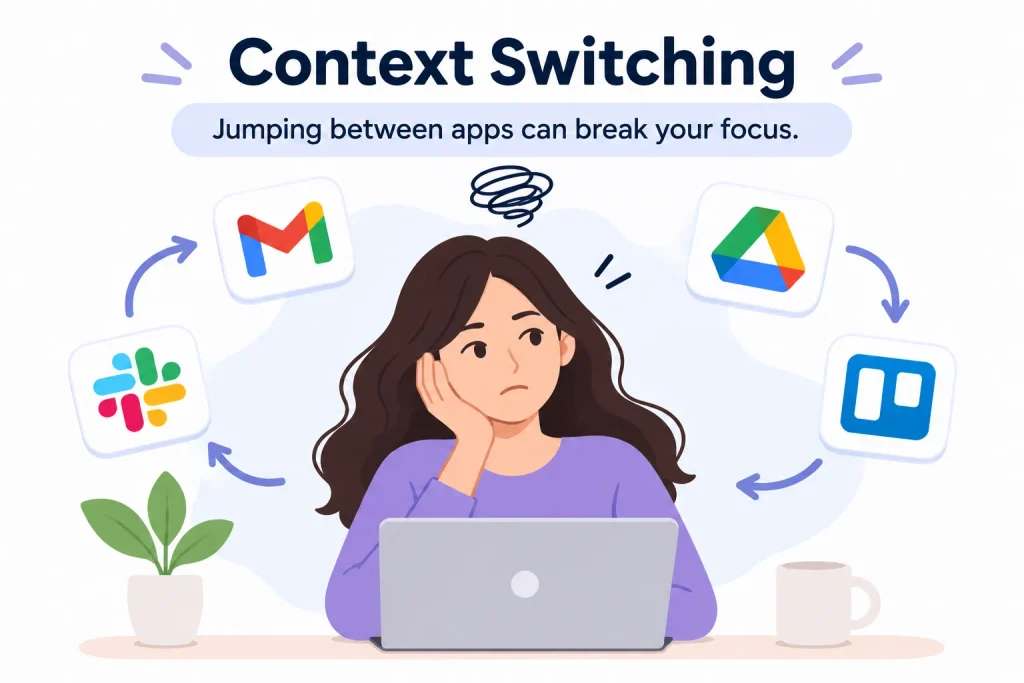
Task switching is moving between kinds of work, like going from ad copy to a client’s expenses. App switching is moving between the tools that hold that work, like Slack, Google Drive, and an invoicing app. For agencies and freelancers, a new task usually means a new app, so the two costs stack.
Part of your mind also stays behind: attention residue, the thoughts about the last task that follow you into the next one. This guide focuses on that daily hop between work apps.
Is Workplace Context Switching the Same as in an Operating System?
Workplace context switching is not the same as an operating-system context switch. In computing, a context switch is the operating system pausing one process and restoring another. This guide covers people moving between tasks and work apps, not CPU scheduling, Java threads, or how to switch between apps on a phone.
Why Does Context Switching Between Apps Hurt Productivity?
Context switching between apps hurts productivity because your attention does not arrive in the new app all at once. You spend time finding the right thread, file, or invoice, and some attention stays with the work you just left. The more often you hop, and the more different the tools, the more of your day goes to reorienting.
The cost of context switching is rarely the click. It is finding your place again and carrying attention residue into the new app. So why is context switching bad if each hop is small? Because the impact of context switching is many small losses that nobody tracks.
Some writers call this the toggle tax, or context switching tax: the time and attention you pay to reorient after each hop. In Harvard Business Review’s 2022 study of toggling between applications, Rohan Narayana Murty, Sandeep Dadlani, and Rajath B. Das tracked 20 teams and 137 users at three Fortune 500 companies and found workers toggled roughly 1,200 times a day, or just under four hours a week reorienting, about 9% of their time at work. The sample was Fortune 500 operations-style teams, not a creative agency (see the official abstract).
In a Gallup interview on interrupted work, UC Irvine researcher Gloria Mark said interrupted work resumed the same day was picked up again, on average, after 23 minutes and 15 seconds, with about two other tasks in between. Her lab study, The Cost of Interrupted Work: More Speed and Stress (PDF), found that interrupted people worked faster but reported more stress, frustration, and workload.
That is the context-switching productivity trap: you still finish, just more tired and with more errors. The tax is highest in context switching between apps, where every tool has its own layout and purpose.
In the third row below, tool sprawl means collecting more single-purpose apps than your work needs.
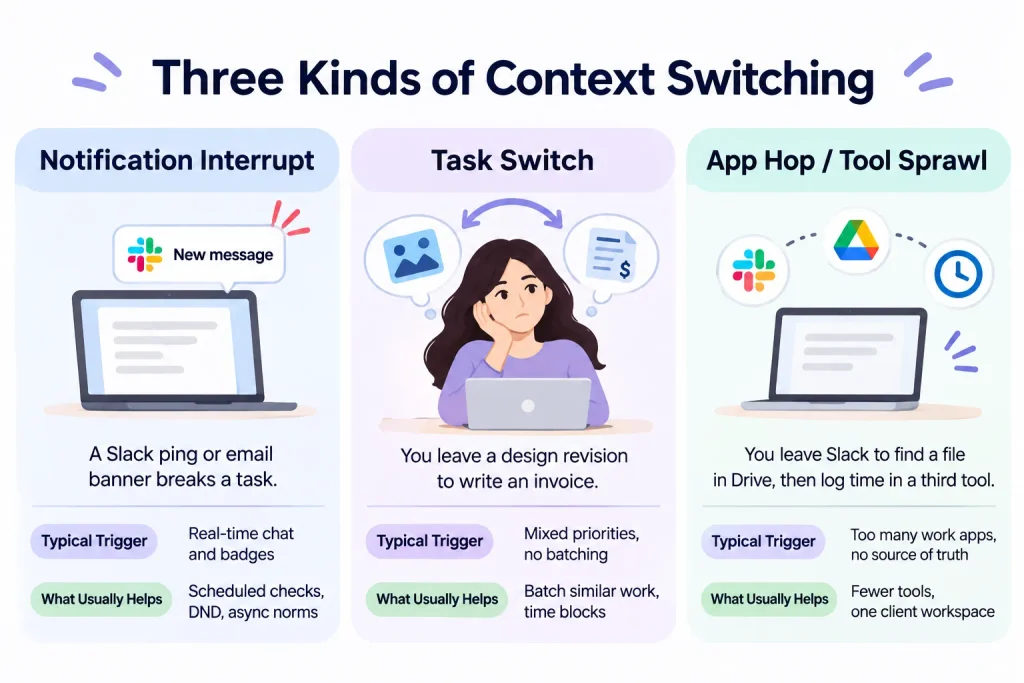
Three Kinds of Context Switching
| Type | What It Looks Like | Typical Trigger | What Usually Helps |
|---|---|---|---|
| Notification interrupt | A Slack ping or email banner breaks a task | Real-time chat and badges | Scheduled checks, DND, async norms |
| Task switch | You leave a design revision to write an invoice | Mixed priorities, no batching | Batch similar work, time blocks |
| App hop / tool sprawl | You leave Slack to find a file in Drive, then log time in a third tool | Too many work apps, no source of truth | Fewer tools, one client workspace |
What Does Context Switching Between Work Apps Look Like for Agencies and Freelancers?
For agencies and freelancers, context switching between work apps often looks like one client request living in five places. A message arrives in Slack, the brief is in email, the files are in Google Drive, the task is on a project board, and the invoice is in a billing tool. Finishing one request means hopping through the whole stack.
Here is what context switching between apps looks like for a freelance designer.
You are finishing a logo when a Slack message lands: the client wants new colours by Friday. You open Gmail to find the brief, then Google Drive to work out which of three “final” files is current. You check design comments and update the project board. An hour later, the client asks if last month’s invoice was paid, so you open the billing app. Then they want a call, so you send a link from a scheduler. To bill the revision, you copy hours from a time tracker by hand.
Slack → Gmail → Google Drive → design comments → project board → billing app → scheduler → time tracker
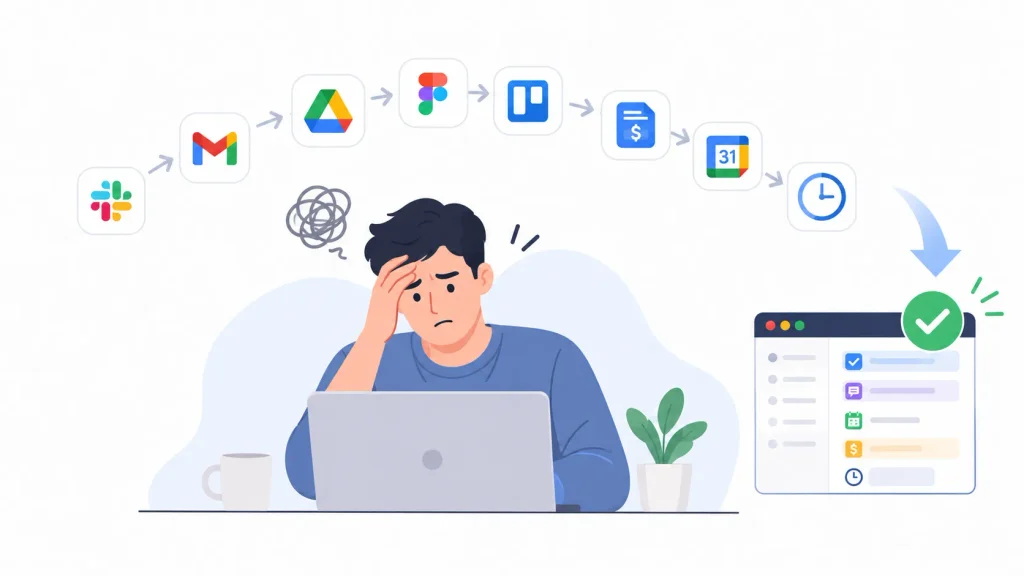
That is context switching at work in practice. The hidden work was finding the current file, re-explaining status, and copying numbers between apps. Bookkeepers feel the same with email, a receipts folder, and billing software. Shared folders add to it, because storage is not status (see why a shared Drive folder makes a weak source of truth for client work).
The habits in the methods section below help in any stack. Later, we will look at what it means to keep that client work in one workspace.
Why Do Teams End Up With Too Many Work Apps?
Teams end up with too many work apps because each tool is good at one job. Chat, email, files, tasks, signatures, and invoicing often start as separate subscriptions. That tool sprawl feels harmless until every client request crosses three or four apps. The result is app fatigue: more logins, more notifications, and more places for files to hide.
Tool sprawl is the slow pile-up of apps that were each added for a good reason but never planned as one system.
A freelancer starts with email, then adds Slack for a retainer client, Google Drive for files, a project board for deadlines, a billing app for card payments, and a scheduler for calls. A growing studio adds a helpdesk, a form tool, and a signing app. None of those tools is wrong. The cost lives in the hops between them.
That makes too many work apps a workflow problem, not a willpower problem. This guide to choosing fewer, better productivity tools as a freelancer helps you review your toolkit.
How to Reduce Context Switching (Step-by-Step)
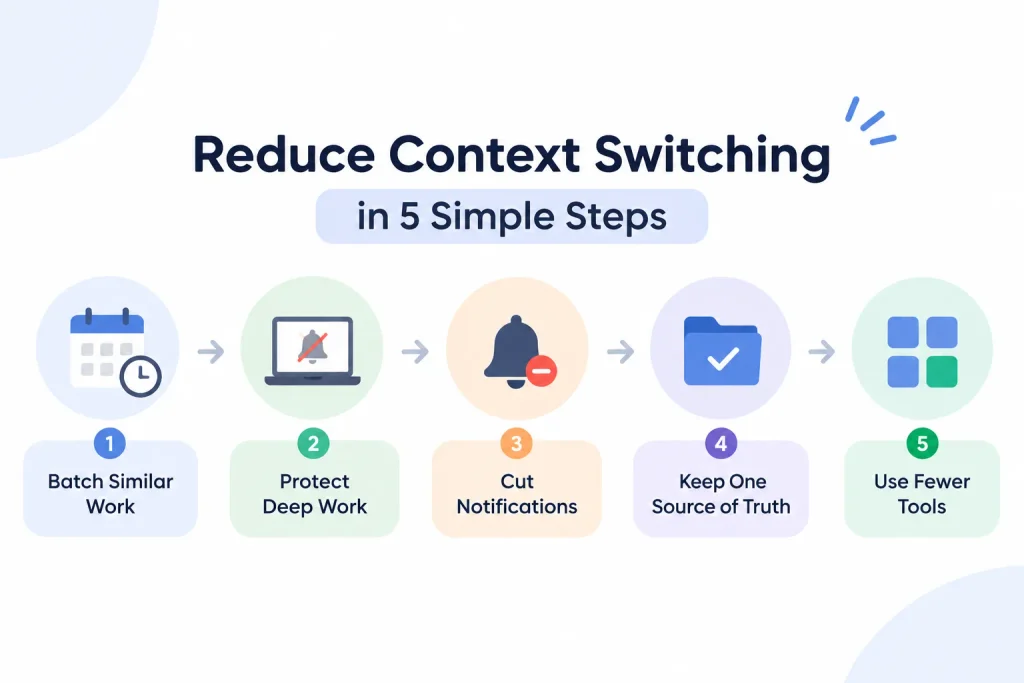
Reducing context switching comes down to two moves: cut unnecessary hops, then protect the attention you have left. Batch similar work, check chat and email on a schedule, silence notifications during focus time, keep one source of truth for each client, and use fewer tools where you can. The goal is not zero interruptions; the goal is fewer, cheaper switches.
These five steps reduce context switching in any stack, even a plain mix of Slack, Gmail, and a project board.
- Batch similar work and check messages on a schedule.
- Protect deep work without living on your calendar.
- Cut notifications and set response expectations.
- Keep one source of truth for each client.
- Use fewer tools so you stop switching between apps.
Step 1 : Batch Similar Work and Check Messages on a Schedule
Task batching means grouping similar jobs so you stay in one mode, and one app, for longer: all client feedback in one block, all invoicing in another, all admin in a third. Check Slack and email at set times, such as late morning, mid-afternoon, and before you log off.
Computer science professor Cal Newport explained why he changed his email setup: he split one combined inbox into separate ones, because sorting mixed messages meant switching contexts with every email. For agencies: no invoicing in a design block, and no file hunting in a billing block.
Step 2: Protect Deep Work Without Living on Your Calendar
Deep work is uninterrupted time on a cognitively demanding task, such as designing a layout or closing a month’s books. A short, defended focus block beats an eight-hour fantasy.
Time blocking on your calendar helps, but also close every tab the block does not need. Solo freelancers who take calls can protect two or three mornings a week instead of full theme days. Newport’s post on the dichotomy of email makes a related point: email is useful, but routing every kind of work through one inbox wrecks focus.
Step 3: Cut Notifications and Set Response Expectations
Notifications trigger most unplanned switches. Turn off badges for anything non-urgent, and use do-not-disturb during focus blocks. Then agree with your team, and clients where possible, that non-urgent messages get a reply within a stated window, such as the same business day. A short status line or “office hours” note in your shared client space is usually enough.
Step 4: Keep One Source of Truth for Each Client
Many app hops are just searching. “Where is the latest file?” “Was that approved?” “Has this been invoiced?” One source of truth means one agreed place where status, files, feedback, and invoices live for each client. Pick it, then point everyone there, including the client.
A shared Drive folder is storage: it holds files, not approvals or billing. This comparison of a client portal and Google Drive covers the difference, and this explainer on what a white-label client portal is shows a fuller alternative.
Step 5: Stop Switching Between Apps by Using Fewer Tools
You stop switching between apps by giving one job to one tool, then retiring the extras. If chat, files, tasks, and invoices all meet for the same client, keep them in one workspace or connect them tightly. Integrations help, but fewer subscriptions usually help more, because every extra app is another place to get pinged.
Step 5. Run a retirement test: if an app does not hold a unique job, it is a candidate to drop. Skip the big-bang migration and move one job or one client at a time.
If you already have a stack that works, tighten it. If client work is still scattered, the next sections show what a smaller stack can look like, including how Taskip applies these same rules.
What Does a Smaller Work-App Stack Look Like?
A smaller work-app stack gives each client job one home instead of three. Talk, status, files, approvals, invoices, and scheduling still exist, but they sit closer together, so finishing one request takes fewer hops. The table compares a typical scattered stack with a fewer-tool version you can build from many different apps.
What a Smaller Work-App Stack Looks Like
| Job | Typical Scattered Stack | Fewer-Tool Version |
|---|---|---|
| Talk with the team and the client | Slack + email + WhatsApp threads | One client channel plus scheduled email checks |
| Project status and tasks | A board the client cannot see, plus status emails | One project view the client can also check |
| Files and approvals | Google Drive + email attachments + comment threads | Files and approvals beside the project |
| Invoices and payments | A separate billing app, sent as a PDF in email | Invoice created from the project or tracked time, paid in the same portal |
| Scheduling and briefs | Calendly + Google Forms + more email | Booking and intake connected to the client record |
The right-hand column is a pattern, not a brand requirement. A team with too many work apps can get much of the way there with a disciplined mix of tools and integrations. A unified client workspace simply makes the pattern the default. Compare the categories: project management software with a client portal and CRM with invoicing software.
How to Reduce Context Switching When You Work With Clients
You reduce context switching with clients by giving them one place to check status, files, approvals, and invoices, and by moving non-urgent talk out of ad-hoc chat. When clients do not have to email “where are we?” or hunt through a Drive folder, they interrupt less, and you hop between fewer apps to answer them.
Client work creates a two-sided hop: your team switches apps to serve the client, and the client switches apps to work with you. Cut both sides:
- Send one link, not a new folder. Give each client one client portal or project link instead of a fresh Drive folder per deliverable.
- Collect briefs in a form. A form builder that attaches briefs and files to the project stops the email dig for the original request.
- Let clients pay where they review work. This guide on how to send an invoice covers the basics.
- Set it up once. Use a 7-day client portal setup checklist, this overview of a client portal for agencies, and the free client onboarding checklist generator.
If you want to see this pattern in a live workspace, you can start on Taskip’s free plan and invite a test client.
How Taskip Applies These Methods in One Client Workspace
Taskip applies these methods by putting the client portal, projects, files, invoices, team chat, and email in one workspace, so an agency or freelancer does not hop between a chat app, a board, a drive, and a billing tool for one client. Batching, notification habits, and one source of truth still matter; Taskip makes them easier to keep.
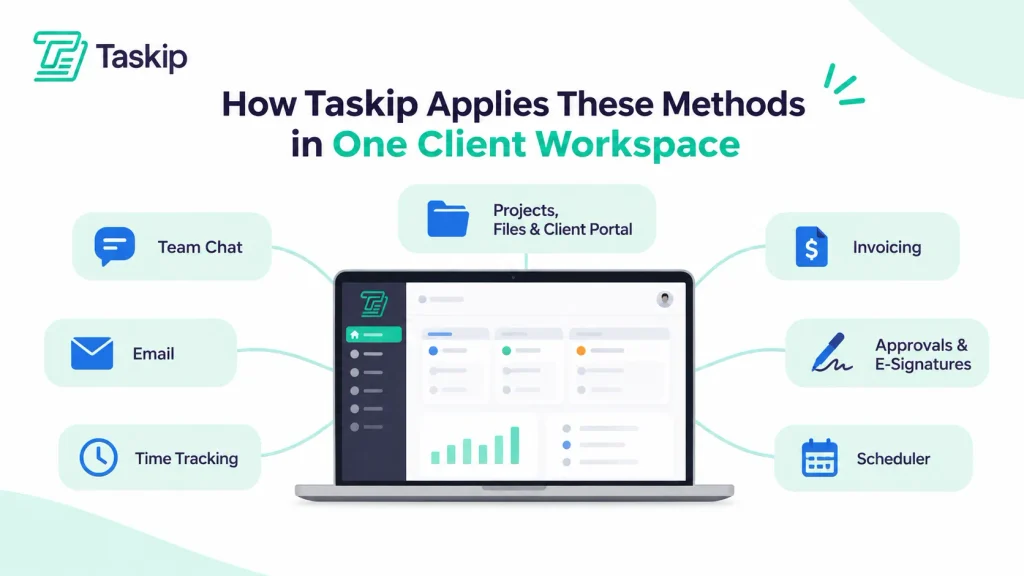
Projects, Files, and the Client Portal in One Login
Clients get one secure invite login, with no paid seat, for project progress, messages, files, approvals, and invoices. The Taskip client portal carries your branding, with no Taskip branding on Growing Agency and up and white-label as a paid add-on on lower plans. Your team works in the same record through Taskip project management, with Kanban, list, timeline, and calendar views.
Default roles (Administrator, Manager, Team Member, and Client) control access. To get started, see how to set up a white-label client portal. UI/UX studio Panze Studio consolidated five disconnected tools into one Taskip workspace, and its case study uses the line “Eliminates context-switching between tools.”
Invoicing, Time Tracking, and Approvals Without a Side App
With Taskip time tracking, time is logged on tasks, approved, and turned into invoices. Taskip invoicing software handles recurring or partial billing and multi-currency, with Stripe, PayPal, and four other gateways (six in total). Clients pay in the same portal where they review work, and contracts or proposals are signed with Taskip e-signatures.
Team Chat, Email, and Client Messages Beside the Work
Taskip team chat keeps team chat and client channels in one workspace, so client talk stops living in Slack and email. A unified inbox for Gmail, Outlook, IMAP, or webmail brings every account into one place. Clients raise support tickets from the portal or by email, and book calls through the meeting scheduler. See the dashboard documentation for the one-hub view.
A Practical Checklist for Cutting App Hopping
Run this on your current stack, and again whenever you add a tool.
- Do I know which app is the source of truth for each client?
- Do chat and email have scheduled check times, or are they always on?
- Are invoices, files, and project status in three different places?
- Can the client check progress without sending a “quick” email?
- Which subscription does not hold a unique job and could be retired?
- Is there a focus block on most workdays that is treated like a meeting?
- If I add a new app, what hop does it remove, or what hop does it add?
The free weekly status report generator replaces many “where are we?” messages. When comparing workspaces, check how team management and role-based permissions and workflow automation handle hand-offs, or browse the Taskip features list.
Conclusion: Cut the App Hops, Then Try the Same Setup in Taskip
For agencies and freelancers, how to reduce context switching is mostly about making fewer hops between work apps. The habits work in any stack: batch similar work, check messages on a schedule, protect deep work, and keep one source of truth for each client. Too many work apps make those habits harder. A smaller stack, or one client workspace, makes them easier.
Start on Taskip’s free plan, no credit card required. Invite a teammate or a test client to the client portal, and run one real project (brief, files, conversation, and invoice) without leaving the workspace. See the full Taskip features list.
Frequently Asked Questions About How to Reduce Context Switching
What Is Context Switching?
Context switching is moving your attention from one task or tool to another before the first one is finished. Context switching at work often means leaving a design, a spreadsheet, or a report to answer chat or email, then spending extra time and focus getting back into the original work afterward.
Why Is Context Switching Bad for Productivity?
Context switching is bad for productivity because attention does not move instantly. Each hop costs time to reorient and leaves part of your mind on the last task. The context switching productivity loss is measurable: a Harvard Business Review study found workers spent just under four hours a week reorienting after toggling.
How Can I Reduce Context Switching at Work?
You can reduce context switching at work by batching similar tasks, checking chat and email at set times, and protecting a daily focus block with notifications off. Agree on response times with your team and clients, and keep one source of truth for each client so status, files, and invoices are easy to find.
How Do I Stop Switching Between Apps?
Learning how to stop switching between apps starts with giving each job one tool and retiring duplicates. Keep client files, tasks, messages, and invoices together wherever you can. Integrations are a partial fix because they move data between apps, but using fewer apps removes the hop itself, along with its notifications.
What Is the Difference Between Context Switching and Multitasking?
Multitasking is trying to do two things at once, or in rapid succession. Context switching is the move itself, from one task or tool to the next. Both carry a cost, and most so-called multitasking at a desk is really fast context switching, paying the reorientation cost again with every jump.
How Can I Reduce Context Switching When Working With Clients?
You can reduce context switching with clients by giving them one place for status, files, approvals, and invoices, such as a client portal or a shared project view. Move non-urgent questions out of ad-hoc chat and set reply windows. That cuts “where are we?” interruptions and the app hops you take to answer them.
What Is the Context Switching Tax?
The context switching tax, also called the toggle tax, is the time and attention you spend getting reoriented after a hop, not the second it takes to click. The impact of context switching adds up: Harvard Business Review found just under four hours a week, about 9% of work time.
Is Context Switching the Same as in an Operating System?
Workplace context switching is not the same as an operating-system context switch, which is a computer pausing one process and restoring another. Workplace context switching is a person moving between tasks or work apps and losing focus along the way. This guide covers the second meaning.