

Role based access control examples show how permissions are assigned to a job role, not to each person. In an agency, a designer can edit project files, a project manager can send invoices, a client can view only their own work, and only an administrator can change billing. The same pattern appears in hospitals, banks, and accounting firms.
Table of Contents
What Is Role-Based Access Control?
Role-based access control (RBAC) decides what each person can see and do in a system by giving them a role, then attaching permissions to that role instead of to each person. When someone changes jobs, you change their role once, and their access follows the job.
NIST defines role-based access control as access based on user roles, where each role carries the permissions a defined job needs. The model fits on one line:
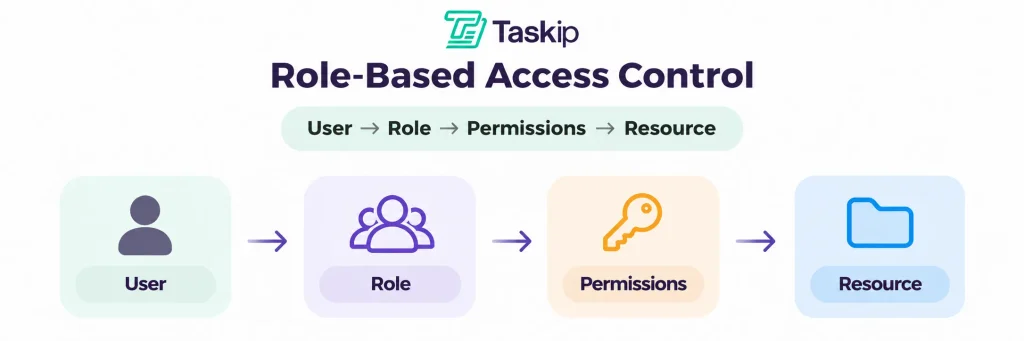
User → Role → Permissions → Resource
A role is not a job title: two designers can share one Designer role. This guide covers business tools, not Kubernetes or cloud IAM.
Users, Roles, and Permissions
User roles and permissions come down to three building blocks:
- User: a person who logs in, such as a teammate, contractor, or client.
- Role: a named bundle of permissions, such as Project Manager or Client.
- Permission: one allowed action, such as “create invoice” or “view project files.”
How Does Role-Based Access Control Work?
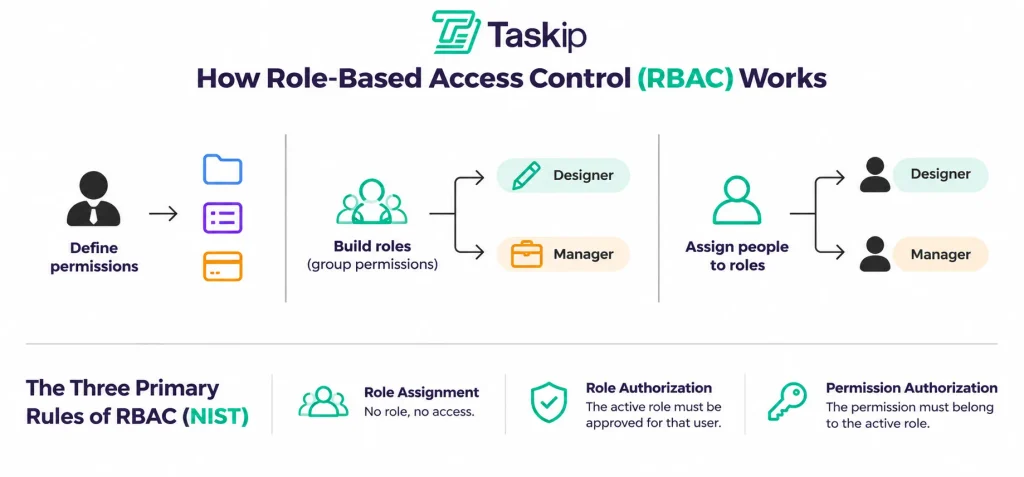
RBAC works in three steps. You define permissions, meaning the actions allowed on a resource. You group those permissions into a role that matches a job. Then you assign people to that role. When someone tries an action, the system checks their role’s permissions, not a custom list.
- Define permissions: view files, send invoices, change billing.
- Build roles: a Designer gets file permissions; a Manager adds invoicing.
- Assign people: each user gets one or more roles.
Under the NIST model, one person can hold several roles and gets their combined permissions.
What Are the Three Primary Rules of RBAC?
The three primary rules of RBAC come from NIST’s original model. A person can use a permission only after being assigned a role. They can only act in a role they are authorized to hold. And they can only use permissions that belong to that active role.
- Role Assignment: no role, no access.
- Role Authorization: the active role must be approved for that user.
- Permission Authorization: the permission must belong to the active role.
The rules come from Ferraiolo and Kuhn’s 1992 NIST paper on role-based access controls. The archived NIST RBAC project page remains the standard summary.
RBAC Examples: What Is an Example of Role-Based Access Control?
A simple role based access control example is an agency workspace. A designer can edit project files, a project manager can assign tasks and send invoices, a client can view and pay only their own invoices, and an administrator can change roles and billing. Each role sees different actions.
The full agency permissions matrix is in Example 1.
Role-Based Access Control Examples in Real Life
Real-life role-based access control examples follow one pattern in every industry: people receive a job role, and that role, not a personal exception list, decides what they can open or change. The six RBAC examples below start with a creative agency and a freelancer, then cover accounting, healthcare, banking, and SaaS.
- A creative agency
- A freelancer working with a contractor
- An accounting firm
- A hospital or clinic
- A bank
- A SaaS workspace with a client role
Example 1: Role-Based Access Control in a Creative Agency
A creative agency is the clearest RBAC example for teams sharing work with clients. A 5- to 15-person studio might split roles like this:
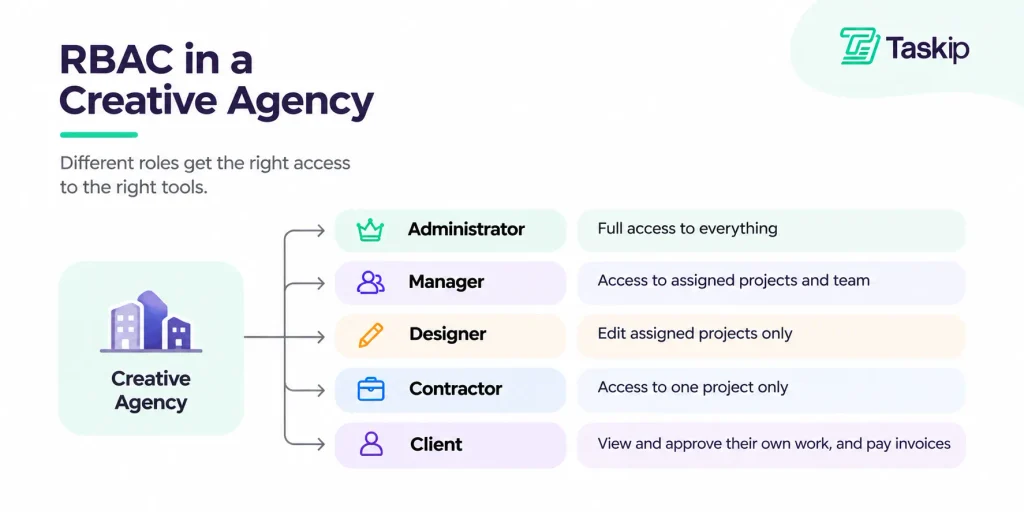
| Role | Projects & Files | Invoices | Client Messages | Billing & Roles | Project Finance |
|---|---|---|---|---|---|
| Administrator | All | Create, send, edit | All clients | Full control | All projects |
| Manager | Assigned projects | Create and send | Assigned clients | Manage members; billing if granted | Projects they lead |
| Designer (Team Member) | Edit assigned projects | Denied | Assigned projects | Denied | Denied |
| Contractor | Edit one project team | Denied | That project only | Denied | Denied |
| Client | View and approve their own | View and pay their own | Their own threads | Denied | Denied |
Say a motion designer joins for a four-week brand project. Instead of sharing the founder’s login, you assign them to a team for that project as a Team Member, and they see nothing else.
The client approves work and pays invoices through a portal, where clients see only their own work. Roles are easier to plan with departments and clear owners. Client-management tools such as Taskip follow this same pattern with team roles plus a Client role, covered in the Taskip section below.
Example 2: A Freelancer Working With a Contractor
A freelancer who hires a contractor needs only two or three roles. A copywriter hired for four weeks can update tasks and upload files on one project, but cannot see other clients’ invoices or change payment methods.
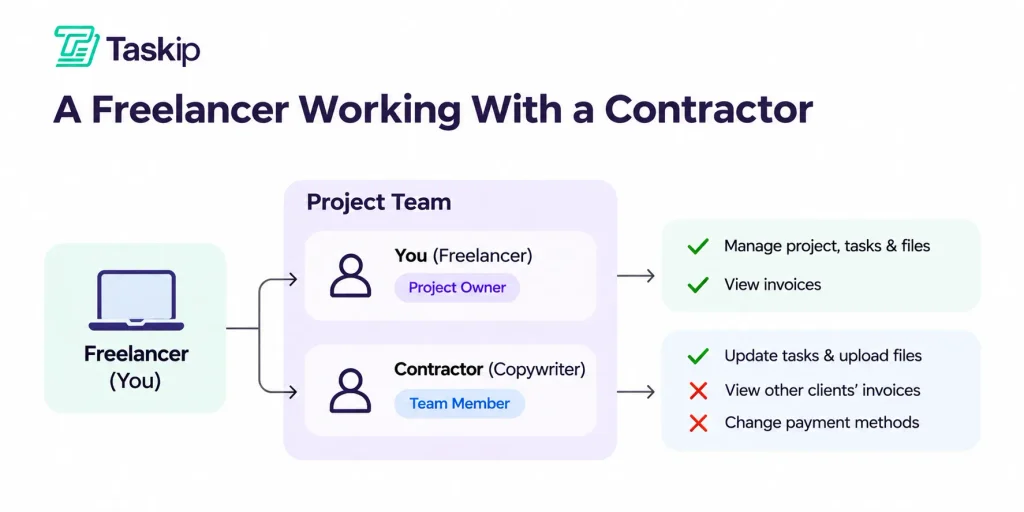
When the job ends, you remove the role. Most client tools let you invite members and assign a role in one step.
Example 3: An Accounting Firm or Bookkeeping Practice
An accounting firm uses RBAC to keep each client’s books separate. The partner holds Administrator and sees all clients, billing, and role settings. Accountants work only in assigned client workspaces, preparing reports and drafting invoices. A junior can upload documents but cannot approve or send invoices.
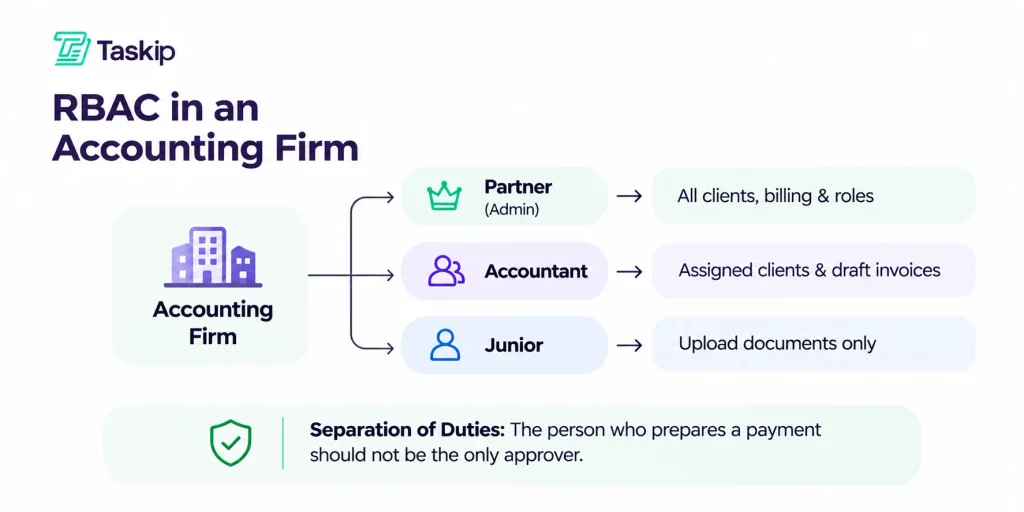
Each client sees only their own files. Separation of duties also applies: whoever prepares a payment should not be the only approver.
Example 4: A Hospital or Clinic
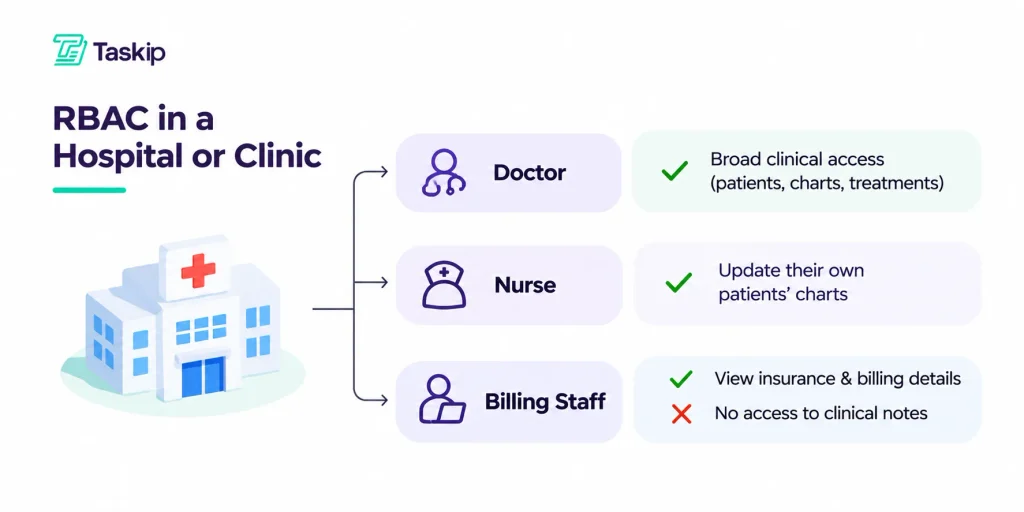
A hospital is the classic RBAC example: nurses update their own patients’ charts, doctors get broader clinical access, and billing staff see insurance details but not clinical notes. NIST has published RBAC case studies, many from healthcare.
Example 5: A Bank or Financial Services Team
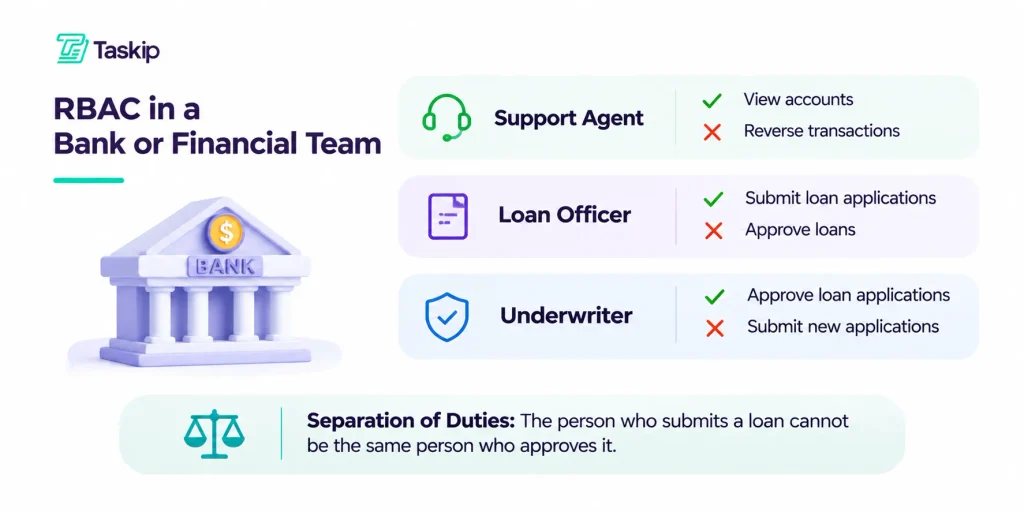
A bank uses RBAC so no one person can move money alone. A support agent can view accounts but not reverse transactions. A loan officer submits an application, but an underwriter approves it, which is separation of duties in plain form.
Example 6: A SaaS Workspace With a Client Role
A multi-client SaaS workspace puts staff roles and an external client role side by side. Staff may see many clients, but each client sees only their own records.
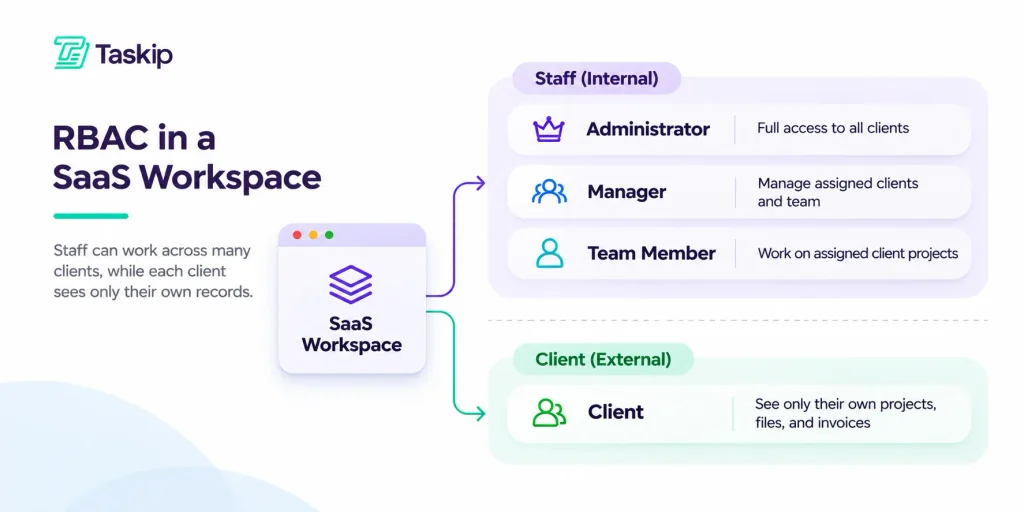
A white label client portal works this way, unlike sharing files through Google Drive, where access lives on folders.
What Does an RBAC Permissions Matrix Look Like?
An RBAC permissions matrix is a table that lines up roles against actions or resources, with an allow, a deny, or a scope such as “own records only” in each cell. You use it to design roles before assigning people, and later to audit whether the system still matches the plan.
The agency table in Example 1 is a working RBAC permissions matrix. Two details make any matrix better:
- Scope: does “edit files” mean own projects, the team, or the whole workspace?
- Who can grant roles: an admin should not promote themselves to owner.
A matrix that needs scrolling usually means too many roles.
Why Do Agencies and Small Teams Use These RBAC Examples?
Agencies and small teams use RBAC so each person gets only the access their job needs, contractors can be added or removed quickly, and clients never see other clients’ work. Role based access control for small business also gives you a clearer audit trail of who changed what.
- Least privilege: a leaked login does less damage.
- Faster onboarding and offboarding: change one role, not twenty checkboxes.
- Client data isolation: clients never share views.
- Easier reviews: audit a few roles, not every exception.
The GDPR expects appropriate security for personal data, and NIST SP 800-53 Rev. 5 lists role-based access control under control AC-3. RBAC supports both, though no tool makes you compliant alone.
What Is the Principle of Least Privilege in These Examples?
The principle of least privilege means each role includes only the permissions needed for that job, and everything else is denied by default. In the agency example, a new designer gets no billing or role-admin access, and a client cannot see other clients’ files or internal cost data.
Deny by default means a permission stays off until someone turns it on. The OWASP Authorization Cheat Sheet recommends least privilege, deny by default, and checking permissions on every request.
A client might approve an extra project budget without seeing your margins. In Taskip, Project Finance and Project Expenses permissions are off by default for Members, Clients, and custom roles, and clients never see project finances.
RBAC vs ABAC vs ACL: What Is the Difference?
RBAC grants access through a job role. Attribute-Based Access Control (ABAC) decides at request time using attributes such as department, resource type, or location. An Access Control List (ACL) attaches allow or deny rules to a single resource. RBAC is the simplest to start with, ABAC is more precise, and ACLs suit one-off file rules.
| Model | Access Is Based On | Best For | Watch-Outs |
|---|---|---|---|
| RBAC | The user’s job role | Teams with repeatable jobs | Role explosion from one-off exceptions |
| ABAC | Attributes of user, resource, and context | Conditional, fine-grained rules | Harder to design and explain |
| ACL | Users listed on each resource | Sharing one file or folder | Messy as people and files multiply |
| Hybrid | Roles plus a few conditions | Most growing teams | Keep conditions few and written down |
RBAC vs ABAC trades simplicity for precision. RBAC vs ACL asks whether rules live on roles or files.
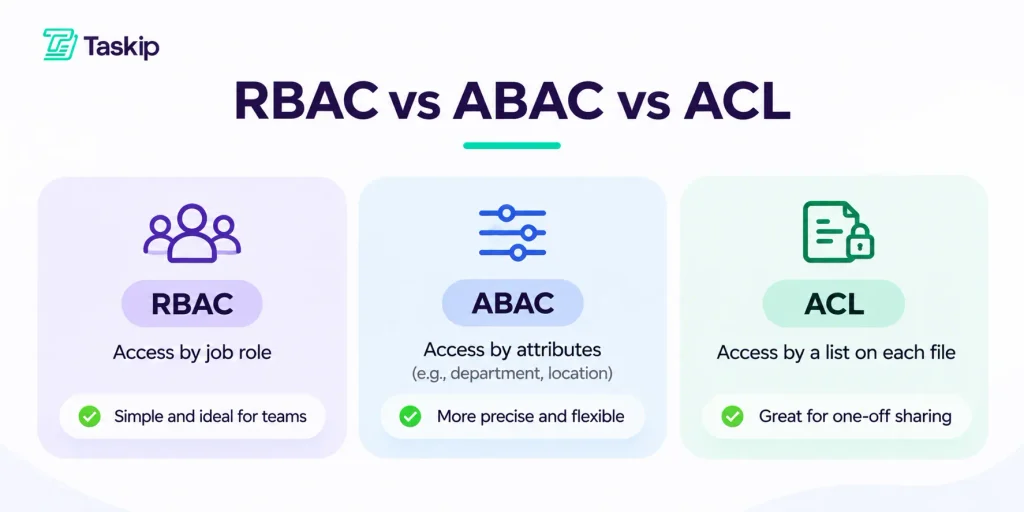
How Does RBAC Differ From Attribute-Based Access Control (ABAC)?
RBAC differs from attribute-based access control (ABAC) in what it checks. RBAC asks which role the user holds. ABAC asks about the user, the resource, and the situation, such as department, project status, or time of day. RBAC is easier to set up, while ABAC handles conditions roles cannot express.
An ABAC-style agency rule: “Show the client paid totals only if finance sharing is on for this project.” NIST SP 800-162 is the standard ABAC guide.
How Does RBAC Differ From an Access Control List (ACL)?
RBAC differs from an access control list (ACL) in where the rule lives. An ACL sits on a file, such as “Maya can edit this folder.” RBAC sits on a role, such as “Designers can edit project files.” ACLs suit one-off sharing but get hard to track as a team grows.
Tools that let you share a single document with a team or client use this ACL-style pattern.
Is Role-Based Access Control the Same as Rule-Based Access Control?
No. Role-based access control starts from the person’s role. Rule-based access control starts from a condition on the request itself, such as blocking an IP range or refusing logins outside business hours, regardless of who the user is. The similar names cause confusion, and many systems use both together.
For rule-based vs role-based access control, remember: roles ask “who?” and rules ask “when and where?”
What Are the Types of RBAC?
The types of RBAC in the NIST model are four cumulative levels. Core (flat) RBAC assigns users to roles and roles to permissions. Hierarchical RBAC adds role inheritance. Constrained RBAC adds separation of duties. Symmetric RBAC adds two-way review of which permissions belong to which roles.
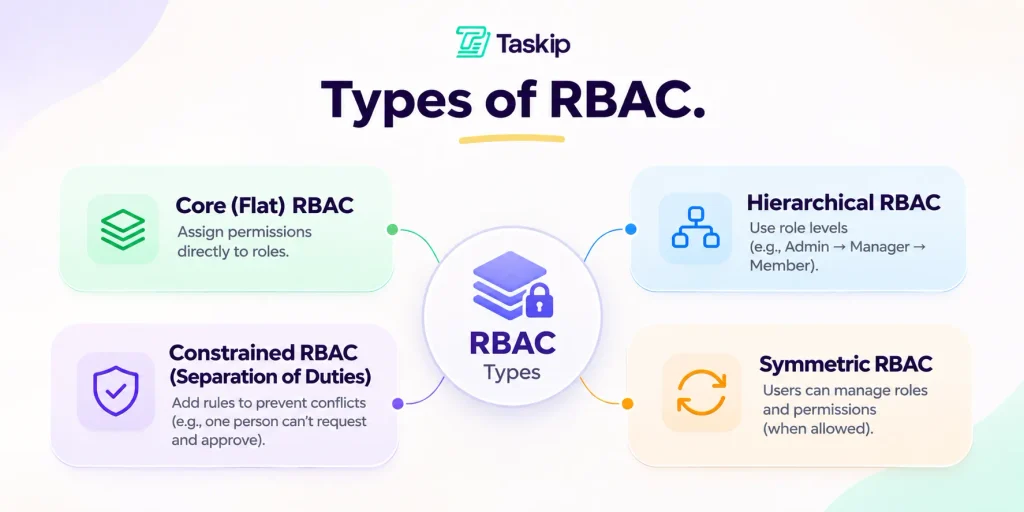
Some guides list three types and skip Symmetric; the four-level framing follows NIST.
Core (Flat) RBAC
Core RBAC is the base level: users, roles, and permissions, with many-to-many links. Most small-business tools ship this, with roles like Admin, Member, and Client.
Hierarchical RBAC
Hierarchical RBAC lets a senior role inherit a junior role’s permissions, so a Manager gets everything a Team Member has, plus more. Watch inheritance, because it can grant more than you meant.
Constrained RBAC and Separation of Duties
Constrained RBAC adds separation of duties. Static separation stops one person holding two conflicting roles, such as creating invoices and approving payments. Dynamic separation allows both roles, but not in one session.
Symmetric RBAC
Symmetric RBAC reviews the map both ways, permissions per role and roles per permission, which catches privilege creep: the slow build-up of access people no longer need.
What Is Role Explosion, and How Do You Avoid It?
Role explosion happens when a team creates so many slightly different roles that nobody remembers what each one allows. The problem usually starts with one-off exceptions, like “just give Maya extra access.” The fix is fewer reusable roles, almost no per-person exceptions, and regular reviews of unused permissions.
- Bad: Designer, Designer-Plus, Designer-For-Client-A, Temporary-Admin.
- Better: Designer, Manager, Administrator, Client, plus a custom role only when several people share it.
Name custom roles for the job, not the person, in your permissions and role management settings.
How to Set Up Role-Based Access Control in a Small Agency (Step-by-Step)
To set up RBAC in a small agency, list the systems and data you share, group people by the work they do, define a few reusable least-privilege roles, assign every person and client to a role, turn off unused access, and review the map whenever someone joins, changes job, or leaves.
Here is how to implement role based access control for small business:
- Inventory what needs protecting: projects, files, invoices, messages.
- List everyone needing access, including contractors and clients.
- Draft 4 to 6 reusable roles that match how your agency team is structured.
- Map permissions in a matrix, starting tighter than you think you need.
- Assign users to roles, with no shared logins.
- Set client access separately. A client portal setup checklist covers client roles on day one.
- Turn on an audit log and two-factor authentication where available.
- Review roles monthly and whenever someone joins, moves, or leaves.
A short role based access control policy example (a template, not legal advice):
- Purpose: Each person gets only the access their job needs.
- Roles: Defined in the permissions matrix; new roles start denied.
- Joiners and leavers: Access granted on day one, removed on the last day.
- Review: Monthly, owned by [Name], last updated [Date].
Starter Roles for a 1–20 Person Agency
| Role | Who It’s For | Typical Access | Typically Denied |
|---|---|---|---|
| Administrator | Owner or founder | Everything, including billing and roles | Nothing |
| Manager | Project and account leads | Assigned projects, members, invoices | Ownership changes; billing unless granted |
| Team Member | Designers, writers, developers | Tasks and files on assigned projects | Billing, roles, project finance |
| Contractor | Short-term specialists | Team Member access on one team | Everything else; removed at job end |
| Client | Each customer | Their own projects, files, invoices | Other clients, internal costs, admin |
A freelancer may need only Administrator and Client. A 10-person studio adds Manager and Team Member before any custom roles.
How Taskip Applies These Role-Based Access Control Examples
Taskip applies role-based access control inside an agency workspace by giving staff the Administrator, Manager, Team Member, or a custom role, and giving every client the Client role. Staff permissions can differ by team. Clients see only their own projects, files, and invoices, and a change to the Client role applies to every client at once.
Taskip is a client-management platform used in 1,850+ workspaces and rated 4.8/5 from 6 reviews on G2.
Team Roles: Administrator, Manager, Team Member, and Custom Roles
Taskip’s default staff roles are Administrator, Manager, and Team Member, plus custom roles. You add members, place them on teams, and assign a role. One member can belong to several teams, with different permissions per team. See the permissions docs and Team Management.
The Client Role and Client Portal Access
Taskip’s client access has two layers. First, data isolation: each client sees only their own projects, files, and invoices in the client portal. Second, the Client role: one shared permission set, so a change applies to every client at once. Clients join by invite only, and client portal settings are limited to Administrators and Managers.
Project-Level Access Settings
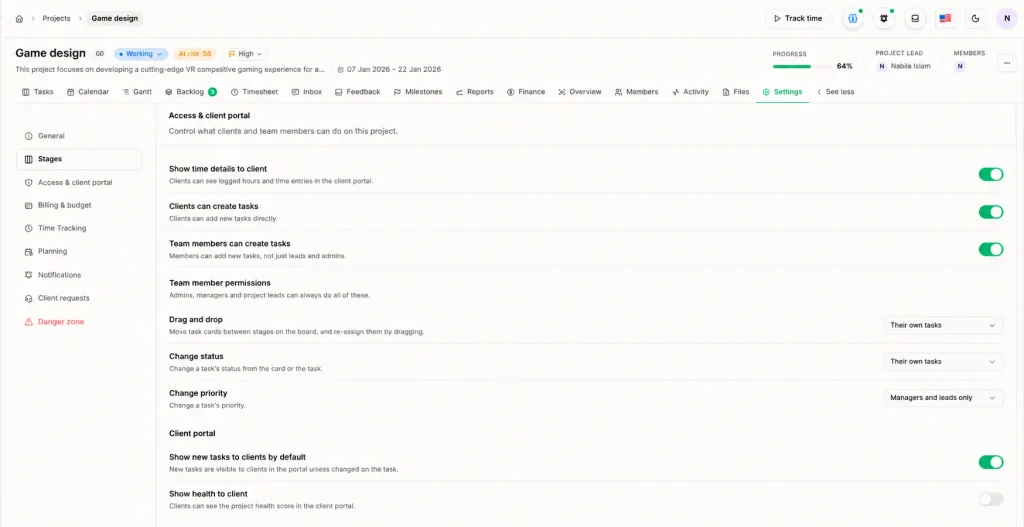
Taskip’s project settings fine-tune roles for each project. In a project’s Access & client portal settings, you choose:
- Team member scope: whether Team Members can create tasks, and whether they can move tasks, change status, or change priority on their own tasks only or leave that to managers and leads. Admins, managers, and project leads can always do all of these.
- Client actions: whether clients can create tasks, see new tasks by default, and submit feedback, bug reports, or change requests.
- Client visibility: whether clients see time details, the project health score, and finances. Finance sharing shows what is planned, invoiced, and collected. Costs, time spent, and profit are never shown.
Roles set the baseline, and project settings adjust it per project. That is the hybrid model from the RBAC vs ABAC section in practice.
Project Finance Permissions, Audit Logs, and 2FA
Taskip keeps Project Finance and Project Expenses permissions off by default for Members, Clients, and custom roles. Clients never see costs, time spent, or profit. Showing a client what is planned, invoiced, and collected is a per-project setting. Taskip also keeps an audit trail of team activity. Two-factor authentication (2FA) is on every plan, and SSO and IP whitelisting are on Agency Pro. Details are on the pricing and GDPR compliance pages.
If you want to see these roles in a live workspace, start on Taskip’s free plan and invite a test client.
How to Set Up Role-Based Access in Taskip
Setting up role-based access in Taskip follows the same steps as the starter roles above:
- Add your team: Add members and place each person on one or more teams.
- Assign a role per team: Choose Administrator, Manager, Team Member, or a custom role. The same person can hold different permissions on different teams.
- Grant finance access on purpose: Under Teams → Permissions, give Project Finance and Project Expenses only to roles that need them. Both are off for Members, Clients, and custom roles by default.
- Invite clients: Send each client an invite. They get the Client role and see only their own projects, files, and invoices.
- Turn on 2FA: Turn on 2FA for everyone, and check the audit trail when roles change.
If you want to see these roles in a live workspace, start on Taskip’s free plan and invite a test client.
How to Choose Access Control for Client Work (Checklist)
Access control for client work is easy to test before you pick a tool. Ask:
- Are permissions attached to roles, not individuals?
- Does a distinct client role limit each client to their own data?
- Can a contractor be limited to one project?
- Are billing, roles, and finance off by default?
- Is there an audit log?
- Can you remove access in one step?
- Is two-factor authentication available?
Run them against Taskip’s project management, invoicing, support tickets, and e-signatures, or see the best client portal for agencies guide.
Conclusion: Start With Least-Privilege Examples, Then Set Them Up in Taskip
All the role based access control examples in this guide share one idea: permissions belong to the role, not to a personal exception list. Start with a few tight roles, a client role, a written matrix, and a review habit.
Then test it. Invite one teammate and one test client to Taskip, assign the roles in Team Management and the client portal, and check that each person sees only what their role allows. Plans start at $8/month (Freelancer), $19/month (Startup Team), and $38/month (Growing Agency). See Taskip pricing.
Frequently Asked Questions About Role-Based Access Control Examples
What Is an Example of Role-Based Access Control?
A common example of role-based access control is an agency workspace. Designers edit files on assigned projects, project managers assign tasks and send invoices, clients view and pay only their own invoices, and administrators control billing and roles. Hospitals use the same pattern for nurses, doctors, and billing staff.
What Is Role-Based Access Control (RBAC)?
Role-based access control (RBAC) is a security model that attaches permissions to roles instead of to individual people. You create roles such as Manager, Designer, or Client, give each role the permissions that job needs, and assign people to roles. Changing someone’s role changes their access everywhere.
How Does Role-Based Access Control Work?
Role-based access control works by defining permissions, grouping them into roles that match jobs, and assigning users to those roles. Each time a user tries to open, edit, or send something, the system checks whether their active role includes that permission. If not, the action is denied.
What Is the Difference Between RBAC and ABAC?
RBAC grants access based on predefined roles, such as Manager or Client. ABAC, or attribute-based access control, evaluates attributes of the user, resource, and environment at request time, such as department, project status, or location. RBAC is simpler to run, while ABAC is more granular but harder to design.
Can a User Have More Than One Role in an RBAC System?
Yes. A user in an RBAC system can hold several roles, such as a project manager who also bills hours as a designer. The user gets the combined permissions of every assigned role, which is why teams add separation-of-duties rules for conflicting roles, like preparing and approving payments.
What Are the Three Primary Rules of RBAC?
The three primary rules of RBAC are role assignment, role authorization, and permission authorization. A user must be assigned a role before using any permission, must be authorized for the role they act in, and may only use permissions belonging to that active role. NIST described these rules in 1992.
What Is a Permissions Matrix in RBAC?
A permissions matrix in RBAC is a table that lists roles against actions or resources, with allow, deny, or a scope such as “own projects only” in each cell. Teams use it to design roles before assigning people, and later to audit whether the live system still matches the plan.
Is Role-Based Access Control the Same as Rule-Based Access Control?
No. Role-based access control decides access from the user’s assigned role, such as Manager or Client. Rule-based access control decides access from conditions on the request, such as time of day, network, or IP address, and those rules can apply to every user. Many systems combine both.