The Team Member Invitation page can be tailored to reflect your brand and provide a welcoming experience for new team members. You can customize the content, colors, and image placement for both sides of the page using the settings panel.
Accessing the Settings #
To update the Team Member Invitation page:
Go to
Dashboard > Settings > Pages Settings > Team Member Invitation Page
Customization Fields #
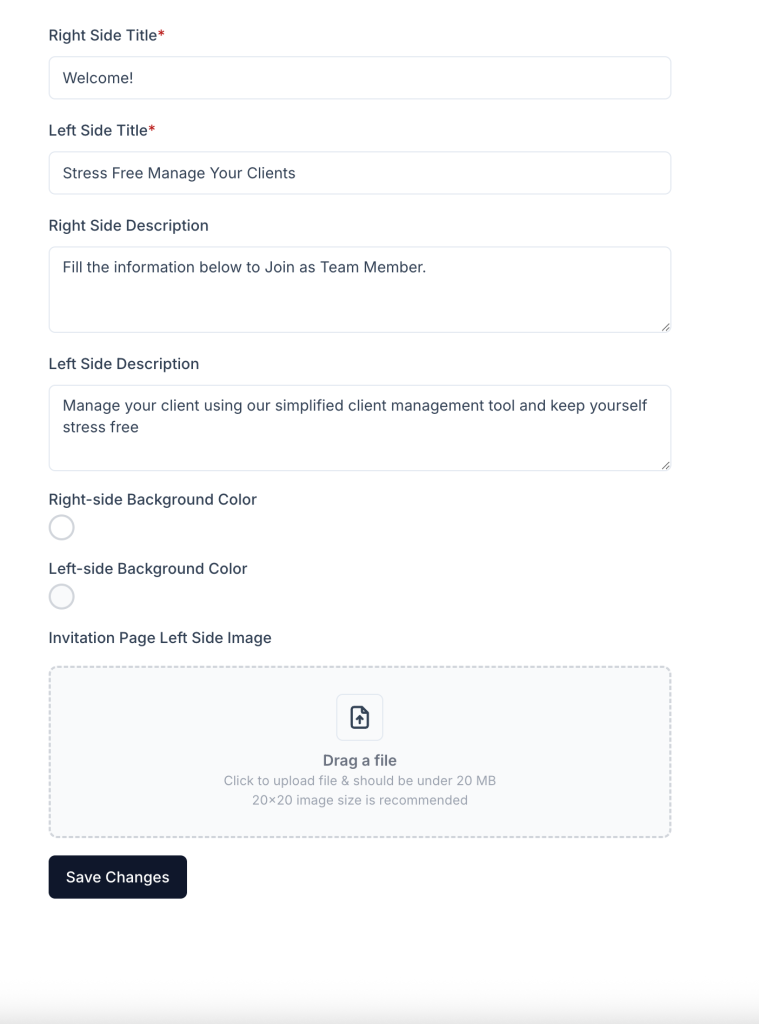
Right Side #
Right Side Title (Required)
This is the heading that appears on the right side of the invitation page.
Example: Welcome!
Right Side Description
A short message guiding the team member through the invitation process.
Example: Fill the information below to join as a team member.
Right-side Background Color
You can apply a custom background color to the right side to align with your brand’s look and feel.
Left Side #
Left Side Title (Required)
Displayed as the left-side heading.
Example: Stress Free Manage Your Clients
Left Side Description
An optional tagline or short value statement.
Example: Manage your client using our simplified client management tool and keep yourself stress free
Left-side Background Color
Customize the background color of the left section for better visual consistency.
Invitation Page Left Side Image
You may upload an image to be displayed on the left side of the page.
- Maximum file size: 20 MB
- Recommended dimensions: 20×20 pixels
- Supported formats: JPG, PNG, SVG
Saving and Previewing #
- Fill in the desired text, colors, and upload an image if needed.
- Click the Save Changes button.
- To see how the page looks to invitees, preview the link from an incognito/private window.


