This guide shows you how to create and manage an API Application in Taskip so your systems can securely call the Taskip Public API. For endpoints, authentication format, and payload details, use the official API reference: https://public-api-doc.taskip.net/
Prerequisites #
- You have a Taskip account with access to Settings.
- Your role/permissions allow viewing and managing API Application.
- You understand where this key will be stored and used in your code/automation.
Step-by-Step: Create an API Application #
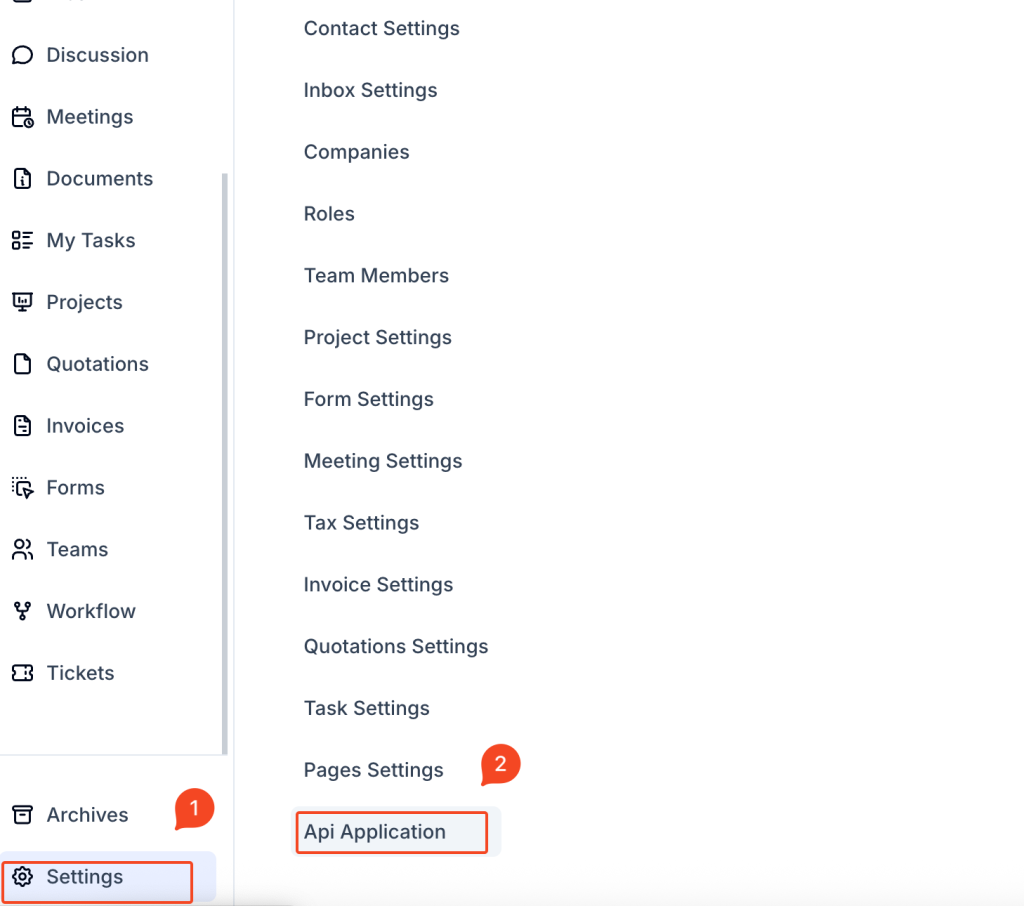
- Open Settings
In the left navigation, scroll to the bottom and click Settings.
Screenshot reference: sidebar showing Settings selected.
- Go to “API Application”
On the Settings page, locate API Application near the bottom of the settings list and click it.
Screenshot reference: Settings list with API Application highlighted.
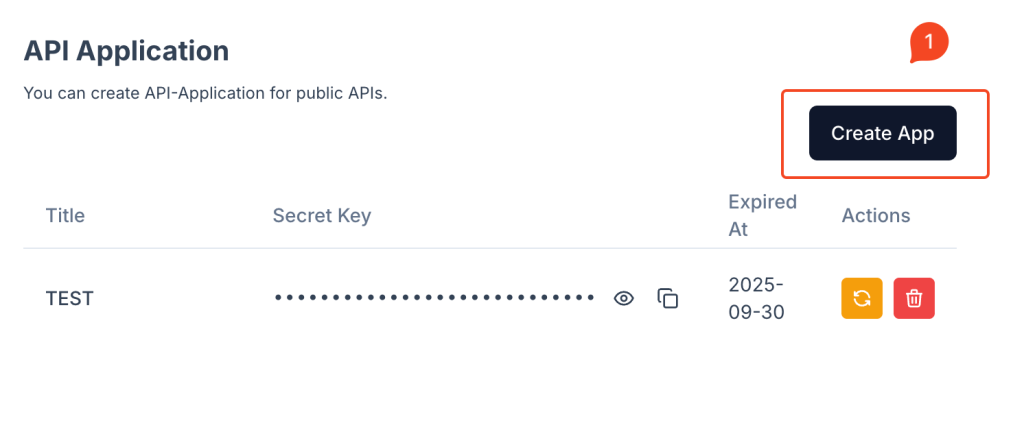
- Click “Create App”
In the API Application screen, click Create App (top-right).
Screenshot reference: API Application list with the Create App button.
- Fill out the form
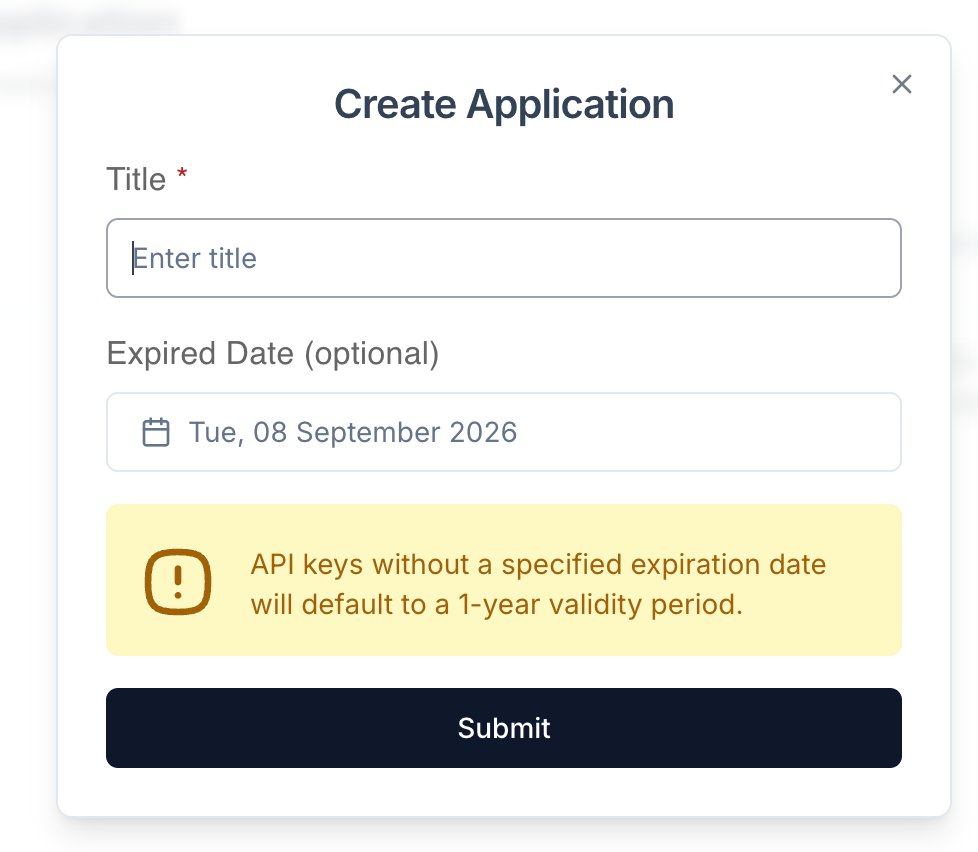
In the Create Application modal:- Title (required): A clear name (e.g., “Zapier Bridge”, “Production Backend”, “Data Warehouse Sync”).
- Expired Date (optional): Choose a date if you want the key to auto-expire. If you leave this blank, the key will default to a 1-year validity period (as indicated in the form).
Click Submit to create the key.
Screenshot reference: Create Application modal with Title and Expired Date fields.
- Copy and store the Secret Key
After creation, your app appears in the list with a Secret Key field:- Click the eye icon to reveal the key (if hidden).
- Click the copy icon to copy it.
- Store it in a secure vault (e.g., 1Password, Vault, AWS Secrets Manager).
Important: Treat the secret like a password. Anyone with this key can access your API scope.
You’re done, your application is now ready to call Taskip’s Public API. Proceed to the API docs for endpoints and headers: https://public-api-doc.taskip.net/
Managing an Existing API Application #
- View / Copy Secret: Use the eye (reveal) and copy icons next to the Secret Key.
- Rotate (Regenerate) Secret: Click the yellow refresh icon.
This invalidates the previous key and issues a new one. Immediately update all services that use this key. - Delete: Click the red trash icon to revoke access.
This is instant and cannot be undone. Ensure dependent services are moved to a replacement key first. - Change Expiration: Create a new app with the desired date or rotate if your policy requires new keys.
Security Best Practices #
- Least privilege & key separation: Create separate API Applications for different environments (dev/stage/prod) or integrations.
- Store secrets properly: Use a secrets manager; never hard-code in source control.
- Rotate regularly: Align rotation with your security policy (e.g., every 90 or 180 days).
- Restrict usage: If possible, keep keys only on servers that need them; never expose in client-side code.
- Monitor & revoke: If you suspect compromise, rotate or delete the key immediately.
Quick Connectivity Check (Example Workflow) #
- Create an API Application and copy the Secret Key.
- Open the API docs at https://public-api-doc.taskip.net/.
- Find a simple GET endpoint (e.g., “contact/“invoice”/“document” if available).
- Use the authentication method specified in the Authentication section of the docs (header name and scheme).
- Verify you get a 200 OK response.
Note: Header names and formats (e.g.,
X-Secret-Key: <SECRET>) are defined in the public API docs. Always follow that specification.
Troubleshooting #
- 401/403 Unauthorized
- The header name or scheme doesn’t match the docs.
- The key is expired, rotated, or deleted.
- The key wasn’t included on the request.
- 404 Not Found
- Endpoint path or base URL differs from what’s in the docs.
- 429 Rate Limited
- You’ve hit a rate limit; implement retries with backoff.
- Clock Skew / TLS Issues
- Ensure your server time is correct and you’re using HTTPS as specified.
If issues persist, confirm your request exactly matches the Authentication instructions in https://public-api-doc.taskip.net/ and that your key is valid (not expired or deleted).
FAQ #
Where do I find API endpoints and header formats? #
See the official API reference at https://public-api-doc.taskip.net/. The Authentication section lists the exact header name and scheme to use with your Secret Key.
Can I set an expiration for a key? #
Yes. Add an Expired Date when creating the application. If left blank, the key defaults to a 1-year validity.
How do I rotate a key without downtime? #
Create a new API Application (or rotate the existing one) → update your services to use the new key → verify traffic → delete the old key.
Can I have multiple keys? #
Yes. We recommend separate keys per environment/integration for isolation and safer rotation.
What happens if I delete a key? #
All requests using that key will immediately fail. Only delete after your services are updated to a replacement key.
Where should I store the Secret Key? #
Use a secure secrets manager (e.g., 1Password, Vault, AWS Secrets Manager, GCP Secret Manager, Azure Key Vault). Do not commit it to source code.


