Taskip provides a simple interface to customize the content and appearance of the Forgot Password page. This allows you to match your brand voice and provide a more user-friendly experience.
Accessing the Forgot Password Page Settings #
To customize the Forgot Password page, go to:
Dashboard > Settings > Pages Settings > Forgot Password Page
You will see editable fields for the right-side content and background.
Customization Fields #
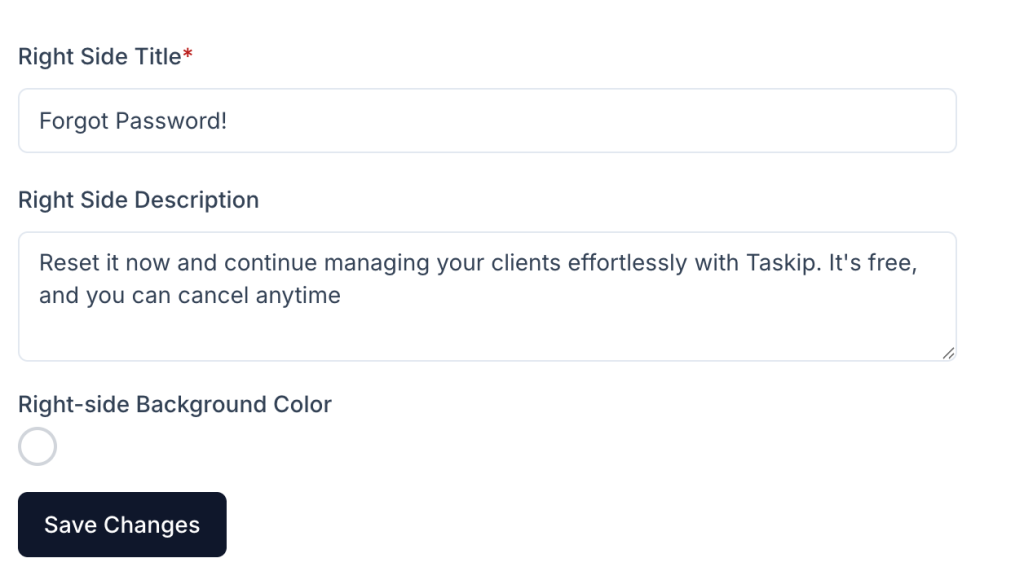
Right Side Title (Required):
This is the main heading displayed on the right side of the Forgot Password page.
Example: Forgot Password!
Right Side Description:
This text appears beneath the title and provides helpful or reassuring information to the user.
Example:Reset it now and continue managing your clients effortlessly with Taskip. It's free, and you can cancel anytime.
Right-side Background Color:
You can apply a custom background color to match your brand identity. This helps maintain a cohesive visual experience across all pages.
Best Practices #
- Use a calm and confident tone to reduce user frustration when resetting passwords.
- Keep the message clear and brief.
- Ensure color contrast for readability.
- Reinforce Taskip’s value proposition where appropriate (e.g., ease of use, free access).
Saving Changes #
After customizing the fields:
- Click the Save Changes button.
- Visit the Forgot Password page in an incognito/private window to confirm the updates.


