After creating a project, you can modify any settings, including team assignments, timeline, visibility, and status as the project evolves.
Editing a Project
- Navigate to your project list
- Click the Actions menu (three dots) on the project
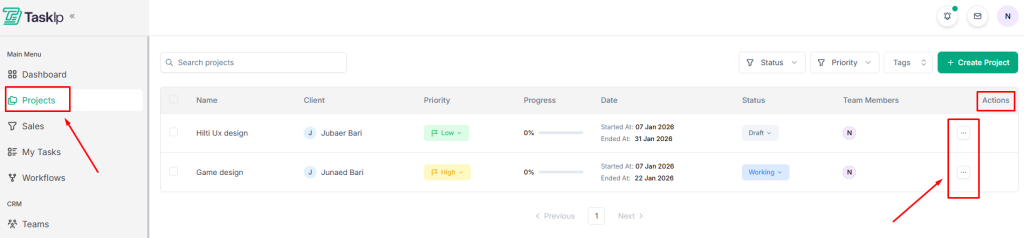
3. Select Edit
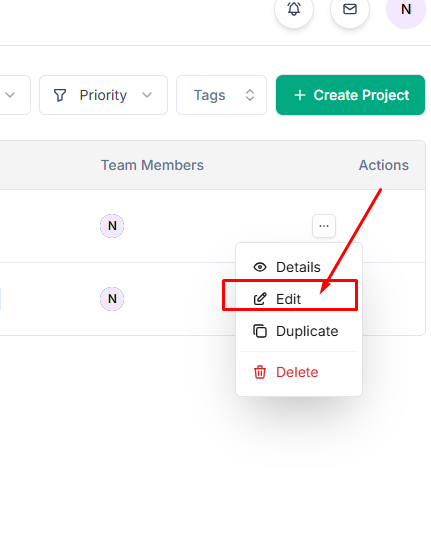
4. Modify any project fields:
- Update project name or description
- Change client association
- Reassign the project manager or team members
- Adjust status or priority
- Modify start and end dates
- Update tags
- Change visibility settings (Public/Private)
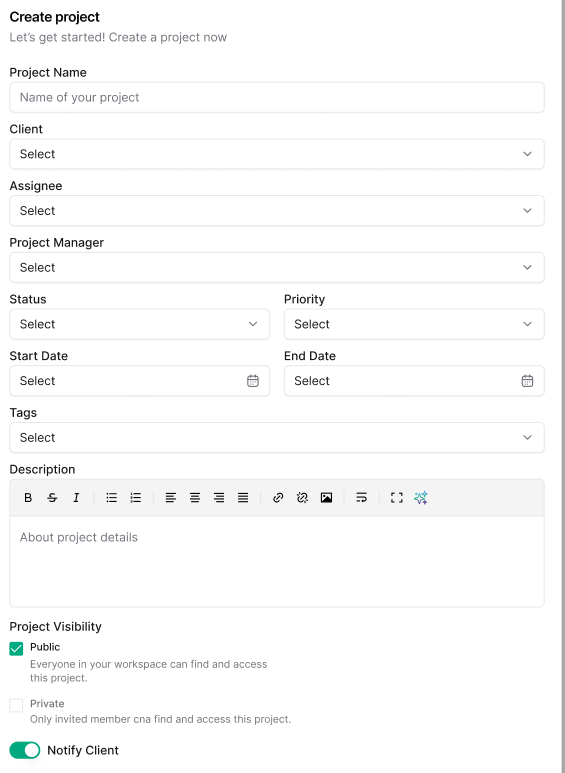
5. Click Save Changes
Duplicating a Project #
- Click the Actions menu on the project
- Select Duplicate
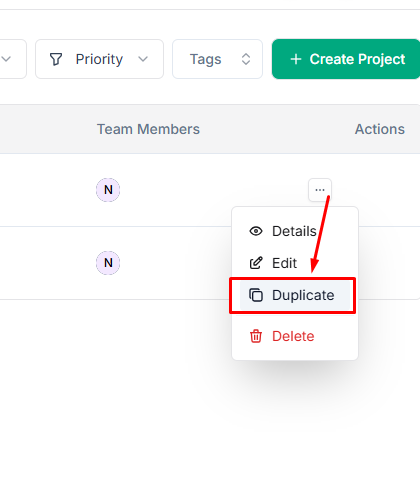
3. A copy of the project is created with all settings
4. Edit the duplicated project as needed
Deleting a Project #
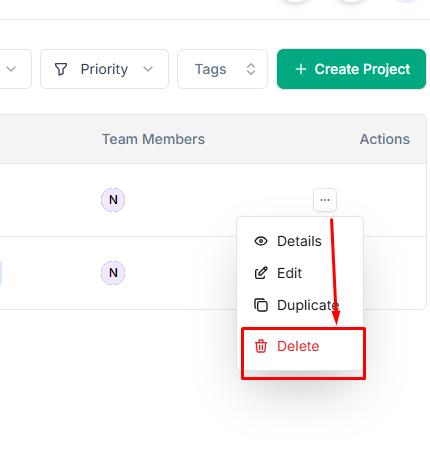
- Click the Actions menu on the project
- Select Delete
- Confirm the deletion when prompted
| ⚠️WARNING Deleting a project permanently removes all associated tasks, files, and data. This action cannot be undone. Consider archiving by changing the status to Completed instead of deleting. |


