Use this feature when you want to send instant acknowledgments to contacts—for example, when someone submits a contact form or emails your support team.
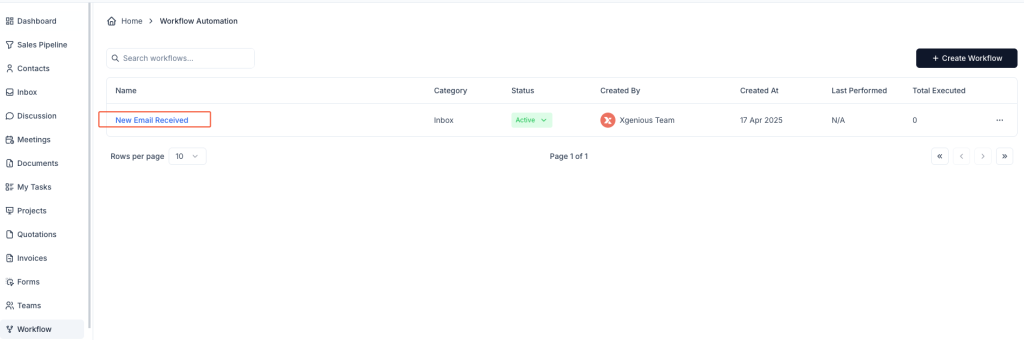
Step 1: Open the Workflow Module #
- Go to the Workflow section from the sidebar.
- Click + Create Workflow at the top-right.
Step 2: Define Basic Workflow Settings #
- Workflow Name: For example,
Auto-Reply to Contact Form. - Under the Inbox tab, choose New Message Received as the trigger.
Step 3: Set the Condition #
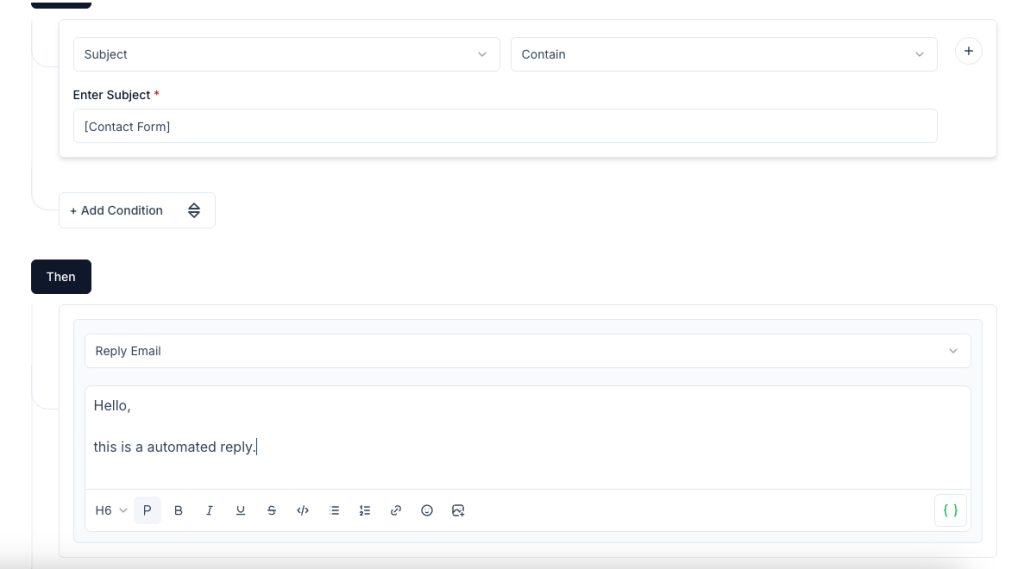
- In the IF section:
- Select Subject
- Use the condition Contain
- Enter a subject keyword, e.g.,
[Contact Form]
This ensures the automation runs only when the subject includes your defined keyword.
Step 4: Add the Reply Email Action #
- Under the THEN section, select Reply Email.
- Enter the email message you want to send automatically.
Example message:
Hello,

Thank you for reaching out. We’ve received your message and will get back to you shortly.

Best regards,
[Your Company Name]
You can use the formatting tools to bold, underline, or insert dynamic variables if needed.
Step 5: Save and Activate #
Click Create Workflow to save your automation and ensure it’s set to Active in the workflow list.
Now, whenever an incoming message matches the condition you set, Taskip will send the auto-reply immediately.
Example Setup #
Workflow Name: Contact Form Auto-Reply
Condition:
- Subject contains
[Contact Form]
Action: - Send reply: “Hello, this is an automated reply. We’ll get back to you soon.”


