This automation allows you to track conversations, updates, or events related to a specific deal inside your sales pipeline without manual logging.
Step 1: Open the Workflow Panel #
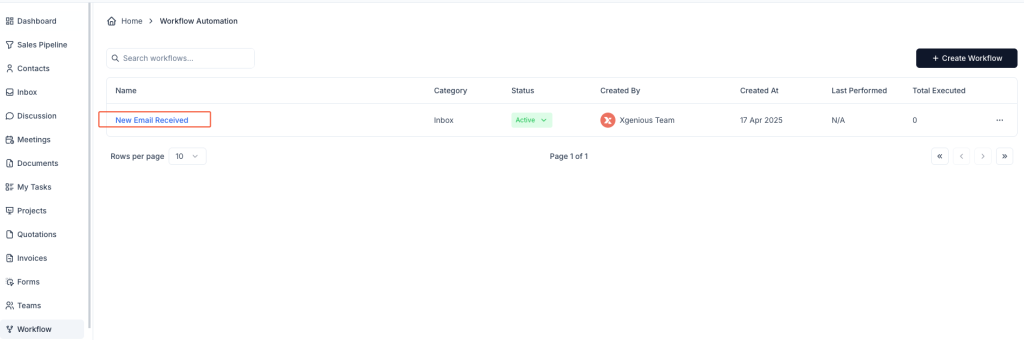
- Go to Workflow from the left sidebar.
- Click + Create Workflow in the top-right corner.
Step 2: Set the Trigger #
- Enter a Workflow Name (e.g.,
Log Contact Form Emails). - Under the Inbox tab, choose New Message Received as the trigger.
Step 3: Set the Condition #
- In the IF section:
- Choose Subject
- Use the rule Contain
- Enter the phrase to filter emails (e.g.,
[Contact Form])
This means the workflow will run only when the subject includes this phrase.
Step 4: Add a Deal Activity Log Action #
- In the THEN section, choose Deal Activity Log.
- Complete the following required fields:
- Select Pipeline: Choose the sales pipeline where the deal exists (e.g.,
Customization onboarding pipeline) - Select Stage: Choose the stage (e.g.,
Qualification) - Select Deal: Choose the specific deal (e.g.,
Custom SaaS Project Development) - Select Log Activity: Choose a log type such as
Log an Email,Call,Meeting, etc. - Log Description: Enter the content to log. You can insert dynamic fields like
{{email_content}}if supported.
- Select Pipeline: Choose the sales pipeline where the deal exists (e.g.,
This will automatically record the defined content inside the selected deal’s timeline.

Step 5: Save and Activate the Workflow #
- Click Create Workflow to save it.
- Make sure it appears as Active in your workflow list.
Now, every time a matching email arrives, Taskip will add a new activity log entry to the chosen deal automatically.
Example Setup #
Workflow Name: Log Contact Form to Deal
Trigger: New Message Received
Condition: Subject contains [Contact Form]
Action:
- Pipeline: Customization onboarding pipeline
- Stage: Qualification
- Deal: Custom SaaS Project Development
- Activity Type: Log an Email
- Log Message:
Email content


