This workflow is helpful when you want to convert incoming emails into saved contacts in your CRM. For example, every time someone fills out a form or sends a message, you can automatically capture their information as a contact.
Step 1: Go to the Workflow Module #
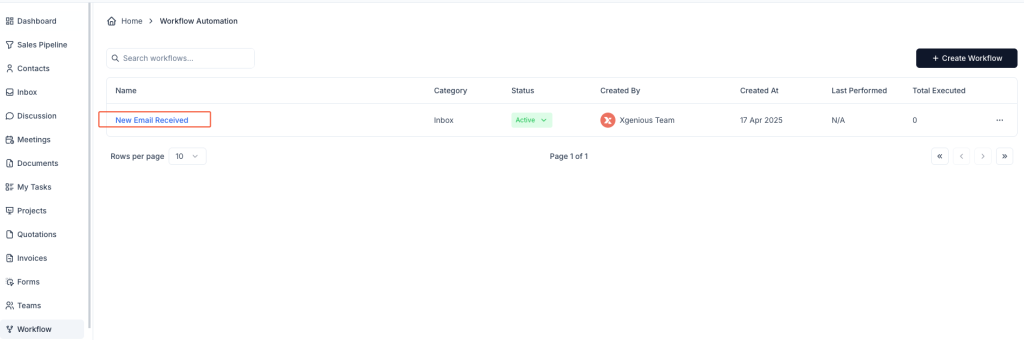
- Click on Workflow in the left sidebar.
- Click + Create Workflow at the top right.
Step 2: Define the Trigger #
- Name the workflow (e.g.,
New Lead → Contact). - Under the Inbox tab, select New Message Received as the trigger.
Step 3: Add a Condition #
- Under the IF section:
- Choose Subject.
- Set it to Contain.
- Enter a keyword like
[Contact Form].
This ensures the automation only runs when relevant emails arrive.
Step 4: Set the Action to “Convert to Contact” #
- In the THEN section, select Convert to Contact.
- You will see a toggle option:
- Invite client to workspace – You can choose to enable this if you want the contact to be invited to your Taskip workspace immediately.

This action will automatically create a contact using the sender’s name and email from the message.
Step 5: Save and Activate #
- Click Create Workflow.
- Ensure the workflow is marked as Active so that it runs automatically.
Example Setup #
Workflow Name: Convert Contact Form Submissions
Condition:
- Subject contains
[Contact Form]
Action: - Convert to Contact
- (Optional) Invite client to workspace: OFF
Now, any incoming email with [Contact Form] in the subject will be converted to a saved contact automatically, without manual entry.


