This feature allows you to connect Taskip to external systems or services—such as CRMs, APIs, notification tools, or Zapier—by sending a webhook (HTTP request) automatically when an email matches certain conditions.
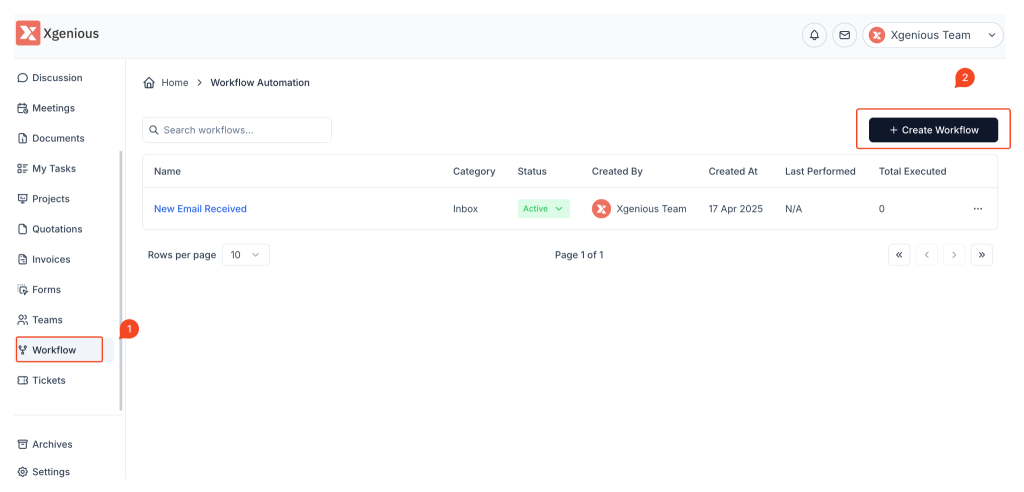
Step 1: Go to the Workflow Module #
- From the left sidebar, select Workflow.
- Click + Create Workflow at the top-right corner.
Step 2: Set the Trigger #
- Name your workflow (e.g.,
Send Webhook on Contact Form). - Choose New Message Received under the Inbox tab.
Step 3: Add a Filter Condition #
- In the IF section:
- Choose Subject.
- Set it to Contain.
- Enter a keyword like
[Contact Form].
This condition ensures only relevant emails will trigger the webhook.
Step 4: Add the Webhook Action #
- In the THEN section, select Trigger Webhook (if available in your instance).
- Provide the following details:
- Webhook URL: The endpoint where the data should be sent.
- Method: Typically
POST,GET, orPUT. UsePOSTfor most integrations. - Headers: (Optional) If the receiving service requires authentication or custom headers.
- Payload: Define what data should be sent. You can use variables like: jsonCopyEdit
{ "email_subject": "{{email_subject}}", "email_content": "{{email_content}}", "from_email": "{{email_sender}}" }
Step 5: Save and Activate #
Click Create Workflow and confirm it is marked as Active so the automation runs automatically when triggered.
Example Setup #
Workflow Name: Trigger Webhook on Form Submission
Condition:
- Subject contains
[Contact Form]
Action: - Send POST request to
https://api.example.com/new-lead - Payload includes email subject, content, and sender
This setup instantly connects Taskip with external tools the moment a qualifying email arrives.


