Taskip’s Email Template Builder allows you to create professional email templates for invoice and quotation notifications. You can personalize messages using dynamic variables, style content blocks, and reuse templates across your workspace.
Step-by-Step: Create a New Email Template #
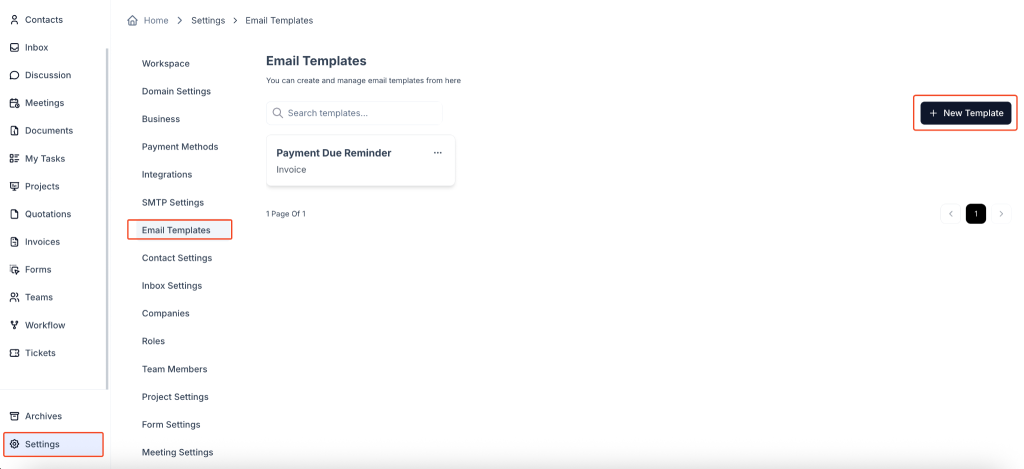
1. Navigate to Email Templates
- Go to Settings in the left sidebar.
- Select Email Templates under the communication settings section.
2. Click “+ New Template”
- On the top-right, click the + New Template button to open the template creation modal.
3. Fill Out Template Info
- Template Name: Give your template a recognizable title, such as “Invoice Reminder” or “Quotation Follow-up”.
- Template For: Choose whether the template is for an Invoice or a Quotation.
Click Create to proceed to the editor.
Using the Email Template Builder #

Once inside the template editor, you can use the visual builder to structure your email content.
Available Elements (Drag-and-Drop):
- Heading
- Text
- Button
- Image
- Divider
- Avatar
- HTML
- Spacer
- Columns
- Container
Dynamic Variables
Click on the Variables tab to see all available placeholders. These can be inserted directly into your text by clicking them. Examples include:
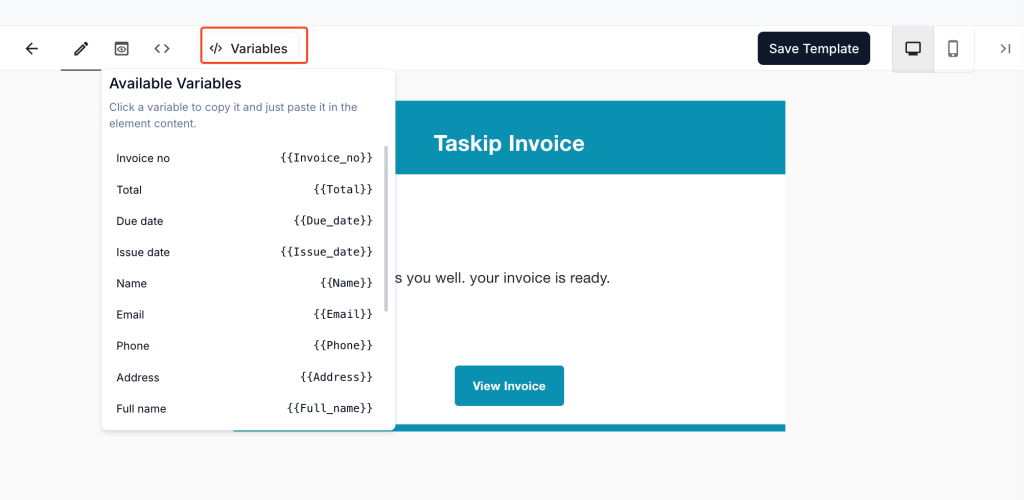
| Variable | Description |
|---|---|
{{Full_name}} | Client’s full name |
{{Invoice_no}} | Invoice number |
{{Due_date}} | Due date of invoice |
{{Total}} | Invoice total amount |
{{Invoice_url}} | Link to view invoice |
{{Email}} | Client email address |
These variables will automatically populate with real data when the email is sent.
Styling Options
On the right panel, you can:
- Adjust fonts, text color, and layout spacing
- Customize button colors and shape (rounded, pill, rectangle)
- Set background and canvas colors
Save the Template #
Once you’re satisfied with your design:
- Click Save Template at the top-right.
Your template will now appear in the list and can be selected for reminders, manual emails, or automation.
Best Practices #
- Keep subject lines clear and action-oriented.
- Use
{{Full_name}}and other placeholders to personalize. - Add a call-to-action button like “View Invoice” or “Accept Quotation” using
{{Invoice_url}}or{{Quotation_url}}. - Use columns and dividers to visually structure longer emails.
Frequently Asked Questions (FAQ) #
Can I edit a template after creating it? #
Yes, simply click on the template name from the list to reopen and update its content or design.
Are different templates supported for invoices and quotations? #
Yes. You can create templates specific to either invoices or quotations.
Can I duplicate an existing template? #
Currently, duplication is not available. However, you can recreate templates manually using the same layout.
What happens if a variable is missing or invalid? #
If a placeholder variable is incorrect or not available, it may appear as blank in the final email. Always use the Variables panel to insert them correctly.
Can I send a test email? #
Test-sending is not available from the template editor but can be previewed visually in the builder.


