The Email Templates section allows you to customize the emails that Taskip sends on behalf of your workspace. These emails are used for client communication, notifications, and system updates.
When a custom template is activated, it replaces the default system email. If the custom template is deactivated, Taskip will automatically fall back to the built-in default email template.
Customizing these templates helps maintain consistent branding, messaging, and communication style when interacting with clients and team members.
Navigation #
To access Email Templates:
Dashboard → Settings → Email Templates
Email Template Categories #
Email templates in Taskip are organized into the following categories:
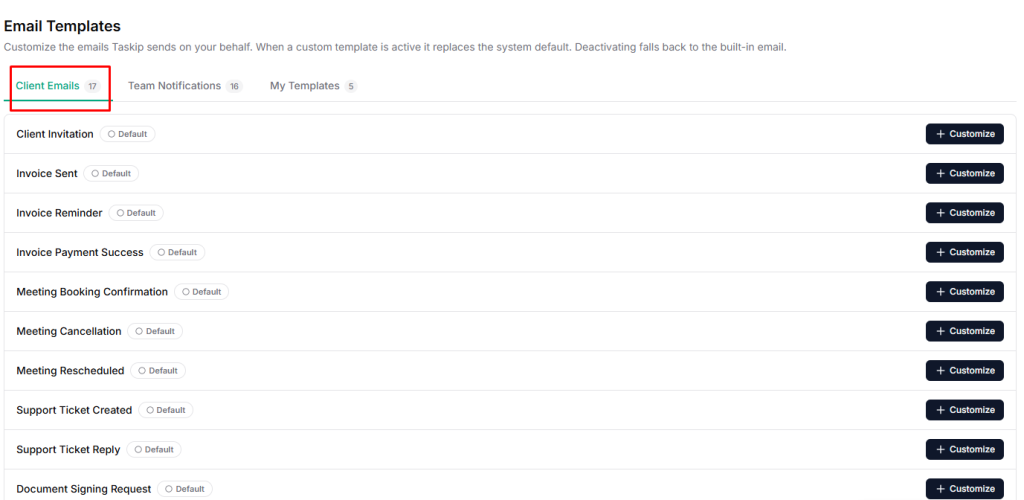
Client Emails #
These templates are used for emails sent to clients, such as notifications related to proposals, invoices, project updates, or account activities.
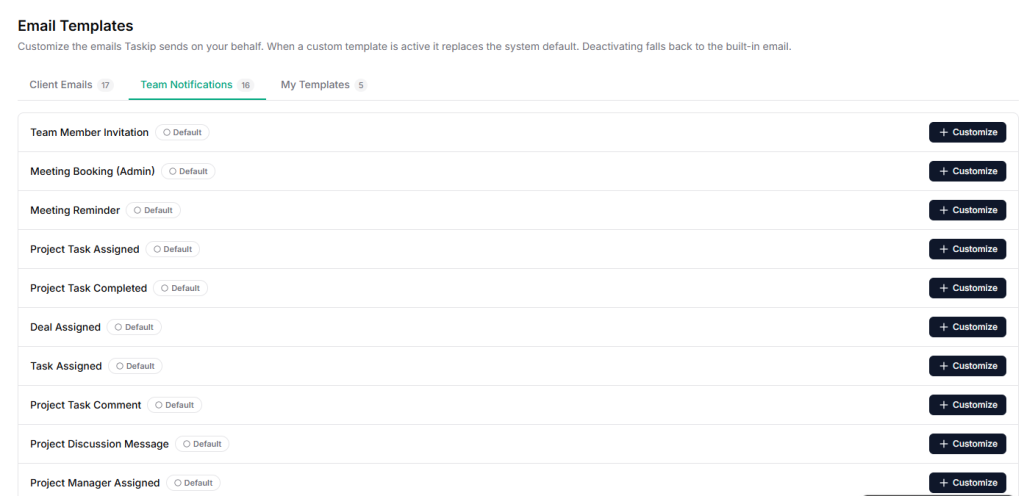
Team Notifications #
These templates are used for internal notifications sent to team members. They keep your team informed about activities such as task updates, project changes, or new leads.
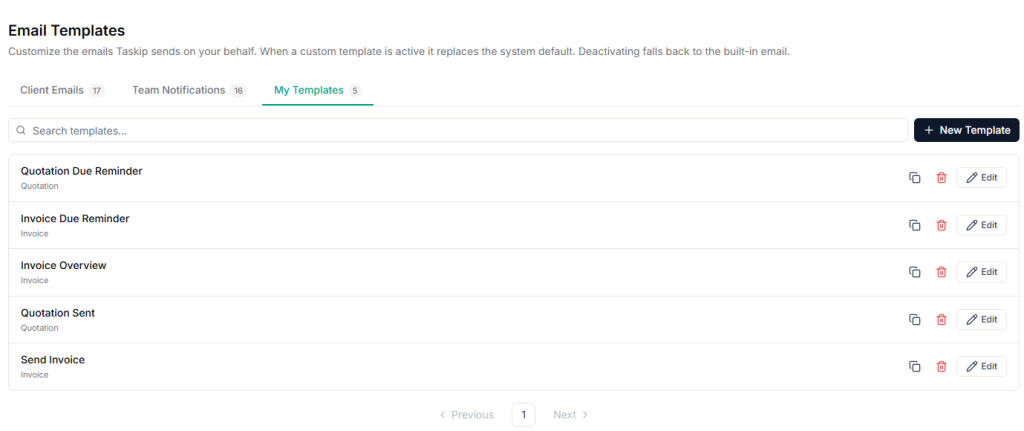
My Templates #
This section contains custom templates that you create and manage for your own email communication needs. You can copy, delete, or edit any template as you need.
How to Customize an Email Template #
- Go to Settings in your Taskip dashboard.
- Click Email Templates.
- Select the category (Client Emails, Team Notifications, or My Templates).
- Find the template you want to modify.
- Click Customize next to the template.
- Edit the email subject and content as needed.
- Save and activate the template.
Once activated, Taskip will use your custom template instead of the default system email for that notification.


