Tasks are the actionable items that drive project completion.
Taskip provides multiple methods to create tasks, including manual entry, AI assistance, and bulk CSV import.
Creating a Task Manually #
- Go to Project from the main menu and select a project.
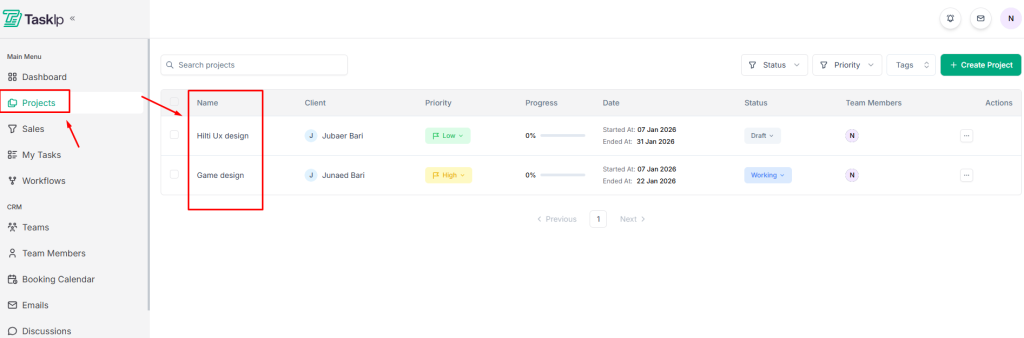
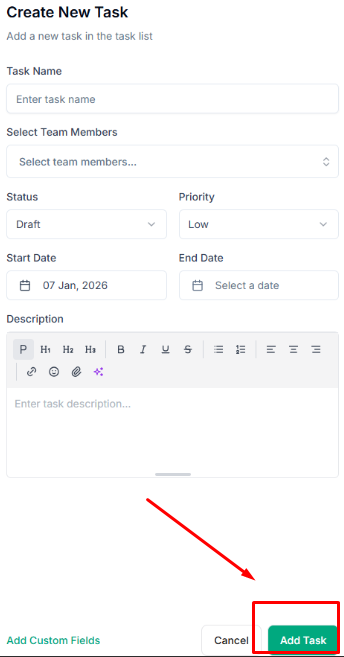
2. Click Add and select Create Task for manual process.
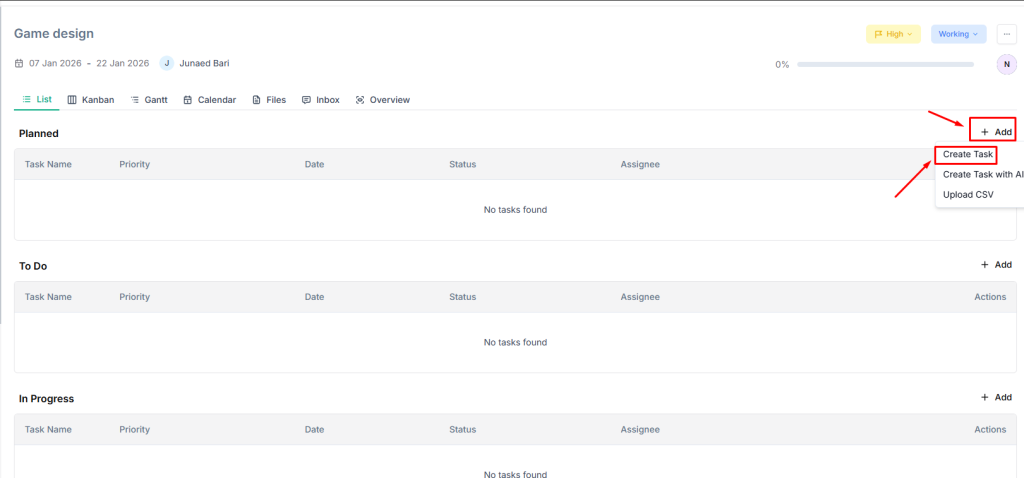
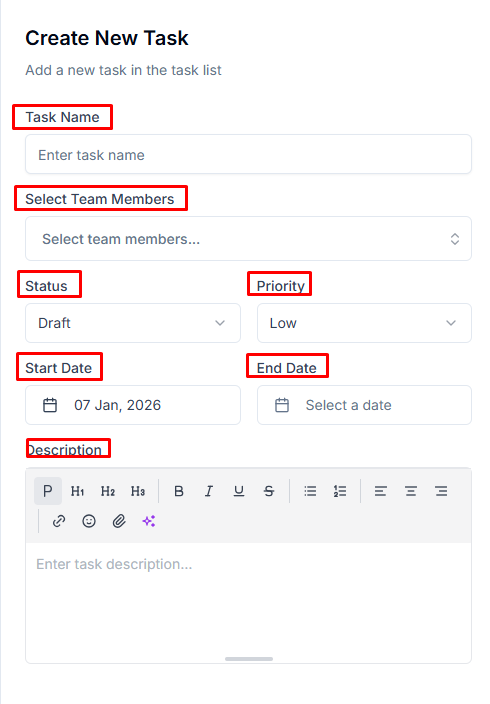
3. Fill in task details:
- Task Name: Clear, actionable title describing the work
- Select Team Members: Assign responsible team members
- Status: Set initial status (Draft, Working, Review, Completed)
- Priority: Define urgency (Low, Medium, High, Urgent)
- Start Date: When work should begin
- End Date: Task deadline
- Description: Detailed instructions or context
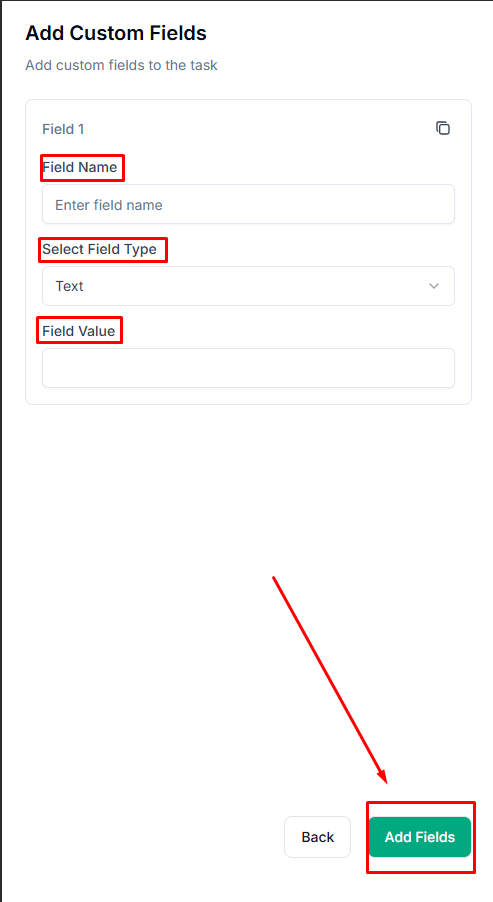
4. Click Add Custom Fields to include additional data fields if configured.
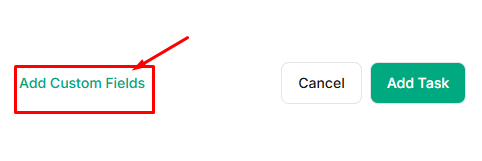
Include the necessary information (Field Name, Select Field Type, Field Value) to create a custom field and click Add Fields.
5. Click Add Task to save.
Creating Tasks with AI #
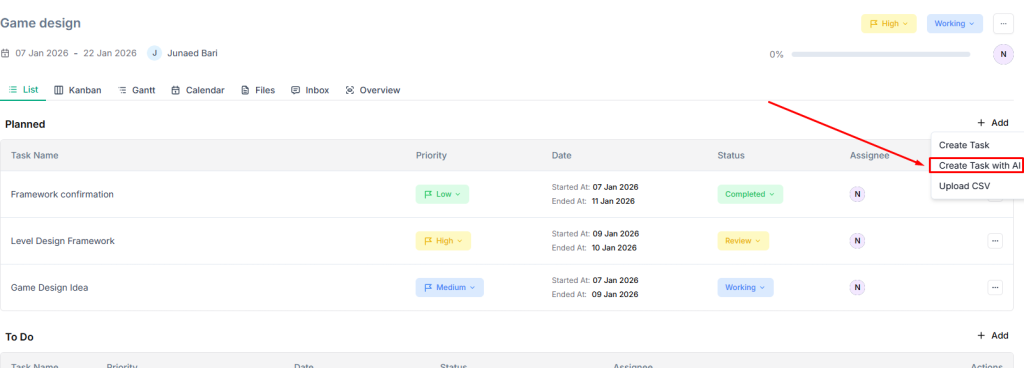
- Click Add and select Create Task with AI
2. Describe your task in natural language
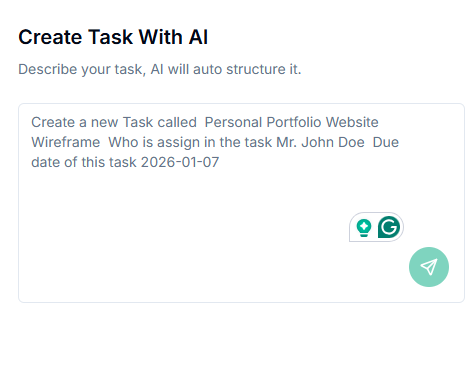
3. AI will automatically structure the task with appropriate fields
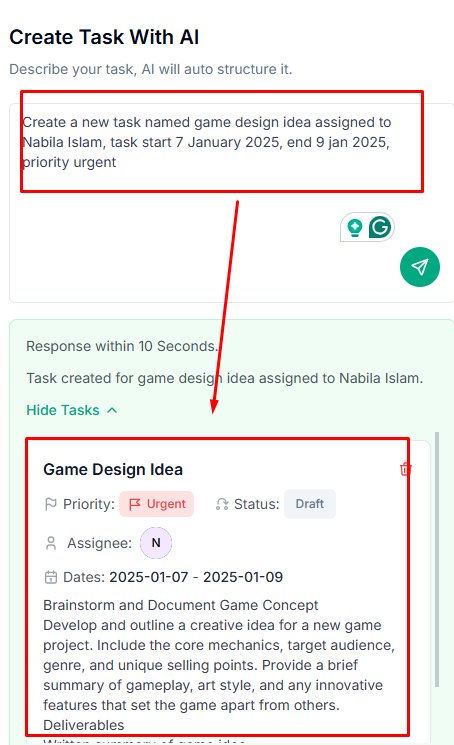
4. Review and adjust the generated task details
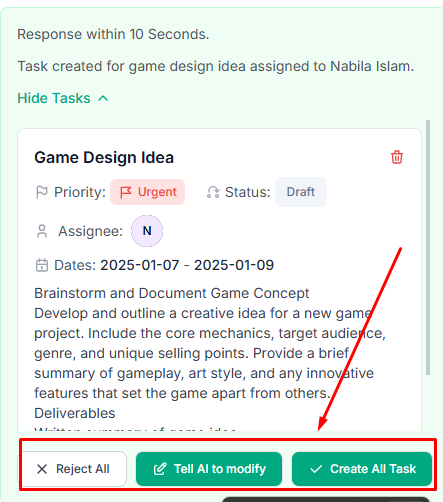
5. Save the task
Bulk Importing Tasks via CSV #
- Click Add and select Upload CSV
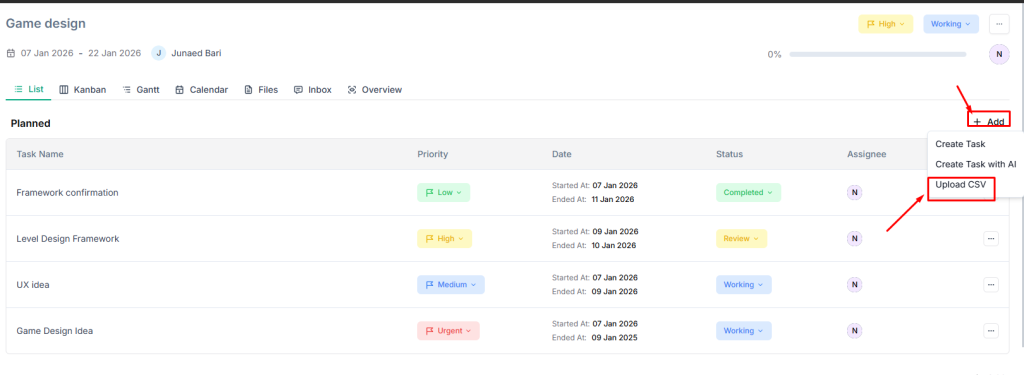
2. Download the Sample CSV to see the required format
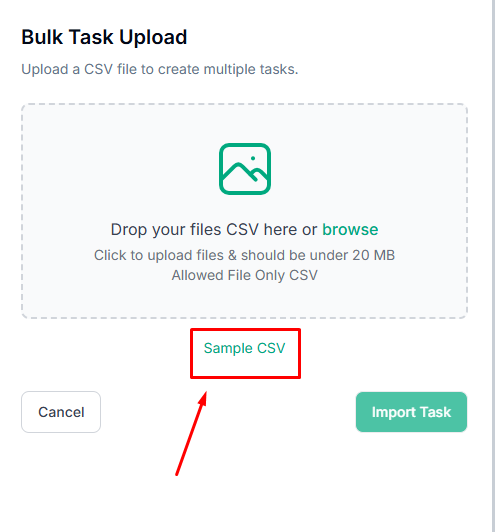
3. Prepare your CSV file with task data
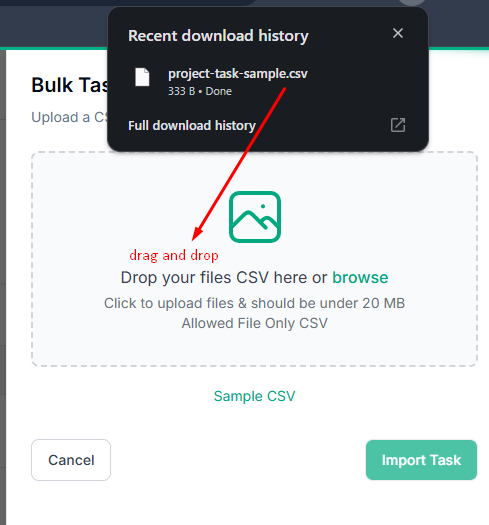
4. Drag and drop your CSV file or click to browse
- File must be under 20 MB
- Only CSV format is accepted
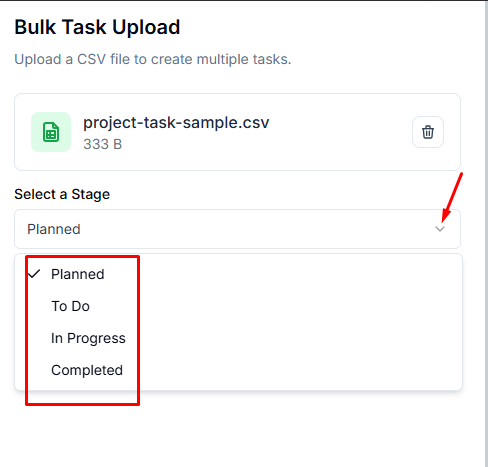
5. Select a Stage from the dropdown menu.
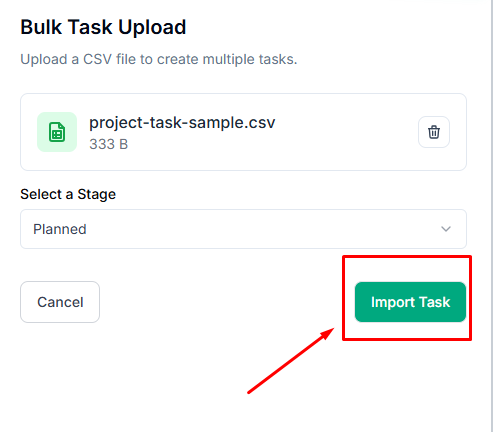
6. Click Import Task to create all tasks from the file.
Managing Existing Tasks #
- Click on any task to view or edit details
- Drag tasks between columns in Kanban view to update status
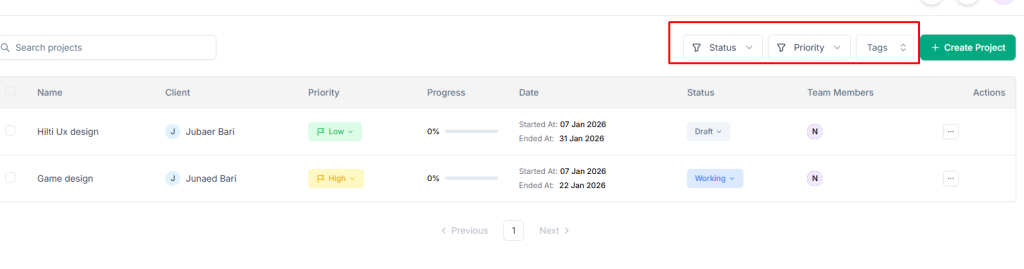
- Use filters to find specific tasks by status, priority, or assignee
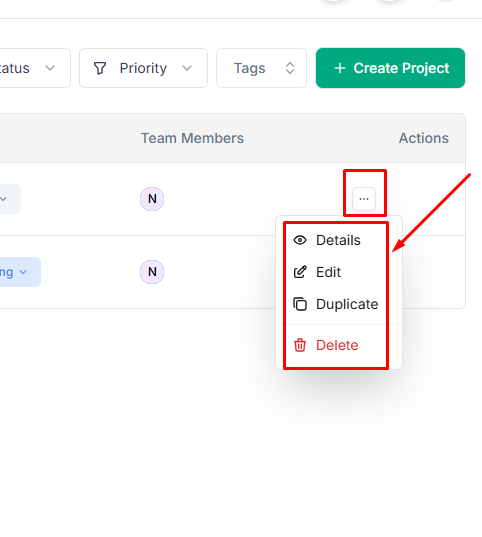
- Delete or duplicate tasks from the task actions menu
| 💡Tips – Break large deliverables into smaller, specific tasks. – Each task should represent a single actionable item that can be completed and marked done independently. |


