The Files section provides centralized document storage for each project. Keep all relevant files organized and accessible to team members working on the project.
Accessing Project Files #
- Open your project
- Click the Files tab
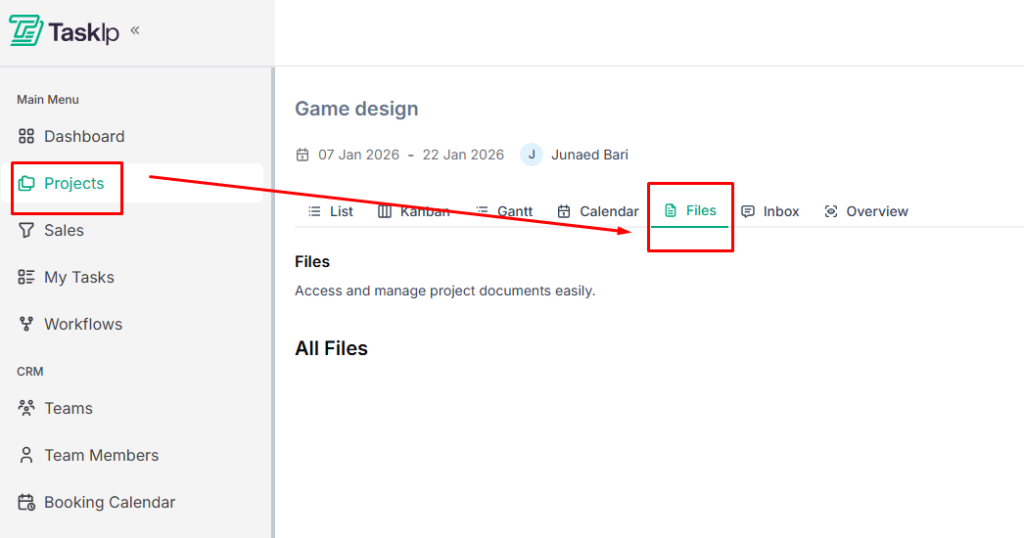
3. View all uploaded files associated with the project
Uploading Files #
- Click the Upload File button
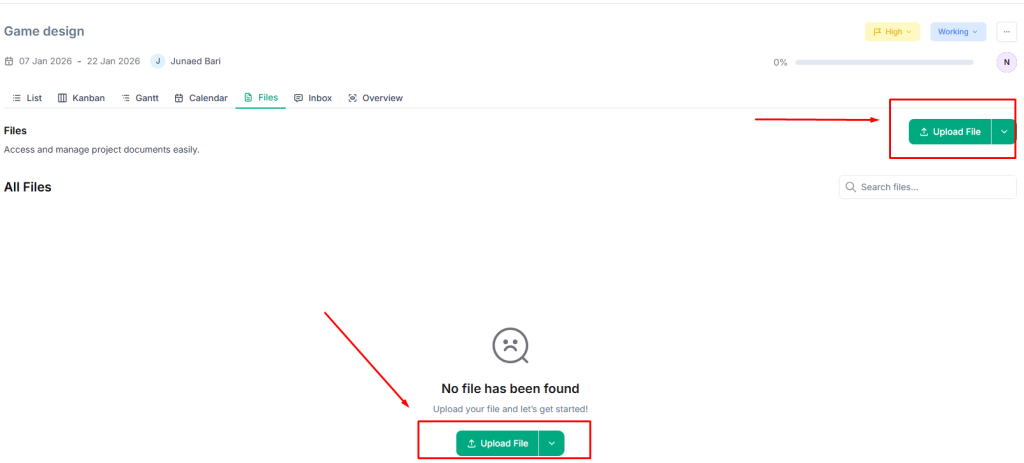
2. Choose your upload method:
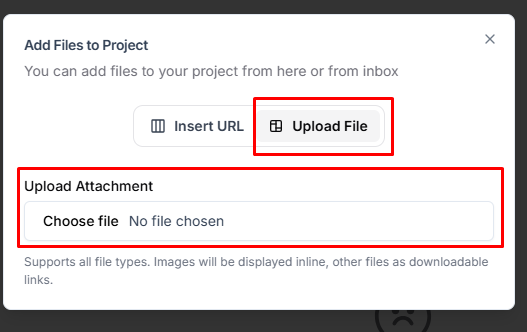
Direct File Upload:
- Click Upload File tab
- Drag and drop files into the upload area, or click to browse
- Files must be under the size limit specified
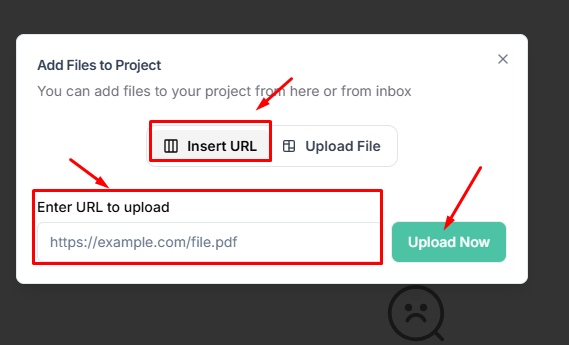
URL Upload:
- Click Insert URL tab
- Enter the file URL in the provided field
- Click Upload Now to import the file
Google Drive Integration #
- Click the dropdown menu of Upload File and select Google Drive.
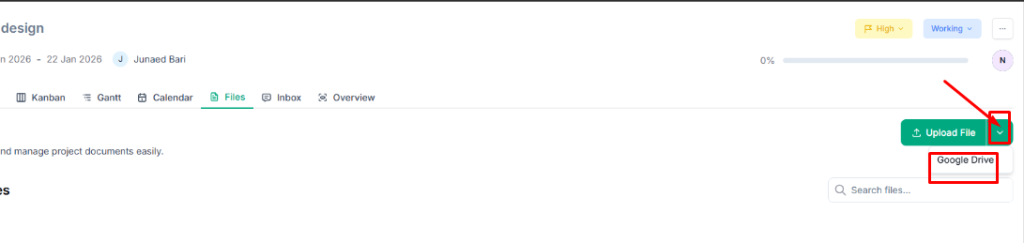
- Connect your Google Drive account if not already linked
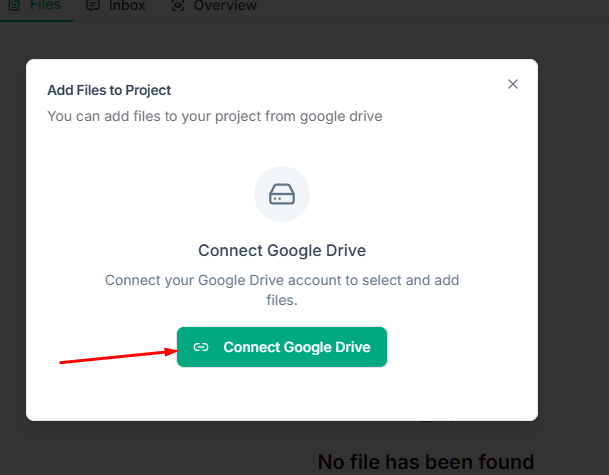
- Browse and select files from your Google Drive
- Selected files become accessible within the project
Managing Files #
- View all uploaded files in the All Files section
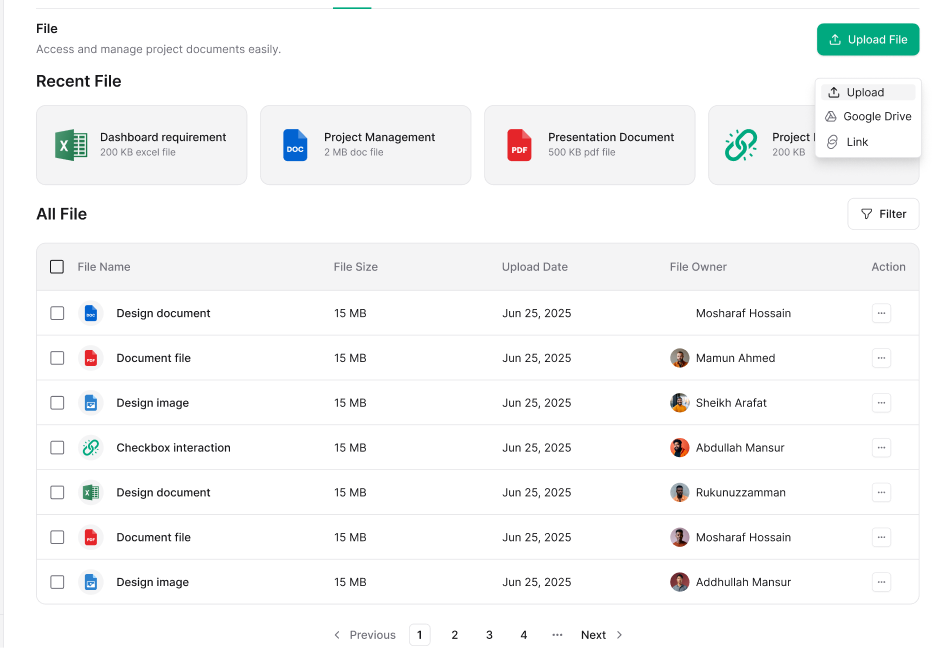
- Click on a file to preview or download
- Delete files no longer needed for the project
| 💡Tips You can also add files to projects directly from the Inbox when relevant documents arrive via email. |


