This workflow helps you automatically delete conversations based on specific conditions keeping your inbox clean and focused on what matters most.
Step 1: Open Workflow Settings #
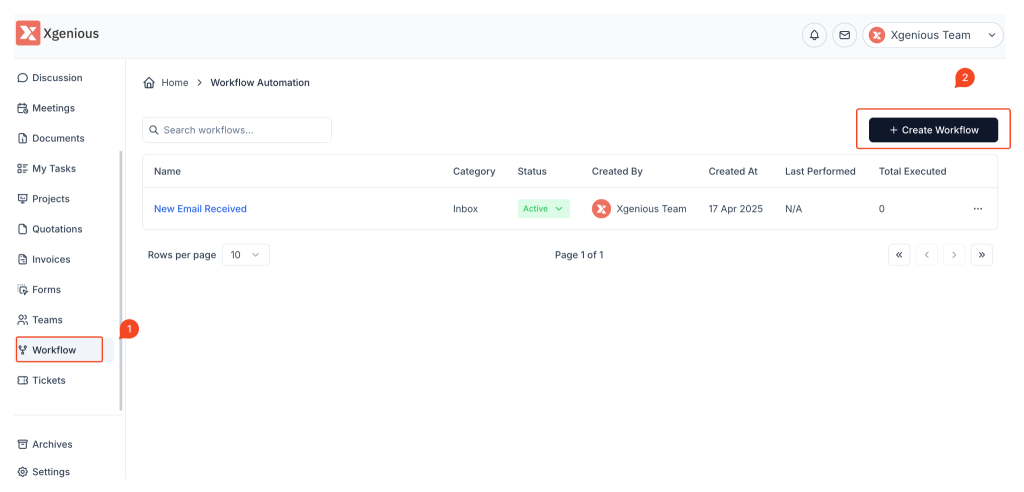
- From the left sidebar, go to Workflow.
- Click the + Create Workflow button in the top-right corner.
Step 2: Name and Choose Trigger #
- Give your workflow a meaningful name, like:
- “Delete Auto Replies”
- “Clear Spam Conversations”
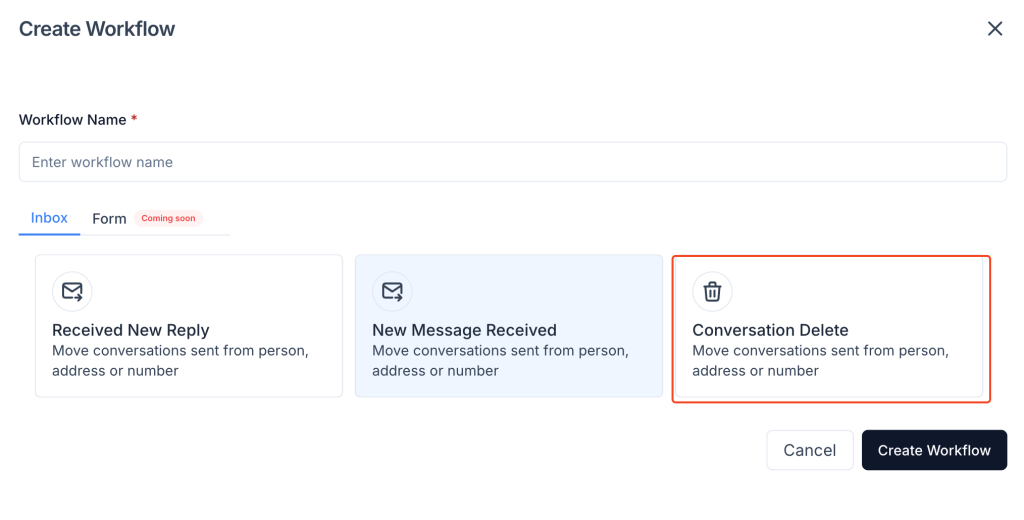
- Under the Inbox tab, select this trigger: Conversation Delete
“Move conversations sent from person, address or number”
This is the last option in the trigger list, shown on the right in your screenshot.
Step 3: Define the Conditions (IF) #
Use conditions to tell Taskip when to delete a conversation.
Examples:
- Subject contains “Out of Office”
- Sender email is
noreply@domain.com - Message body contains “auto-reply” or “delivery failure”
You can combine multiple conditions using + Add Condition to fine-tune the rule.
Step 4: Action = Auto Delete #
The action for this trigger is built-in: Delete Conversation
You don’t need to add extra steps here once the condition is met, the conversation will be removed automatically.
Step 5: Save the Workflow #
- Click Create Workflow to save it.
- Your automation will now be listed on the Workflow dashboard.
- Make sure the status is set to Active.
Example Use Case #
Workflow Name: Auto-Delete No-Reply Emails
Condition: Sender email isnoreply@notifications.com
Result: Deletes all system-generated emails automatically#


