This automation is useful when you want to capture new leads or inquiries and instantly create a deal in your sales pipeline based on specific email criteria like subject, sender, or content.
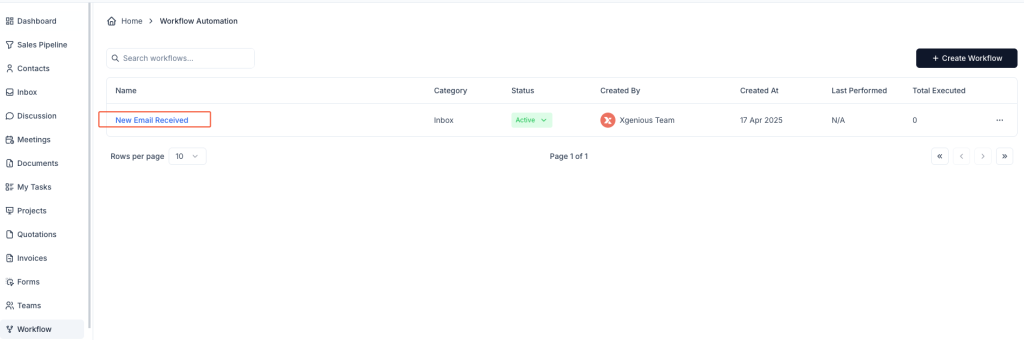
Step 1: Go to the Workflow Module #
- From the left sidebar, click on Workflow.
- Click + Create Workflow.
Step 2: Choose a Trigger #
- Enter a Workflow Name, like
New Contact Form → Deal. - Under the Inbox tab, choose New Message Received as the trigger.
Step 3: Define the Email Condition #
- In the IF section:
- Choose Subject.
- Set the condition to Contain.
- Enter a filter keyword such as
[Contact Form].
This ensures the workflow only runs for relevant emails.
Step 4: Set Action to “Convert to Deal” #
In the THEN section:
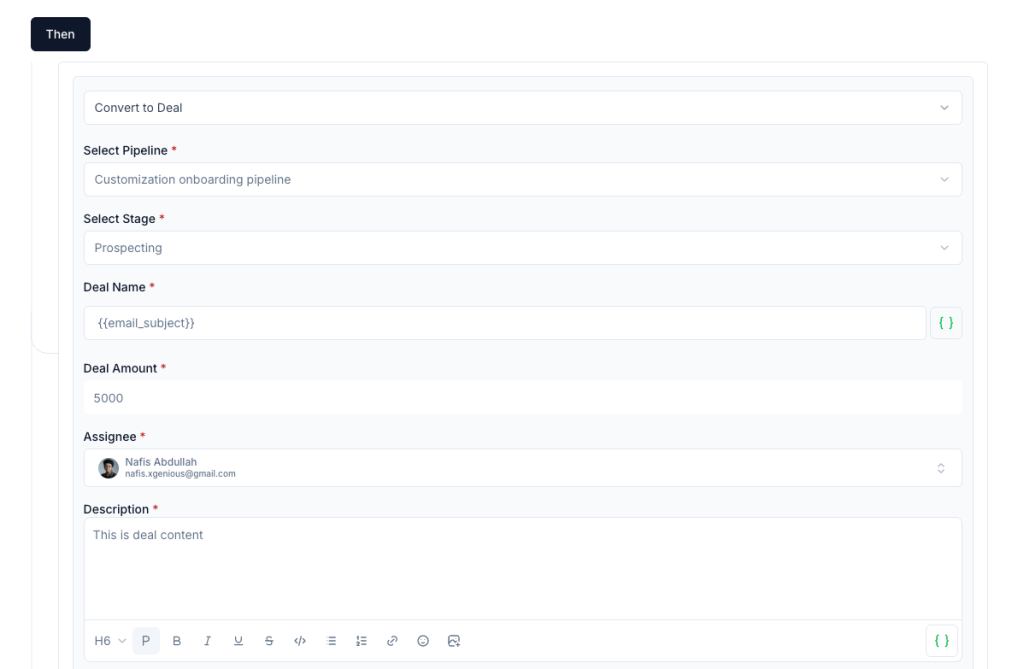
- Choose Convert to Deal.
- Fill in the deal creation details:
- Select Pipeline: Choose the relevant pipeline (e.g.,
Customization onboarding pipeline). - Select Stage: Choose the starting stage (e.g.,
Prospecting). - Deal Name: Use a static name or dynamic value like
{{email_subject}}. - Deal Amount: Enter a default value (e.g.,
5000) or use a variable. - Assignee: Select a team member responsible for the deal.
- Description: Add relevant notes or use
{{email_content}}to auto-fill from the email body.
- Select Pipeline: Choose the relevant pipeline (e.g.,
This action ensures the incoming email is immediately tracked as a sales opportunity in your CRM.
Step 5: Save and Activate the Workflow #
Click Create Workflow and ensure it is marked as Active so that it runs automatically when the condition is met.
Example Use Case #
Workflow Name: Create Deal from Contact Form
Trigger: New Message Received
Condition: Subject contains [Contact Form]
Action:
- Convert to Deal
- Pipeline: Customization onboarding pipeline
- Stage: Prospecting
- Deal Name:
{{email_subject}} - Amount: 5000
- Assignee: Nafis Abdullah
- Description:
This is deal content
Now, every qualifying email will generate a deal automatically helping your team act faster and stay organized.


