This automation ensures that any incoming email such as a customer inquiry, issue report, or complaint can be instantly turned into a support ticket, making it easy to manage and respond from your helpdesk.
Step 1: Open the Workflow Builder #
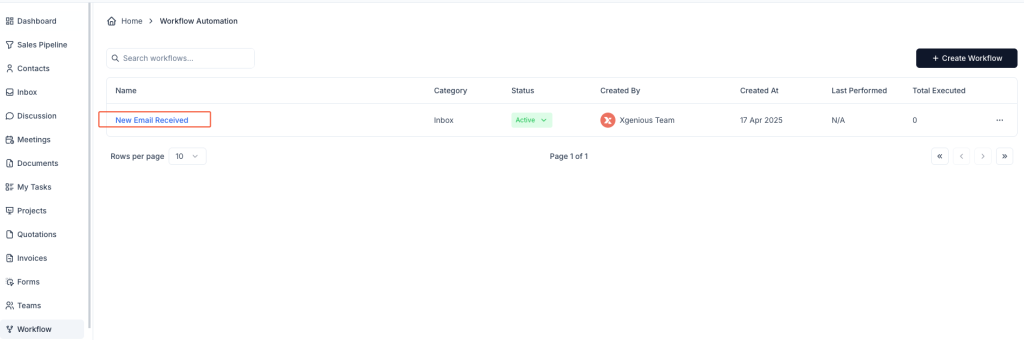
- Go to Workflow from the left sidebar.
- Click + Create Workflow in the top-right corner.
Step 2: Choose Trigger Type #
- Enter a name for your workflow (e.g.,
Contact Form → Support Ticket). - Under the Inbox tab, select New Message Received as the trigger.
Step 3: Define a Condition #
- In the IF section:
- Choose Subject.
- Set condition to Contain.
- Enter a keyword or phrase such as
[Support],[Contact Form], or any subject you want to filter.
This ensures only relevant messages trigger the support ticket.
Step 4: Set Action to “Convert to Support Ticket” #
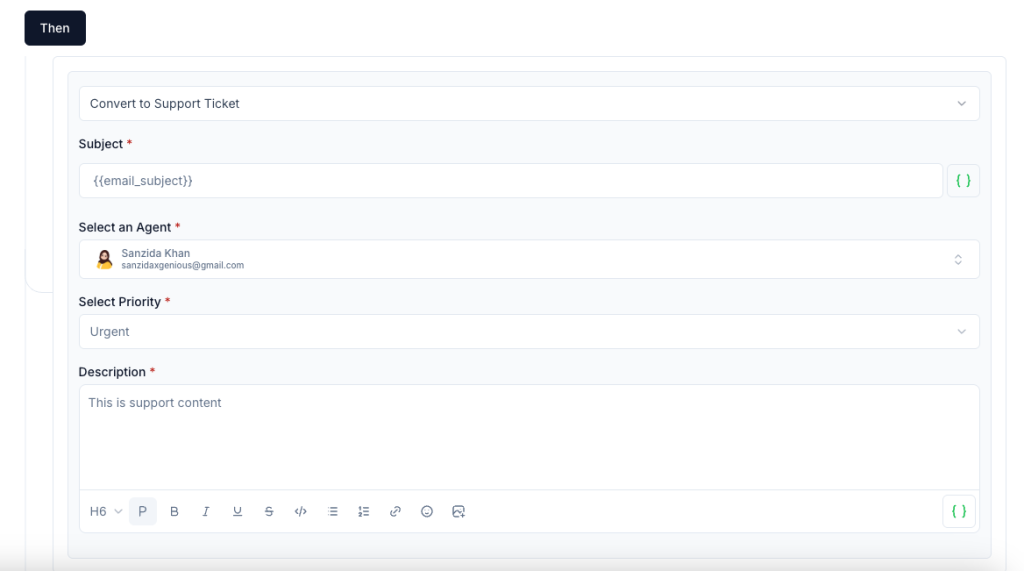
- In the THEN section, choose Convert to Support Ticket.
- Fill in the required fields:
- Subject: Use a static title or dynamic variable like
{{email_subject}}. - Assignee: Assign the ticket to a support team member.
- Priority: Select a priority level (Low, Medium, High).
- Description: Use
{{email_content}}to include the body of the email or enter a default message.
- Subject: Use a static title or dynamic variable like
You can also tag the ticket or add additional actions like auto-reply or assign to a specific folder.
Step 5: Save and Activate #
- Click Create Workflow to save your rule.
- Make sure the workflow is set to Active.
Whenever an email arrives matching the conditions, Taskip will automatically convert it into a support ticket with all the details filled in.
Example Setup #
Workflow Name: Auto Create Support Ticket
Condition:
- Subject contains
[Support]
Action: - Convert to Support Ticket
- Subject:
{{email_subject}} - Assignee: John Doe
- Priority: Medium
- Description:
{{email_content}}
This keeps your support process streamlined and ensures no inquiry goes unnoticed.


