To edit the meeting reminder email template, follow these steps:
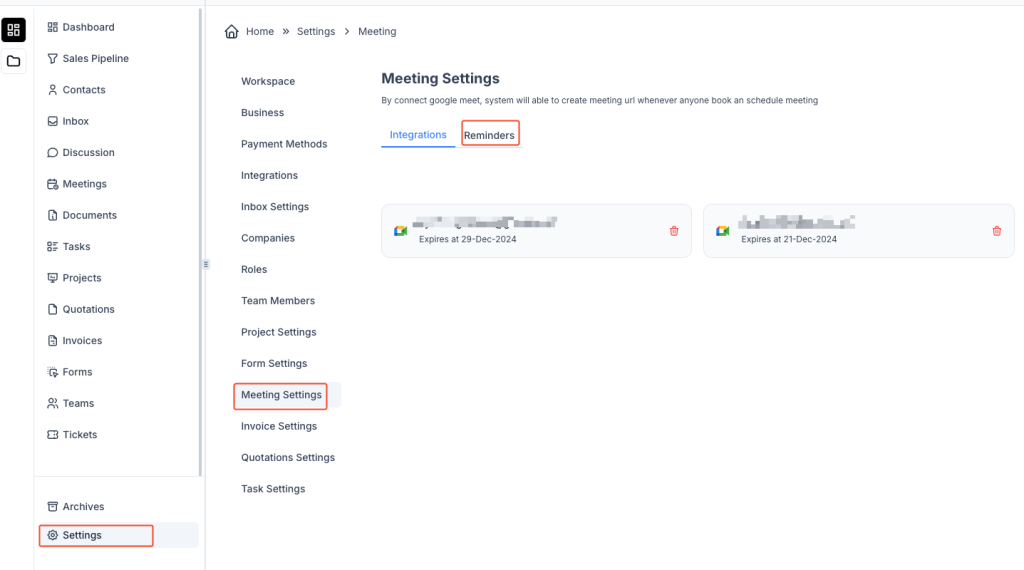
- Go to Settings
- Navigate to the Settings module from the left sidebar.
- Open Meeting Settings
- Click on Meeting Settings under the Settings menu.
- Go to the Reminders Tab
- Inside the Meeting Settings page, click on the “Reminders” tab.
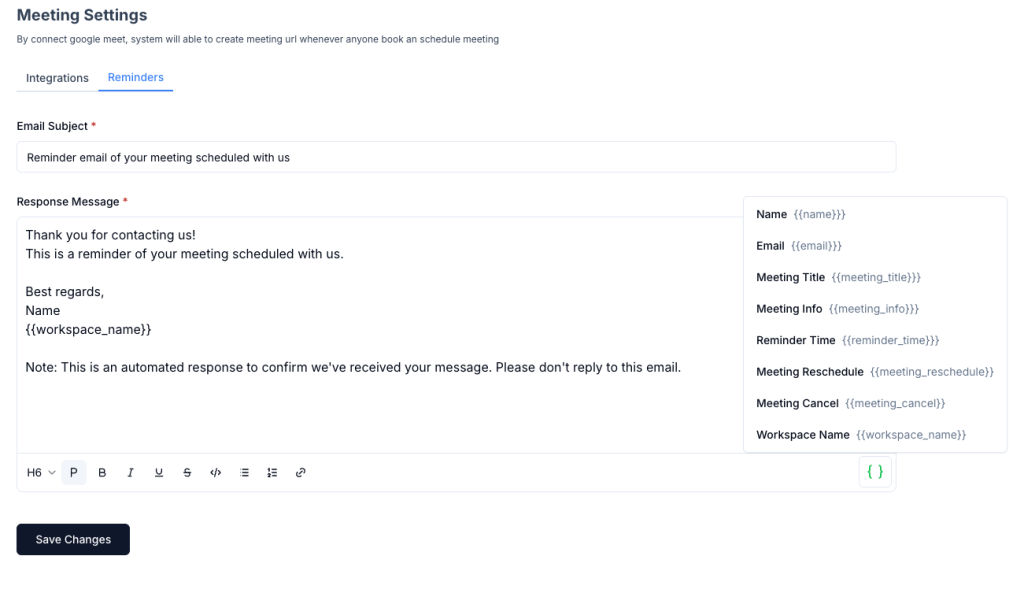
- Edit the Email Template
- Modify the Email Subject field as needed.
- Update the Response Message field with your custom message.
- You can use dynamic placeholders such as:
{{name}}– Recipient’s name{{email}}– Recipient’s email{{meeting_title}}– Meeting title{{reminder_time}}– Reminder time{{meeting_reschedule}}– Reschedule link{{meeting_cancel}}– Cancel link{{workspace_name}}– Your workspace name
- Save Changes
- Click the “Save Changes” button to update the template.
This ensures that attendees receive a customized reminder email for their scheduled meetings.


