Recurring invoices in Taskip help automate billing for subscriptions, retainers, or any services that require repeated charges. You can create an invoice and set it to recur weekly, monthly, or yearly until a specific date.
Step 1: Create a New Invoice #
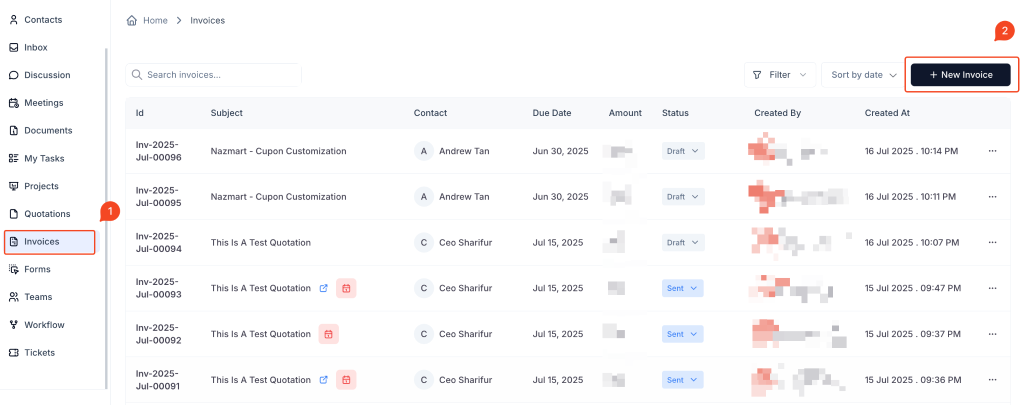
- Go to the Invoices section in the left-hand menu.
- Click the + New Invoice button at the top-right.
- Fill out the basic invoice information:
- Select the Contact
- Add Invoice Items
- Apply Discounts or Taxes if needed
- Click Save Invoice or move to the next step to configure recurring settings.
Step 2: Configure Recurring Payment #

After creating or saving an invoice:
- Open the invoice edit screen by clicking on the invoice you want to configure.
- Navigate to the Payment section.
You will find the Recurring Payment option below the payment gateway selection and payment type (Full or Partial).
Recurring Payment Options
- Enable Recurring Payment: Toggle the switch to activate recurring billing.
- Recurring Type: Choose how often the invoice should recur.
- Weekly
- Monthly
- Yearly
- Recurring Until: Set the end date for the recurring cycle. After this date, no additional invoices will be generated.
Behavior
Recurring invoices will be automatically generated starting from the date the invoice is paid. They will follow the chosen interval and continue until the “Recurring Until” date is reached.
Use Case Examples #
- Weekly Billing: Use for hourly service retainers, marketing retainers, etc.
- Monthly Billing: Use for subscription plans, maintenance contracts.
- Yearly Billing: Ideal for domain renewals, software licenses, or annual services.
Best Practices #
- Use clear subjects and item names in recurring invoices for traceability.
- Enable recurring billing only when payment terms are confirmed.
- Always set a reasonable end date for recurring to avoid overbilling.
Frequently Asked Questions (FAQ) #
When does the recurring invoice cycle start? #
The cycle begins on the date the first invoice is marked as paid.
Can I change the recurring frequency later? #
Yes. You can edit the invoice and update the recurring type and end date at any time.
Will Taskip automatically charge the client? #
If you’re using an integrated payment gateway and the client pays online, Taskip will generate the next invoice on schedule. However, auto-charging depends on the payment method and integration.
Can I stop a recurring invoice mid-cycle? #
Yes. You can disable the recurring option in the edit screen or change the “Recurring Until” date to an earlier point.
Are reminders also sent for recurring invoices? #
Yes. If invoice reminders are configured, they will apply to recurring invoices as well.


