Webhooks allow your application to receive real-time HTTP notifications whenever specific events occur within Taskip. Instead of repeatedly polling the API for changes, you can configure webhook endpoints that Taskip will call automatically when a subscribed event is triggered.
This enables seamless integration with third-party services, automation platforms (such as Activepieces, Zapier, or Make), and your own custom applications.
Getting Started #
To access the Webhook Settings page, follow these steps: #
- Log in to your Taskip workspace.
- Click on Settings in the left sidebar menu.
- In the Settings sub-menu, click on Webhook.
- You will see the Webhook Settings page with a list of your existing webhooks (if any).
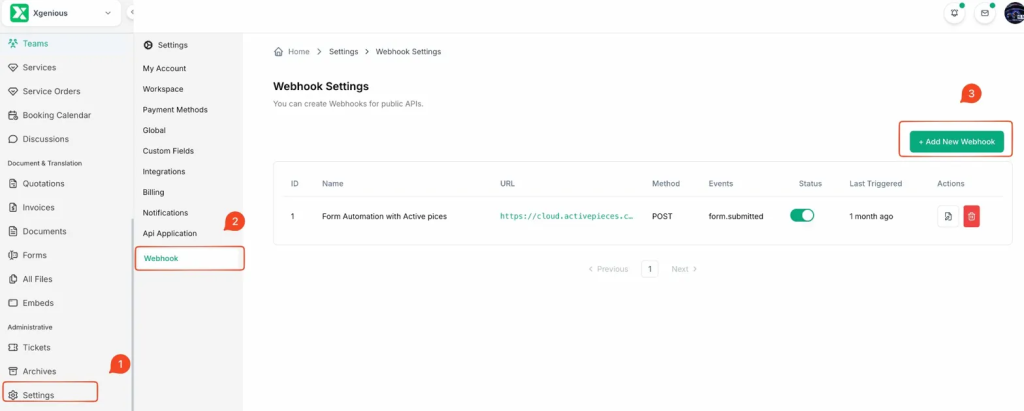
From this page, you can view all configured webhooks along with their ID, Name, URL, HTTP Method, subscribed Events, Status, and Last Triggered timestamp.
Adding a New Webhook #
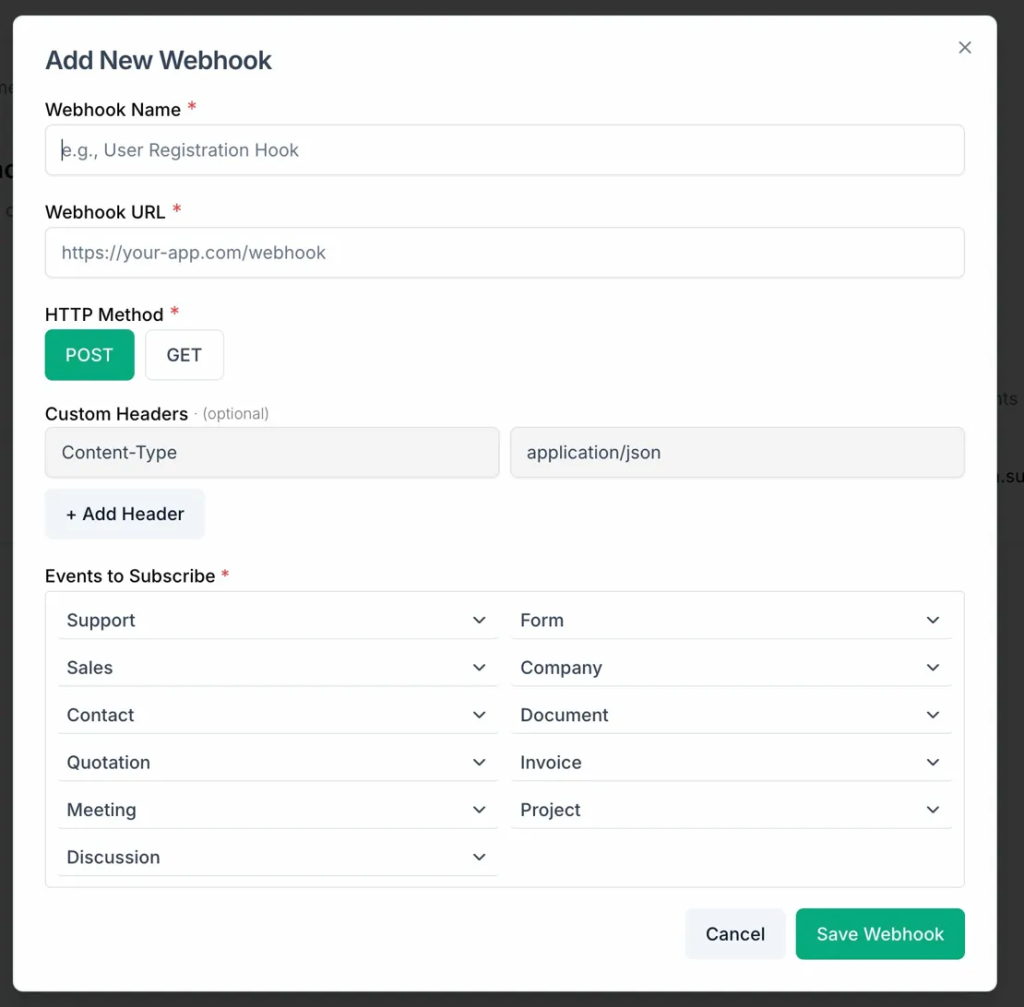
To create a new webhook, click the + Add New Webhook button at the top-right corner of the Webhook Settings page. A dialog box will appear with the following fields:
Webhook Name #
A descriptive label for your webhook (e.g., User Registration Hook or Form Automation with Activepieces). This name is for your own reference and helps you identify the webhook in the list.
Webhook URL #
The destination endpoint URL where Taskip will send the HTTP request when the event occurs. This must be a publicly accessible HTTPS URL. For example: https://your-app.com/webhook
HTTP Method #
Choose the HTTP method for the webhook request. The available options are:
- POST – Sends event data in the request body (recommended for most use cases).
- GET – Sends event data as query parameters in the URL.
Custom Headers (Optional) #
You can add custom HTTP headers to the webhook request. This is useful for authentication or specifying content types. Each header consists of a key-value pair. For example:
Content-Type : application/json
Click + Add Header to include additional headers as needed.
Events to Subscribe #
Select which events should trigger the webhook. Events are organized by category. Each category dropdown allows you to subscribe to one or more specific events. A full reference of available events is provided in the next section.
Once you have filled in all required fields, click Save Webhook to create the webhook. It will appear in the list on the Webhook Settings page with its status set to active by default.
Managing Webhooks #
On the Webhook Settings page, each webhook entry provides the following actions:
- Status Toggle – Use the toggle switch to enable or disable a webhook without deleting it.
- Edit – Click the edit icon to modify the webhook’s configuration (name, URL, method, headers, or events).
- Delete – Click the delete icon (trash) to permanently remove a webhook.
The Last Triggered column shows the most recent time the webhook was fired, giving you visibility into activity.
Supported Webhook Events #
Below is the complete list of events you can subscribe to, organized by category. When an event is triggered, Taskip sends a payload to your configured URL containing relevant data about the event.
| Event Name | Description |
|---|---|
| support.ticket.created | Triggered when a new support ticket is created. |
| support.ticket.status.updated | Triggered when a support ticket’s status changes. |
| support.ticket.deleted | Triggered when a support ticket is deleted. |
| Event Name | Description |
|---|---|
| form.created | Triggered when a new form is created. |
| form.submitted | Triggered when a form is submitted by a user. |
| Event Name | Description |
|---|---|
| sales.pipeline.deal.created | Triggered when a new deal is created in the sales pipeline. |
| sales.pipeline.deal.stage.change | Triggered when a deal moves to a different stage. |
| sales.pipeline.deal.task.created | Triggered when a task is created within a deal. |
| sales.pipeline.deal.task.activity.created | Triggered when a new activity is logged on a deal task. |
| sales.pipeline.deal.task.meeting.created | Triggered when a meeting is scheduled for a deal task. |
| Event Name | Description |
|---|---|
| company.created | Triggered when a new company record is created. |
| Event Name | Description |
|---|---|
| contact.created | Triggered when a new contact is created. |
| contact.invite_to_workspace | Triggered when a contact is invited to the workspace. |
| contact.join_to_workspace | Triggered when a contact joins the workspace. |
| Event Name | Description |
|---|---|
| document.created | Triggered when a new contact is created. |
| document.published | Triggered when a contact is invited to the workspace. |
| Event Name | Description |
|---|---|
| quotation.created | Triggered when a new contact is created. |
| quotation.status.updated | Triggered when a contact is invited to the workspace. |
| quotation.sent | Triggered when a quotation is sent to a client. |
| quotation.published | Triggered when a quotation is published. |
| Event Name | Description |
|---|---|
| invoice.created | Triggered when a new invoice is created. |
| invoice.status.update | Triggered when an invoice’s status changes. |
| invoice.sent | Triggered when an invoice is sent to a client. |
| invoice.publish | Triggered when an invoice is published. |
| invoice.payment.paypal | Triggered when a PayPal payment is received for an invoice. |
| invoice.payment.stripe | Triggered when a Stripe payment is received for an invoice. |
| invoice.payment.mollie | Triggered when a Mollie payment is received for an invoice. |
| invoice.payment.razorpay | Triggered when a Razorpay payment is received for an invoice. |
| invoice.payment.xendit | Triggered when a Xendit payment is received for an invoice. |
| Event Name | Description |
|---|---|
| meeting.booked | Triggered when a new meeting is booked. |
| meeting.cancelled | Triggered when a meeting is cancelled. |
| meeting.rescheduled | Triggered when a meeting is rescheduled to a new time. |
| Event Name | Description |
|---|---|
| project.created | Triggered when a new project is created. |
| project.status.updated | Triggered when a project’s status changes. |
| project.task.created | Triggered when a task is created within a project. |
| project.task.status.updated | Triggered when a project task’s status changes. |
| project.task.comment.created | Triggered when a comment is added to a project task. |
| Event Name | Description |
|---|---|
| discussion.created | Triggered when a new discussion thread is created. |
Best Practices #
Use HTTPS Endpoints #
Always use HTTPS URLs for your webhook endpoints to ensure data is transmitted securely.
Respond Quickly #
Your webhook endpoint should return a 2xx HTTP status code as quickly as possible. If the endpoint takes too long to respond, the request may time out. Process heavy logic asynchronously after acknowledging receipt.
Verify the Payload #
If your webhook includes custom headers for authentication, validate those headers on incoming requests to ensure the payload is genuinely from Taskip.
Handle Duplicates Gracefully #
In rare cases, Taskip may send the same event more than once. Design your endpoint to handle duplicate events idempotently by checking for unique identifiers in the payload.
Monitor and Log #
Keep logs of incoming webhook requests to help with debugging and monitoring. The Last Triggered column in Taskip gives you a quick snapshot, but detailed server-side logs are invaluable for troubleshooting.
Use Automation Platforms #
If you don’t want to build a custom server, you can use platforms like Activepieces, Zapier, Make, or n8n to receive and act on webhook events with no-code workflows.
Troubleshooting #
Webhook Not Firing
- Ensure the webhook status is toggled on (active).
- Verify that the correct event is subscribed.
- Check that your endpoint URL is correct and publicly accessible.
Receiving Errors
- Confirm your endpoint returns a 2xx status code.
- Ensure the Content-Type header matches what your server expects.
- Review server logs for parsing or authentication errors.
Delayed Notifications
- Check your server’s response time. Slow responses can delay subsequent deliveries.
- If using a third-party automation tool, verify that the tool’s webhook listener is active.


