You can configure your workspace settings to customize how your organization appears and operates in Taskip.
- Log in to your Taskip account.
- Go to Settings.
- Click Workspace.
In the Workspace settings, you will find the following sections:
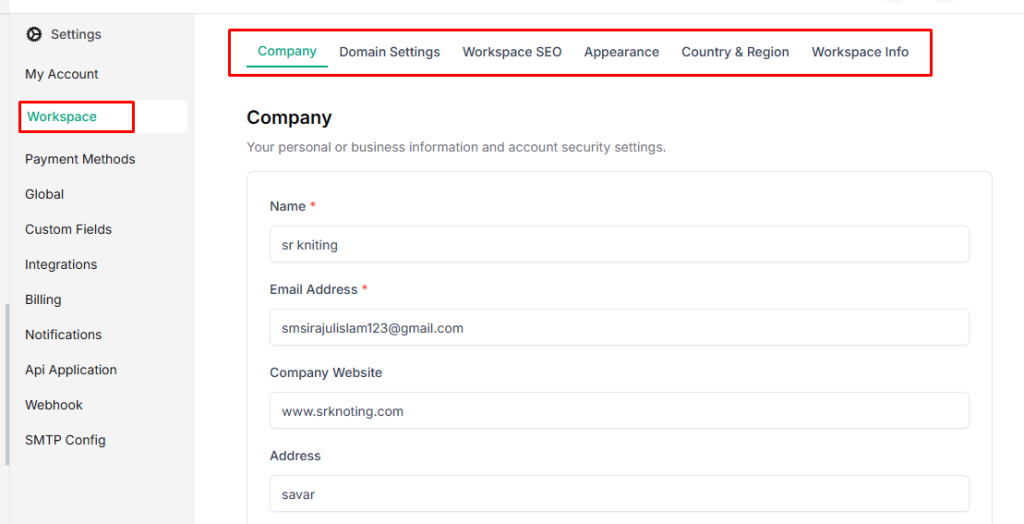
Company #
Manage your company information and business details from the Company settings.
Select Company under Workspace. From here, you can update the following information:
Basic Information
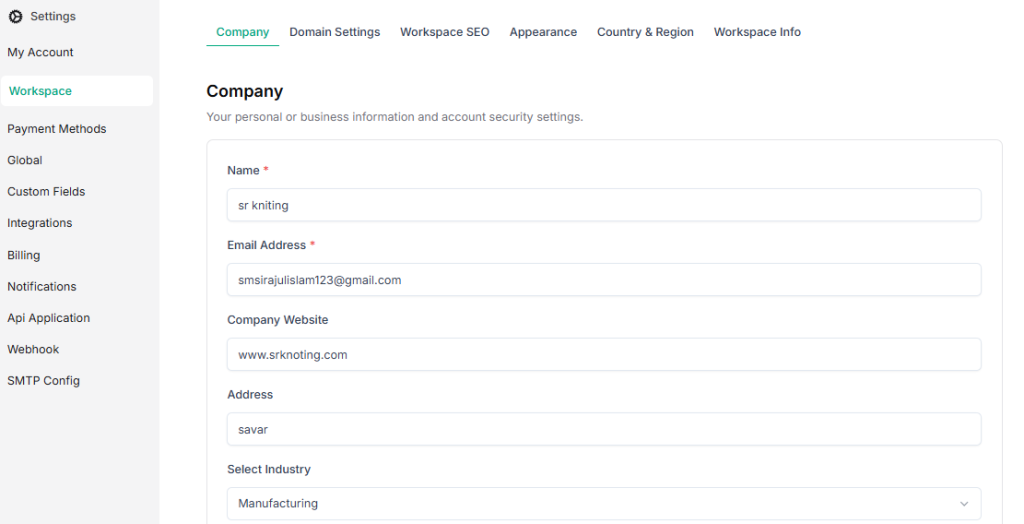
- Name* – Enter your company name.
- Email Address* – Add your business contact email.
- Company Website – Provide your official website link.
- Address – Enter your company address.
- Select Industry – Choose the industry your business belongs to (e.g., Manufacturing).
- Description – Add a short description of your company.
Branding
- Logo – Upload your company logo.
- Supported formats: PNG, JPG, GIF (up to 5MB)
- Signature – Upload your company signature for documents or communications.
- Supported formats: PNG, JPG, GIF (up to 5MB)
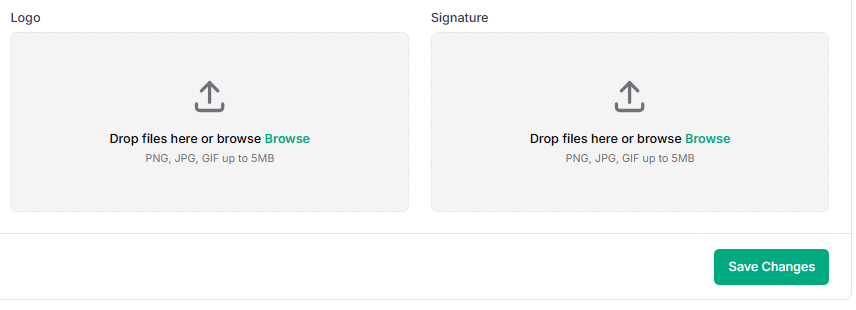
After making the necessary updates, click Save Changes to apply them.
Domain Setting #
You can configure a custom domain for your Taskip workspace to enable a full white-label experience.
- Select Domain Settings under Workspace
- You will find your Current Domain, which is automatically assigned by Taskip.
Example:https://popus.taskip.app (Primary)
You can continue using the default domain if you prefer.

3. Add your Custom Domain. Enter a fully qualified subdomain (e.g., crm.yourdomain.com)
4. Click Add Domain and configure the required DNS records with your domain provider.
5. Once DNS is set correctly, verify the domain.
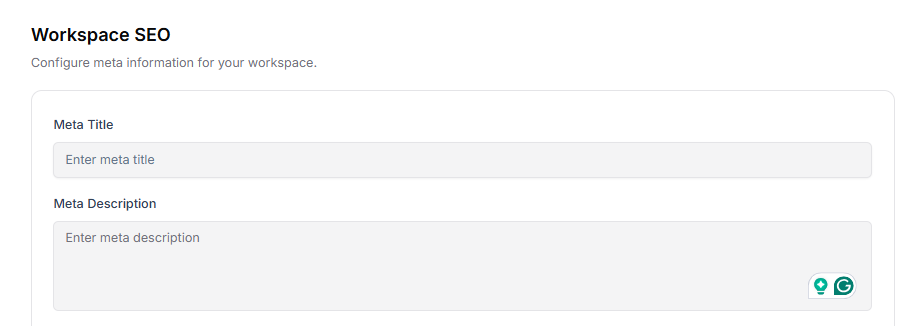
Workspace SEO #
Configure the metadata for your Taskip workspace to improve search visibility and sharing previews.
Go to Settings > Workspace >Workspace SEO.
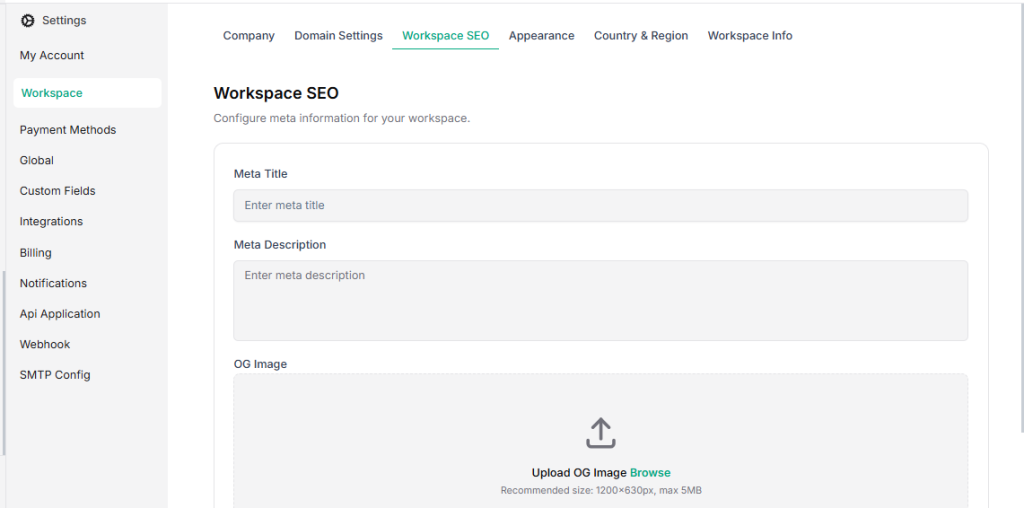
SEO Settings:
- Meta Title – Enter the title that will appear in search engine results.
- Meta Description – Add a short description for your workspace that appears in search results.
- OG Image – Upload an Open Graph image for social sharing.
- Recommended size: 1200x630px
- Maximum file size: 5MB
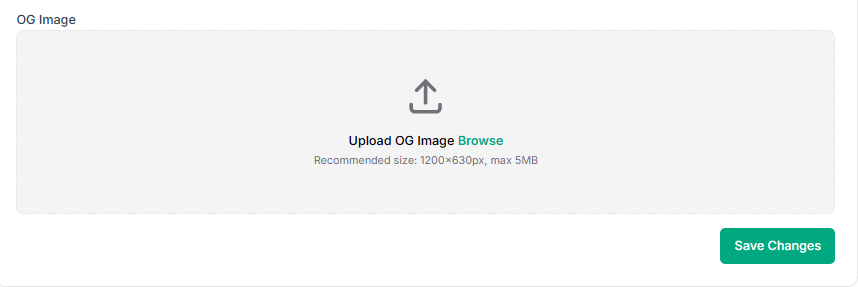
Click Save Changes to apply your SEO settings.
Appearance Settings #
The Appearance tab allows you to personalize your Taskip workspace to reflect your brand identity.
Steps to customize your appearance:
- Go to Settings → Workspace → Appearance.
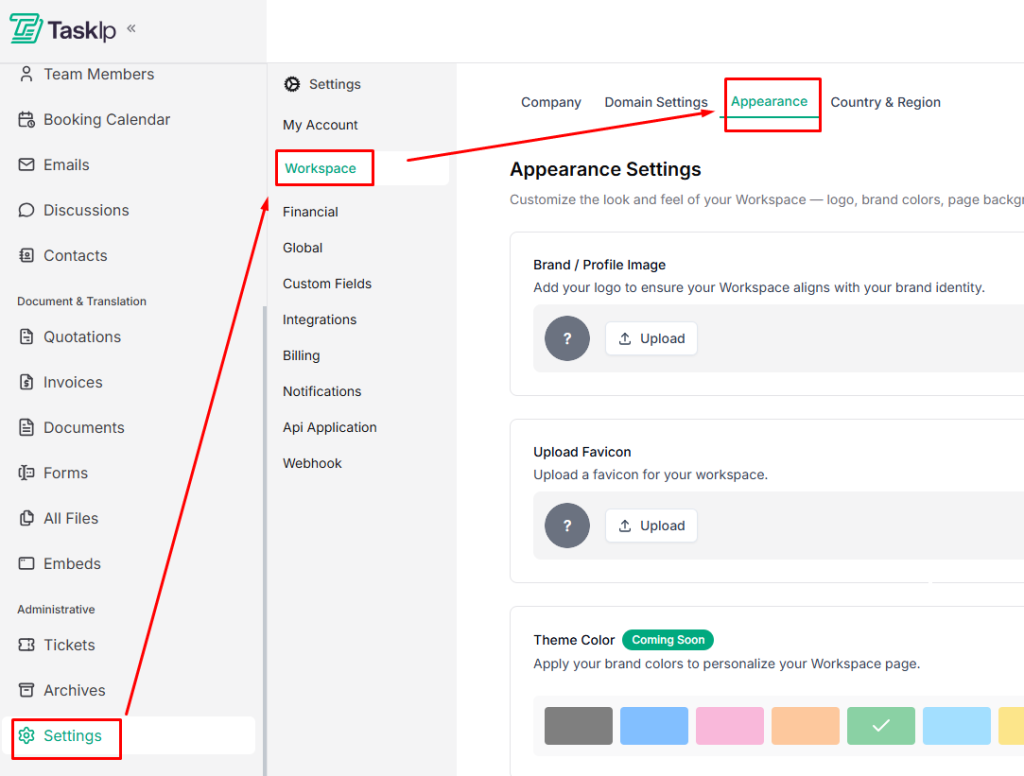
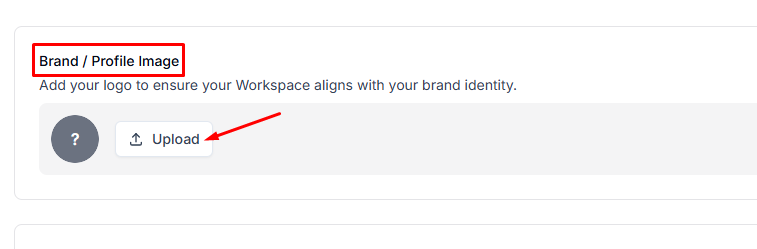
- Upload your Brand/Profile Image (company logo) to display on your portal.
- Upload a Favicon for browser tabs to reinforce your brand.
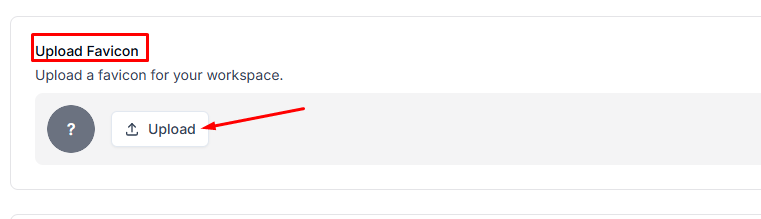
| Tip: Use high-quality images for your logo and favicon to maintain a professional look across devices. |
- Coming soon: Customize Theme Color, Page Color, and Calendar View for a fully branded experience.
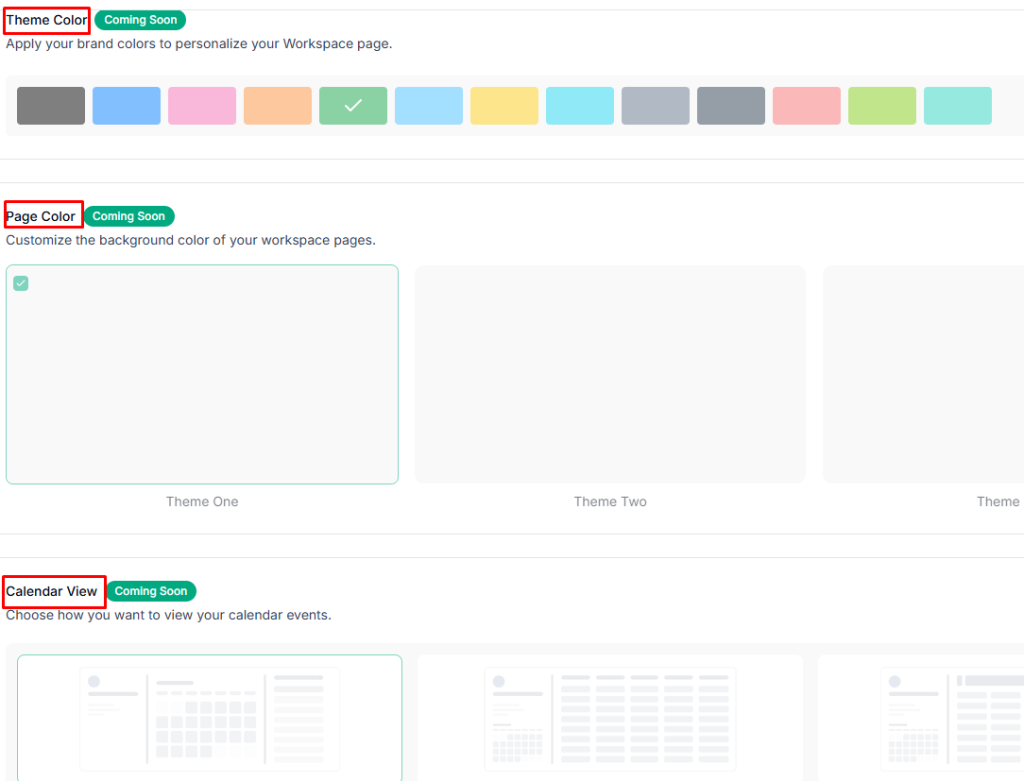
| Note: Appearance settings apply to all workspace users and clients. |
Country & Region #
The Country & Region tab lets you configure regional settings for your workspace, ensuring accurate scheduling, reporting, and localized experiences for your team and clients.
Steps to set Regional Preferences:
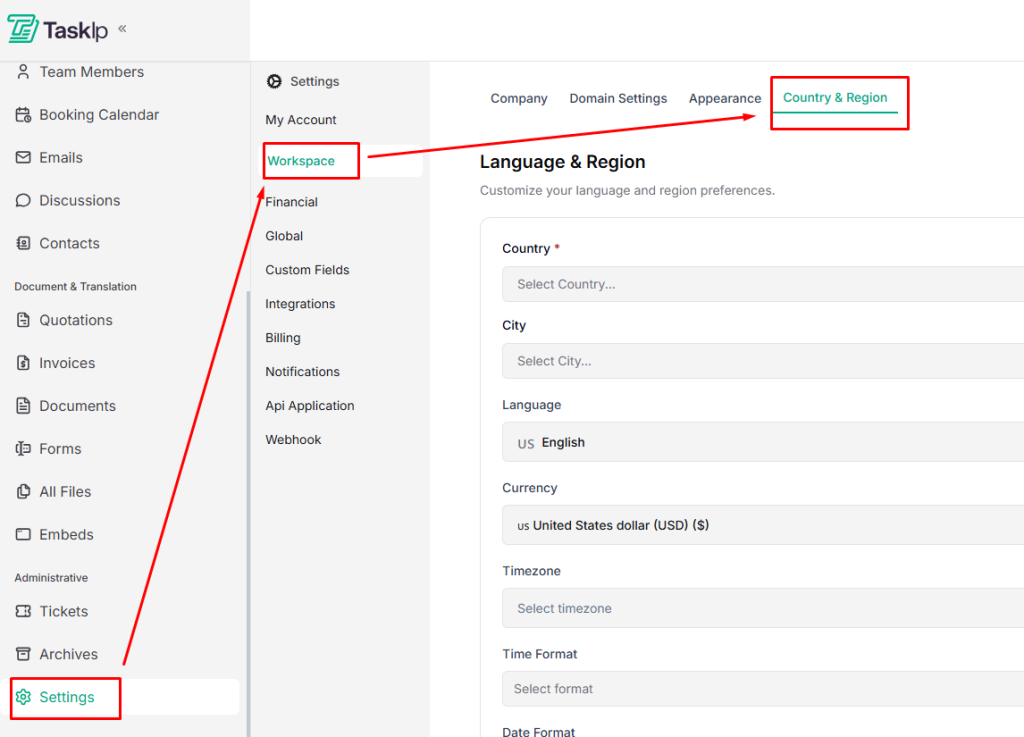
- Go to Settings → Workspace → Country & Region.
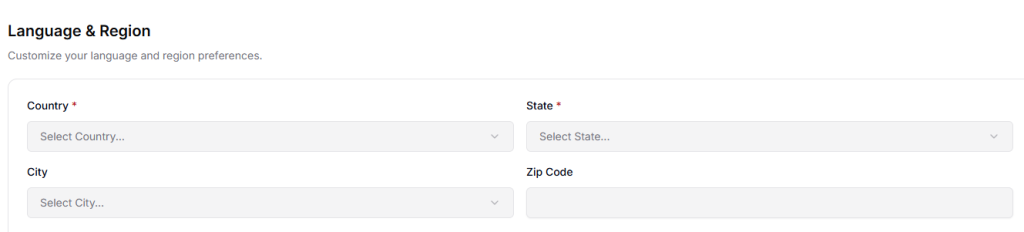
- Select your Country, State, City, and enter your Zip Code.
- Choose your preferred Language and Currency using the dropdown menu.
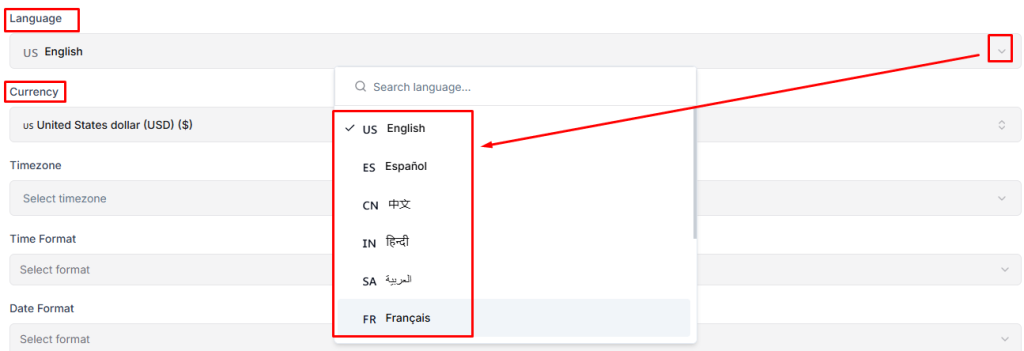
- Set your Timezone, Time Format (12-hour or 24-hour), and Date Format using the dropdown menu.
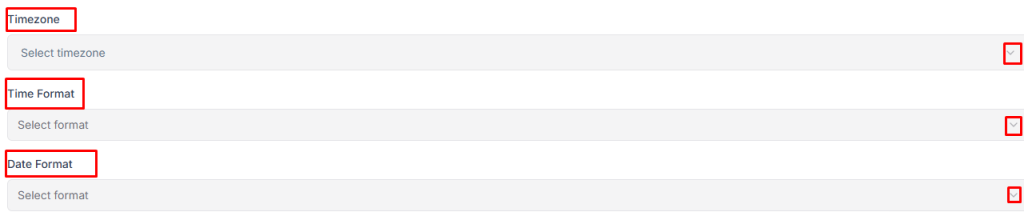
| Tip: Make sure your timezone and date/time formats match your team’s location to avoid scheduling conflicts. |
- Click Save to apply your preferences.
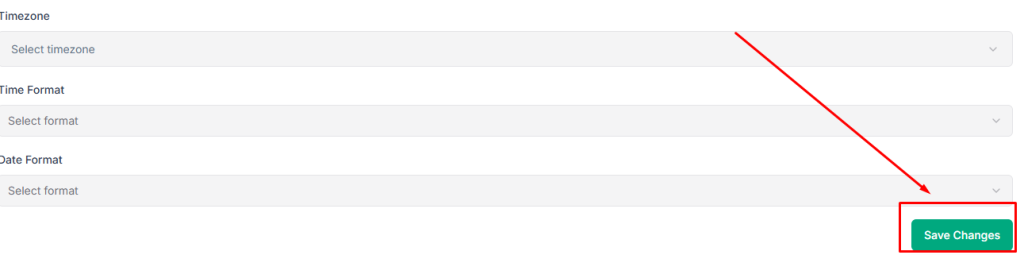
Note: These settings affect all workspace users and client-facing views.
Workspace Information #
Describe your workspace, add Workspace name and Workspace description.

Delete Workspace #
You can permanently delete your Taskip workspace from the Company tab.
Steps to delete your workspace:
- Go to Settings → Workspace → Company.
- Scroll down to the Delete Workspace section.
- Read the warning carefully:
“ This will permanently delete your entire workspace, including all calendars, team members, bookings, and associated data. This action is irreversible — please proceed with caution.” - Click Delete Account to confirm.

| Important: This action cannot be undone. Make sure to export any important data before deleting your workspace. |


