The Data Management section allows you to import or export CRM data in bulk using CSV files. This feature helps you quickly migrate data into Taskip or download your existing records for backup, reporting, or transfer to another system.
You can manage CRM records such as Clients, Leads, Companies, and Deals through this section.
Navigation #
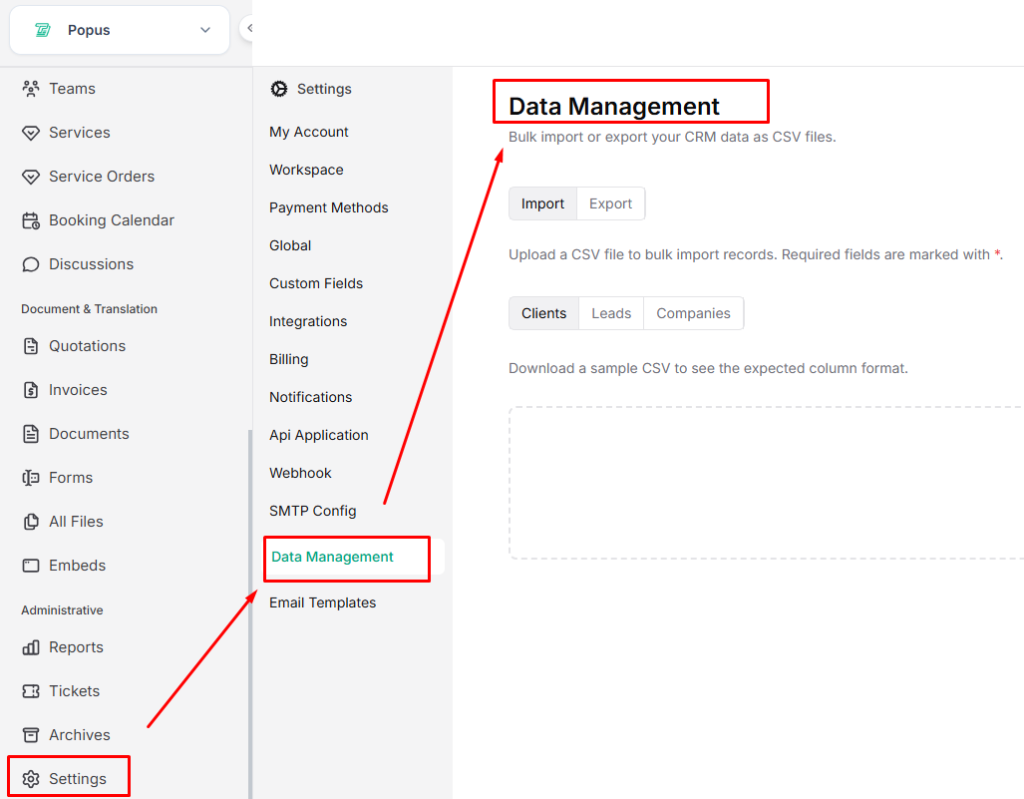
To access Data Management:
Dashboard → Settings → Data Management
Import Data #
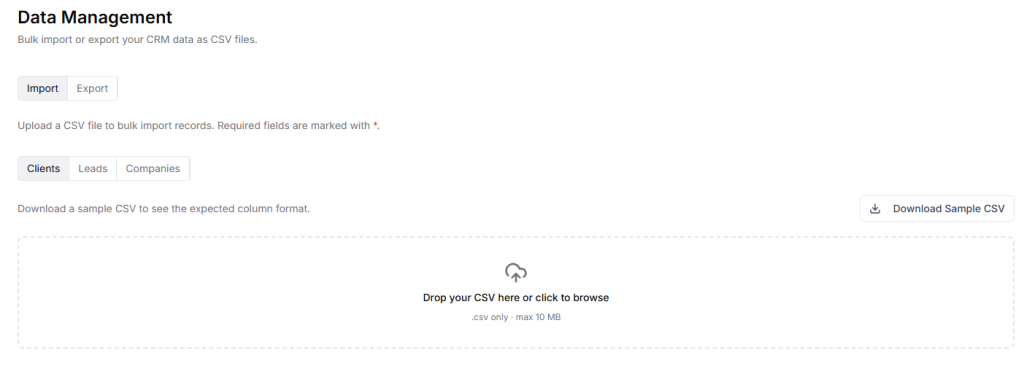
The Import feature allows you to upload a CSV file to add multiple records to your workspace at once. This is useful when migrating data from another CRM or adding large lists of contacts.
Supported Import Types #
You can import the following records:
- Clients
- Leads
- Companies
How to Import Data? #
- Go to Settings in your Taskip dashboard.
- Click Data Management.
- Select the Import tab.
- Choose the type of data you want to import (Clients, Leads, or Companies).
- Click Download Sample CSV to view the required column format.
- Prepare your CSV file using the same structure.
- Upload the file by dragging and dropping it into the upload area or clicking to browse.
- Submit the file to begin the import process.
Note:
Required fields in the CSV file are marked with an asterisk (*). The file must be in CSV format and should not exceed the allowed size.
Export Data #
The Export feature allows you to download your CRM data from Taskip as a CSV file.\
Supported Export Types #
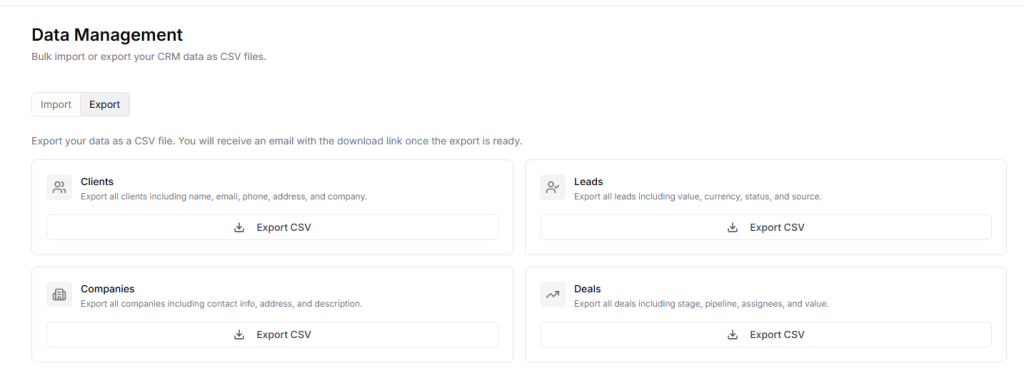
You can export the following records:
- Clients – Includes name, email, phone, address, and company details.
- Leads – Includes value, currency, status, and source.
- Companies – Includes company contact information, address, and description.
- Deals – Includes stage, pipeline, assigned members, and deal value.
How to Export Data #
- Go to Settings in your Taskip dashboard.
- Click Data Management.
- Select the Export tab.
- Choose the type of data you want to export (Clients, Leads, Companies, or Deals).
- Click Export CSV.
Once the export is ready, you will receive an email with a download link for the CSV file.


