In Taskip, you can send invoices using custom-designed email templates to maintain brand consistency and professionalism. This feature allows you to personalize the communication your client receives with dynamic placeholders and reusable layouts.
Steps to Send an Invoice with a Custom Email Template #
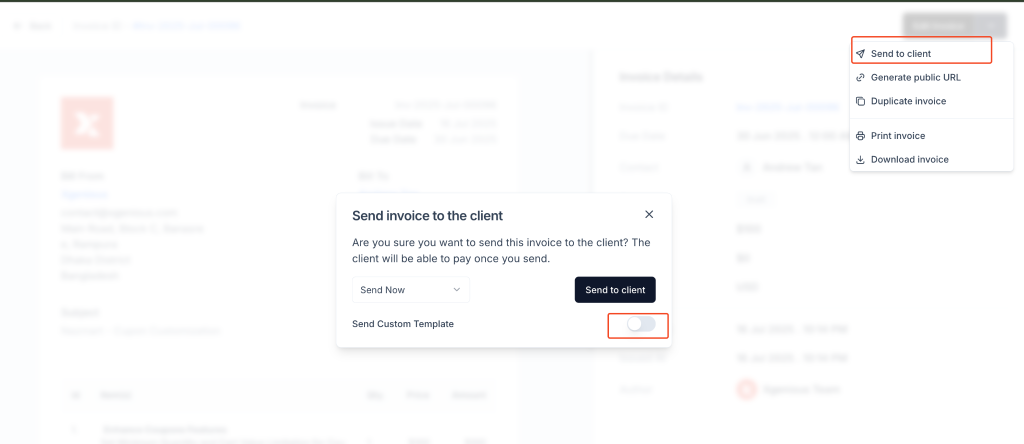
1. Go to the Invoices Section
- From the sidebar, click on Invoices
- Locate the invoice you wish to send
2. Open the Send Menu
- Click the dropdown menu (three-dot icon) next to the invoice
- Select Send to client
3. Choose Sending Time
- From the dialog box, choose when to send the invoice:
- Send Now (default)
- Send Later (optional scheduling feature, if supported)
4. Enable Custom Email Template
- Toggle the switch next to Send Custom Template to activate the template selection field
5. Select an Email Template
- A search box will appear
- Search and select the appropriate email template (e.g., “Payment Due Reminder”)
- The email body will use this template when the invoice is sent
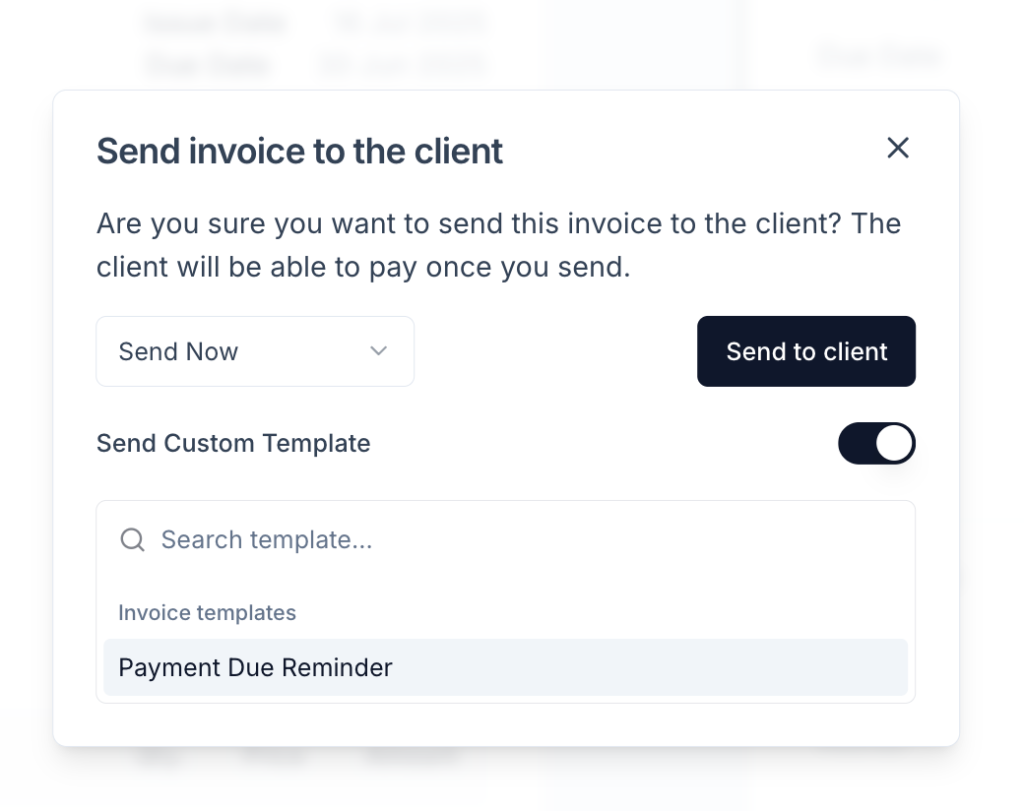
6. Click “Send to Client”
- Once the settings are confirmed, click Send to client
- The invoice will be emailed using the selected custom template
Why Use Email Templates for Invoices #
- Maintain brand consistency in all outgoing communications
- Save time with reusable, pre-formatted designs
- Ensure important details are never missed using dynamic placeholders
- Make a professional impression with visually styled content
Best Practices #
- Use placeholders like
{{Full_name}},{{Invoice_url}}, and{{Total}}for dynamic personalization - Always preview your template when designing to ensure layout and content render properly
- Create different templates for various use cases (e.g., first invoice, follow-up, overdue reminder)
Frequently Asked Questions (FAQ) #
Can I use a different email template for each invoice? #
Yes. You can choose a different template each time you send an invoice.
Are templates available for quotations too? #
Yes. Taskip supports separate email templates for both invoices and quotations.
Can I schedule the invoice to be sent later using a custom template? #
Yes. If the platform supports “Send Later,” it works with custom templates as well.
What happens if I don’t select a template? #
If no template is selected, Taskip will use the system default email layout.
Can I preview the email before sending? #
While editing a template you can preview it. During invoice sending, previews are not shown, ensure your template is correct beforehand.


